How do I use GenFM?
GenFM is available in Studio. It allows you to automatically create a podcast based on any document you provide.
GenFM is available in Studio. It allows you to automatically create a podcast based on any document you provide.
Go to Studio.
Click Audio.
Click Workflows.
Click Generate a podcast.
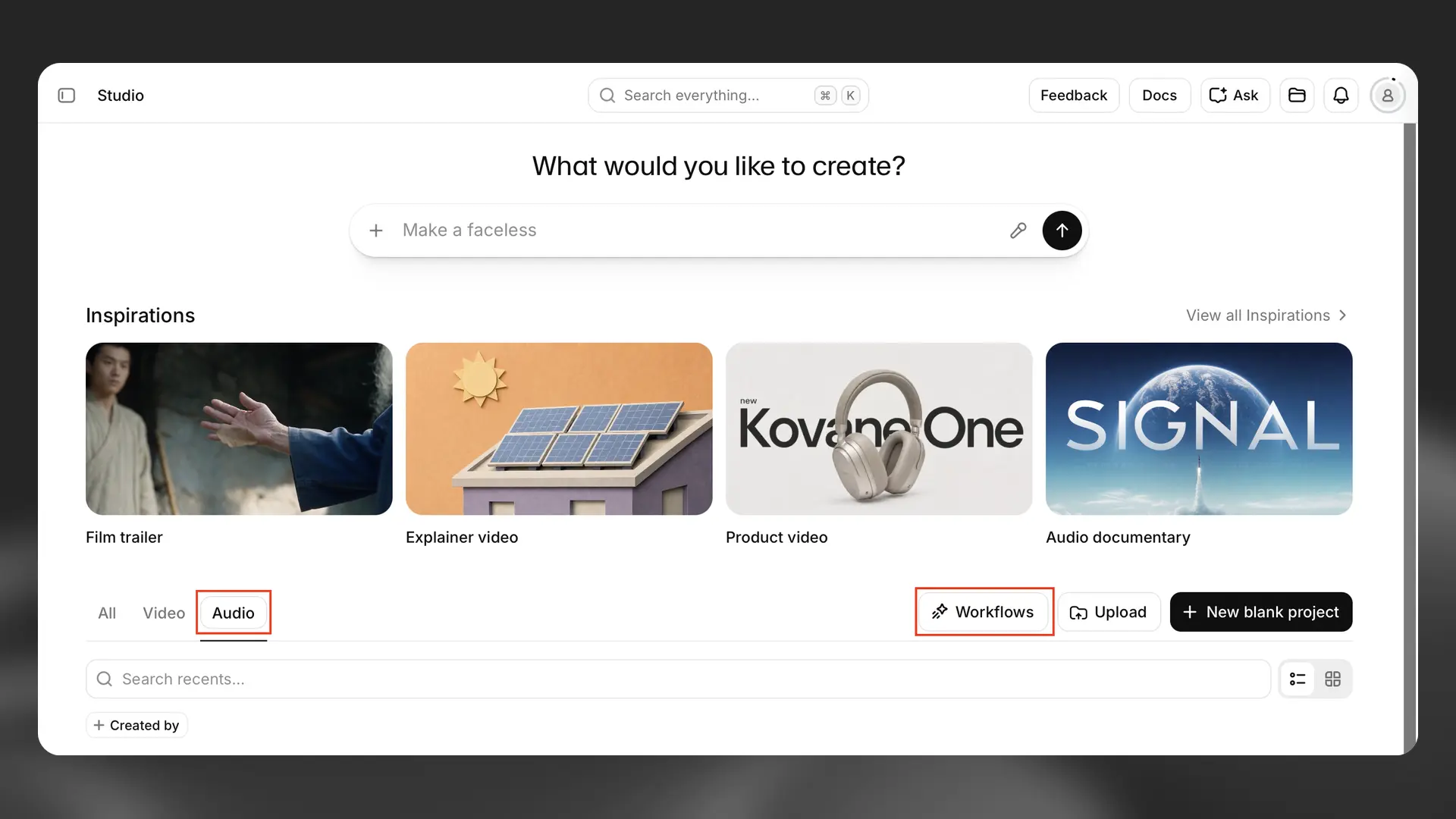
You can then select options for your podcast.
Select source
Section titled “Select source”For the source material for your podcast, you can upload a document (EPUB, PDF, TXT, HTML, DOCX, XML or FDX), provide a URL, or link to an existing project.
Audio settings
Section titled “Audio settings”Select whether you’d like a conversation between a host and a guest, or a bulletin for a shorter, more focused podcast with just the host.
Set the duration to short, default or long. The actual duration depends on the format, voice and language.
You can either use the suggested voices or make your own selection.
By default, the language will be automatically detected based on the source material, but you can also set this to any supported language.
Preferences
Section titled “Preferences”Here you have the option to set focus topics for the podcast. These will be determined by the AI if you don’t add your own.
When you click Generate, the text of your podcast will be generated. You can check and edit the text of your podcast before you convert it to audio. When you’re happy, click Export and the audio will be generated and available for download.
If you already have a script ready, we recommend starting with New empty audio project or Narrate an audiobook. If you have a CSV script with speakers and timing, use Import a script. Using GenFM via the Generate a podcast option will automatically generate a new script based on the source material you provide.