How can I change the voice and settings across multiple paragraphs in Studio?
To change the voice for specific sections or paragraphs
Section titled “To change the voice for specific sections or paragraphs”Simply highlight the section, sentence, or paragraph where you wish to change the voice, then select a voice that fits your character or narration using the voice selection drop-down in the Edit Speech sidebar to the left. When you change the voice, you'll need to generate new audio.
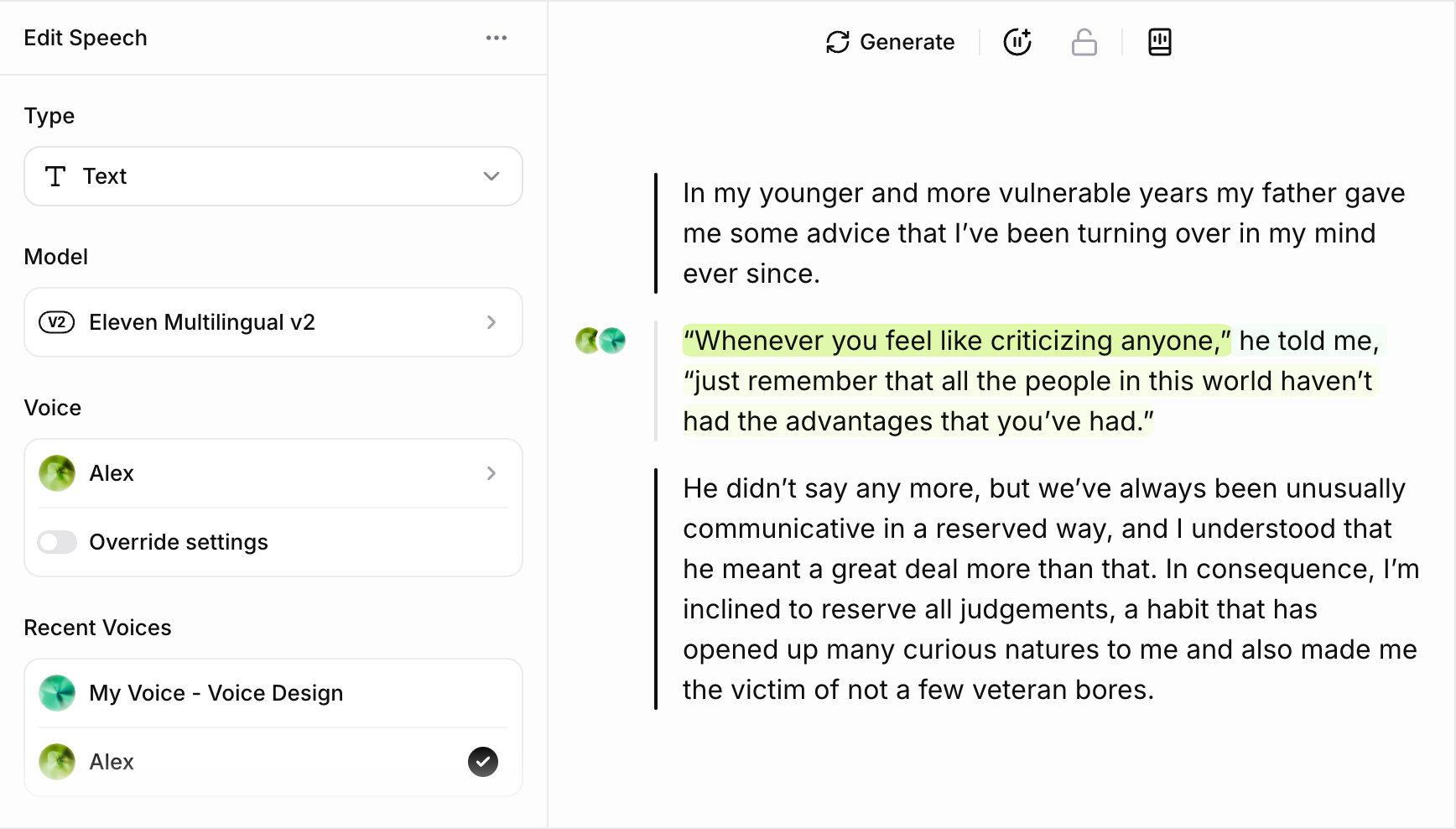
When finished, you’ll see the voice orb to the left of your paragraph change, and your text will be highlighted in the same color – a simple way to see which sentences have which voice. For a quick keyboard shortcut to show all voices and their color orbs per paragraph, press Cmd+Opt+A or Ctrl+Alt+A
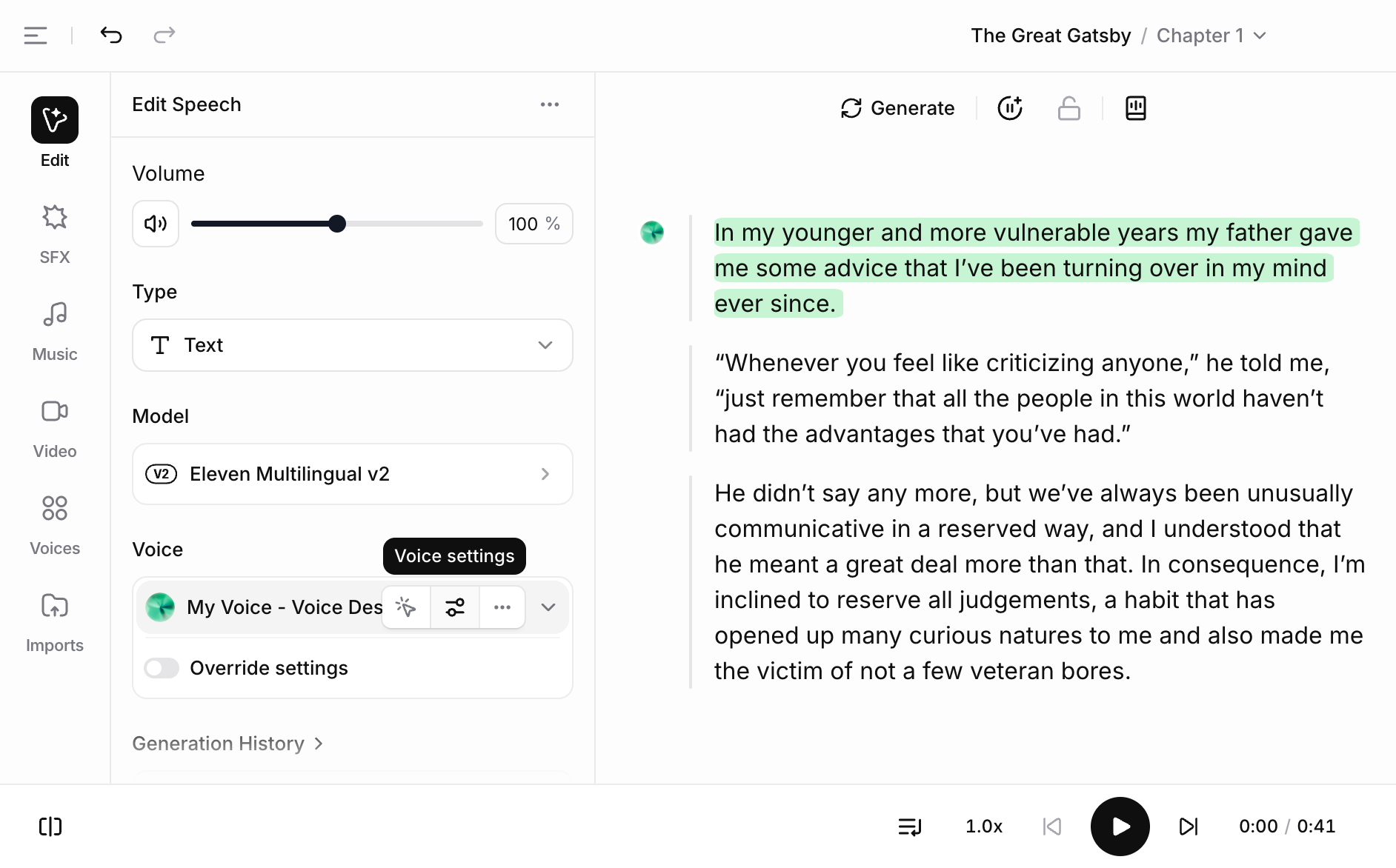
You can also adjust the voice settings including stability, similarity, speaker boost, and more, to exaggerate and customize your output. You can use Override settings to change the settings for just the selected text or paragraph, or adjust the settings for all paragraphs using the Voice settings button in the Edit Speech sidebar.
To change the voice for all paragraphs
Section titled “To change the voice for all paragraphs”If you want to change the voice for every paragraph currently associated with a specific voice, you can do this from Voice settings for the voice you want to change. In Voice settings, you'll see a button to Replace voice across project.
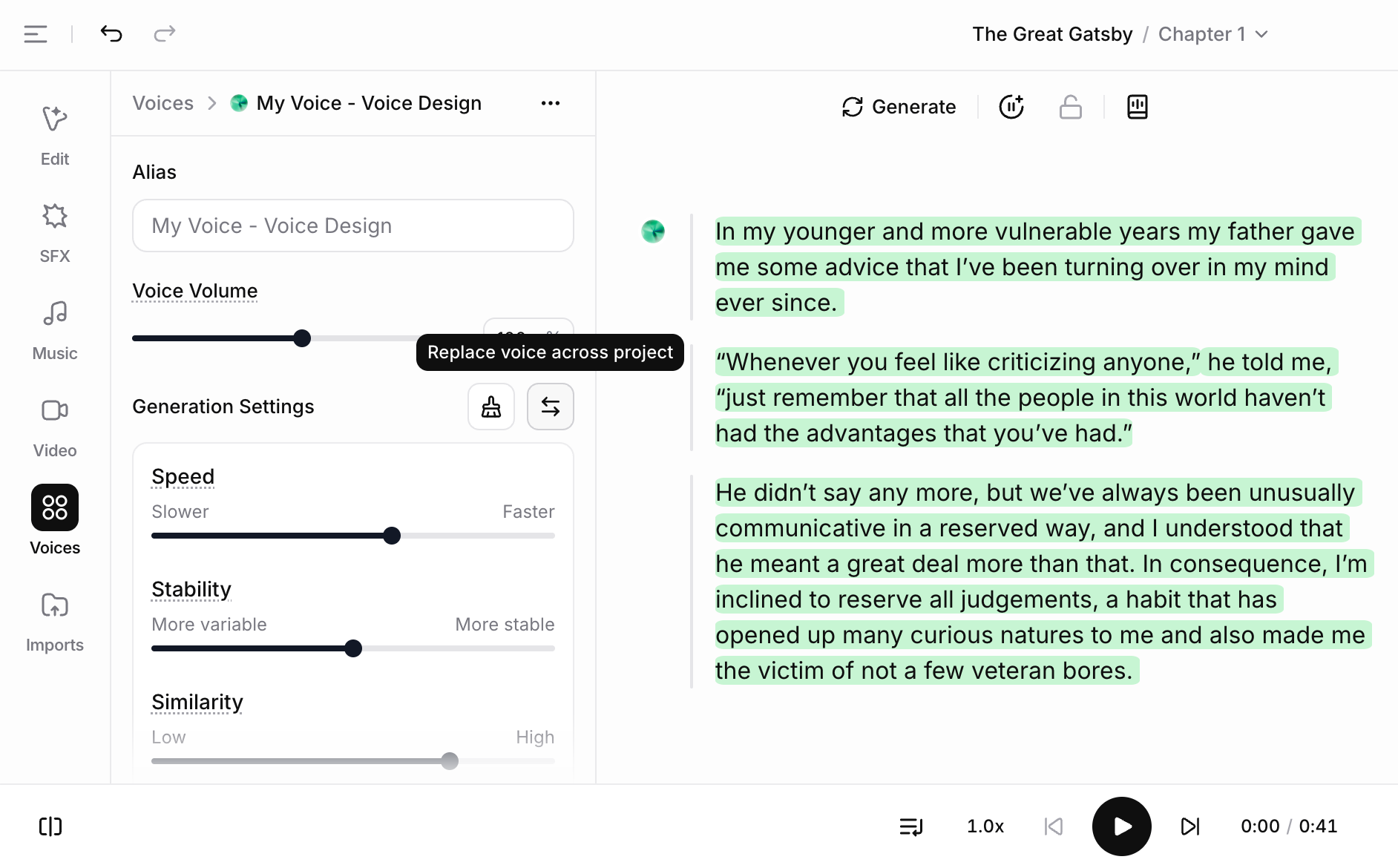
Click this, and you'll then see the Replace voice pop-up, which shows you how many paragraphs will need regenerating when you make this change.
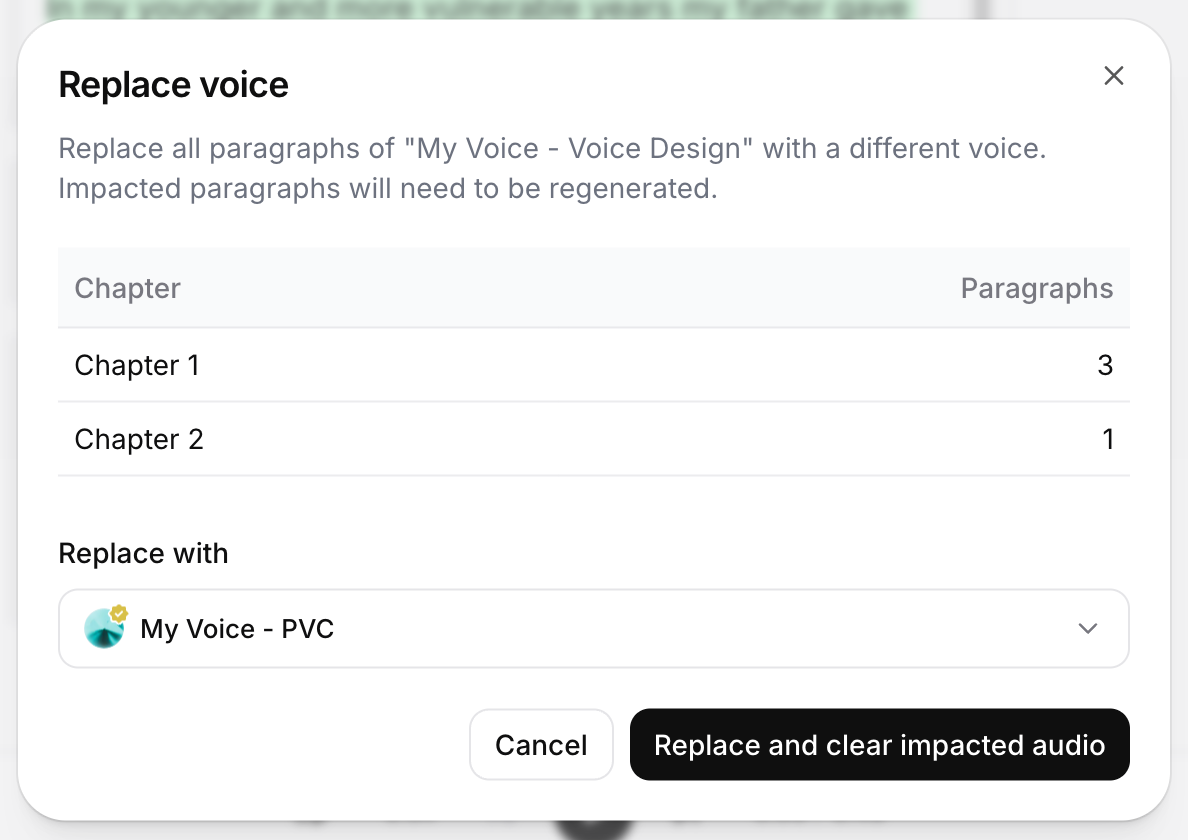
Choose your new voice in the Replace with drop-down, then click Replace and clear impacted audio to confirm the change.
The voice will be updated, and you'll need to generate new audio for all affected paragraphs.