Language
Learn how to configure your agent to speak multiple languages.
Overview
Section titled “Overview”This guide shows you how to configure your agent to speak multiple languages. You’ll learn to:
- Configure your agent’s primary language
- Add support for multiple languages
- Set language-specific voices and first messages
- Optimize voice selection for natural pronunciation
- Enable automatic language switching
Default agent language
When you create a new agent, it’s configured with:
- English as the primary language
- Flash v2 model for fast, English-only responses
- A default first message.
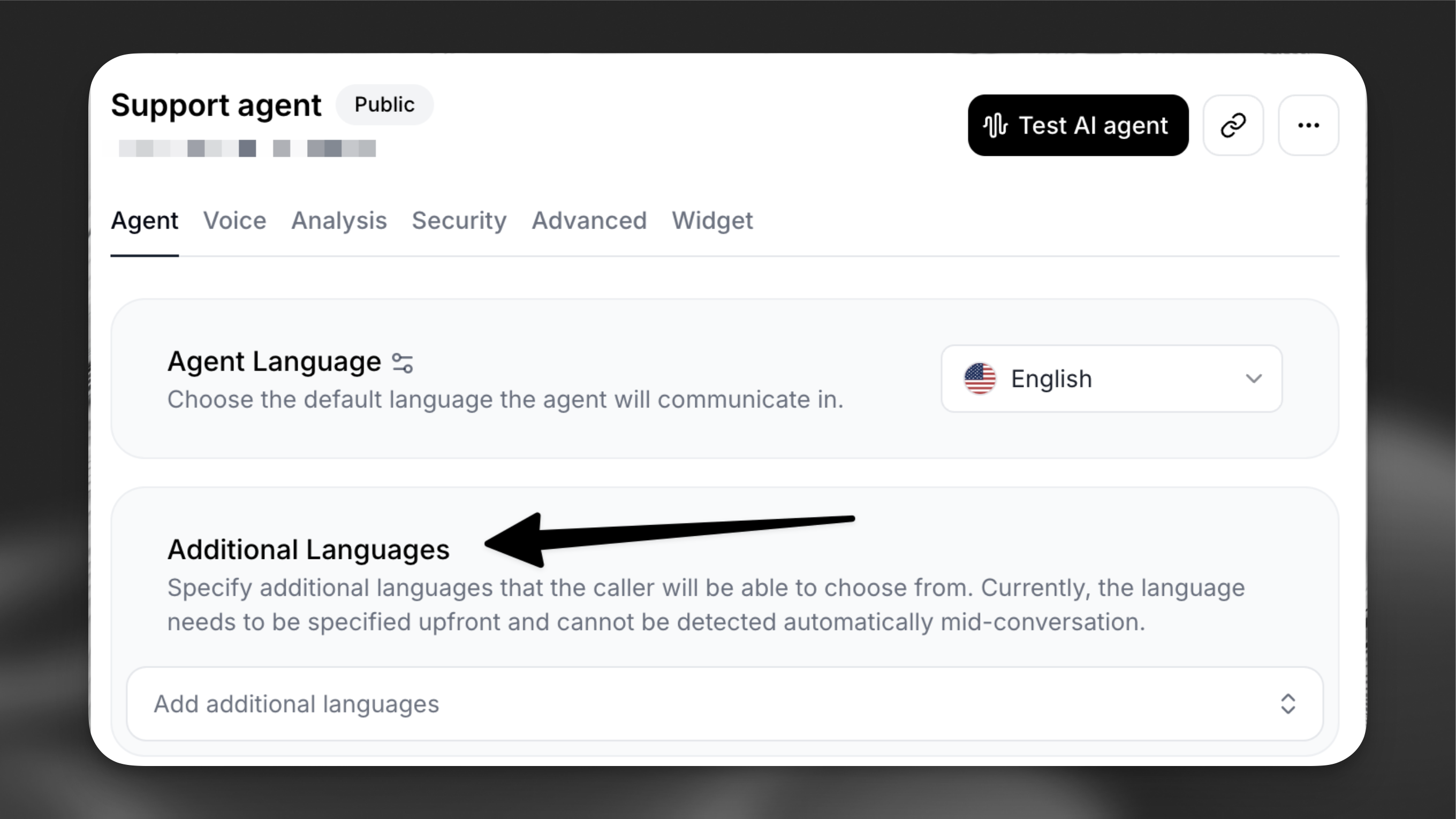
Add additional languages
Navigate to your agent’s configuration page and locate the Agent tab.
- In the Additional Languages add an additional language (e.g. French)
- Review the first message, which is automatically translated using a Large Language Model (LLM). Customize it as needed for each additional language to ensure accuracy and cultural relevance.
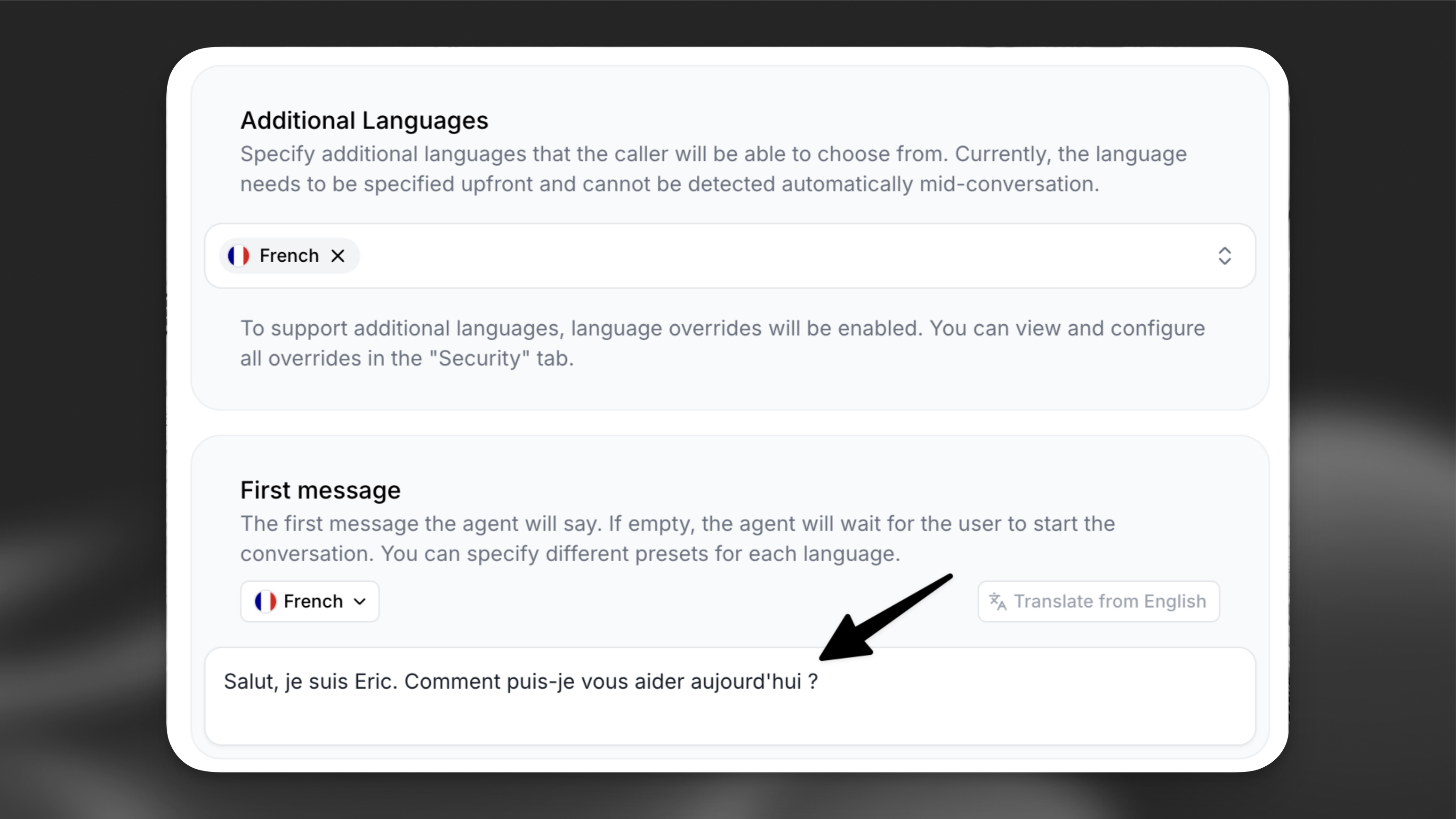
Python from elevenlabs import ElevenLabs elevenlabs = ElevenLabs() elevenlabs.conversational_ai.agents.update( agent_id="agent_7101k5zvyjhmfg983brhmhkd98n6", conversation_config={ "agent": {"language": "en"}, "language_presets": { "fr": { "overrides": { "agent": {"first_message": "Bonjour, comment puis-je vous aider ?"}, }, }, }, }, )TypeScript import { ElevenLabsClient } from "@elevenlabs/elevenlabs-js"; const elevenlabs = new ElevenLabsClient(); await elevenlabs.conversationalAi.agents.update("agent_7101k5zvyjhmfg983brhmhkd98n6", { conversationConfig: { agent: { language: "en" }, languagePresets: { fr: { overrides: { agent: { firstMessage: "Bonjour, comment puis-je vous aider ?" }, }, }, }, }, });Configure language-specific voices
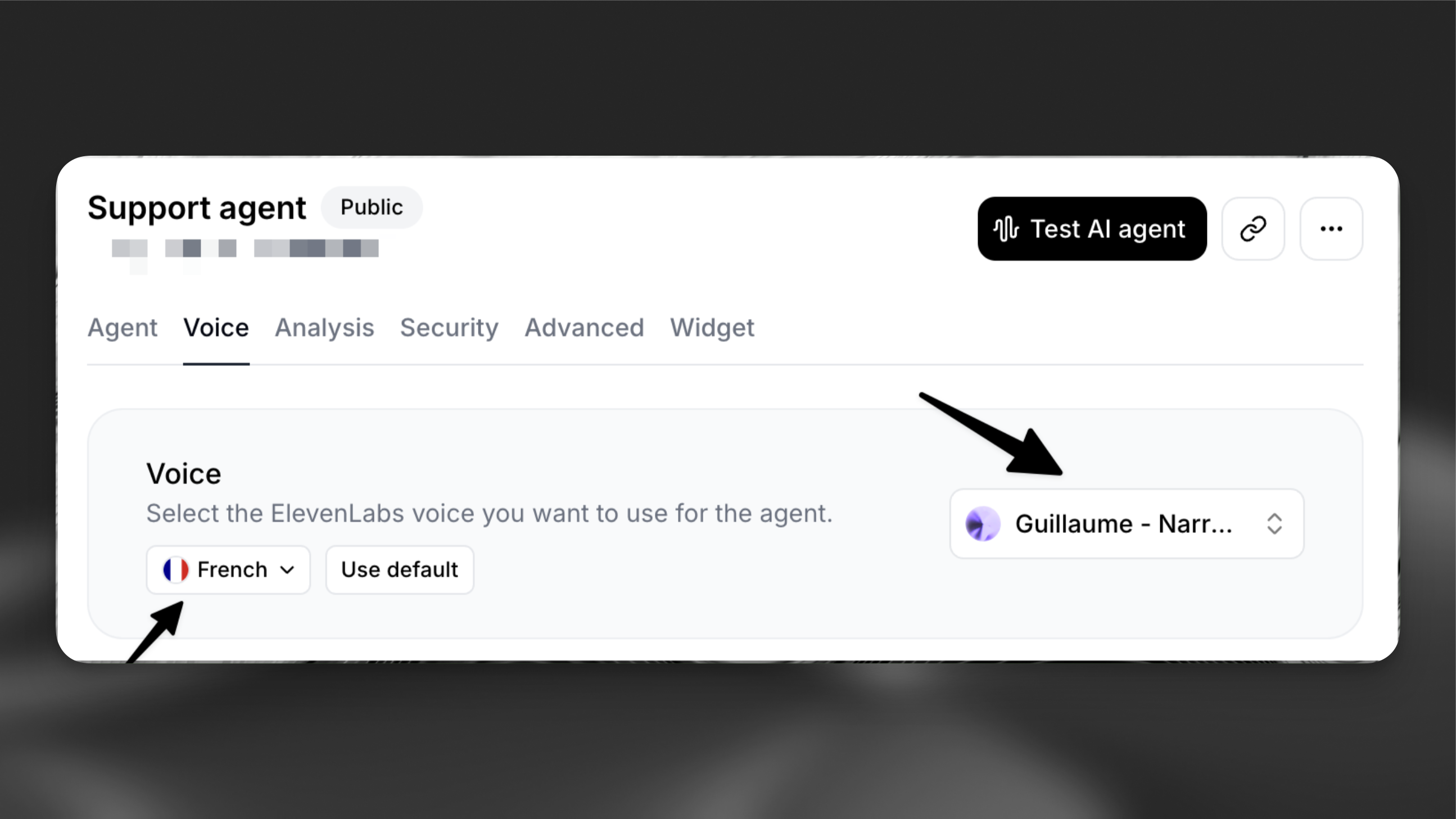
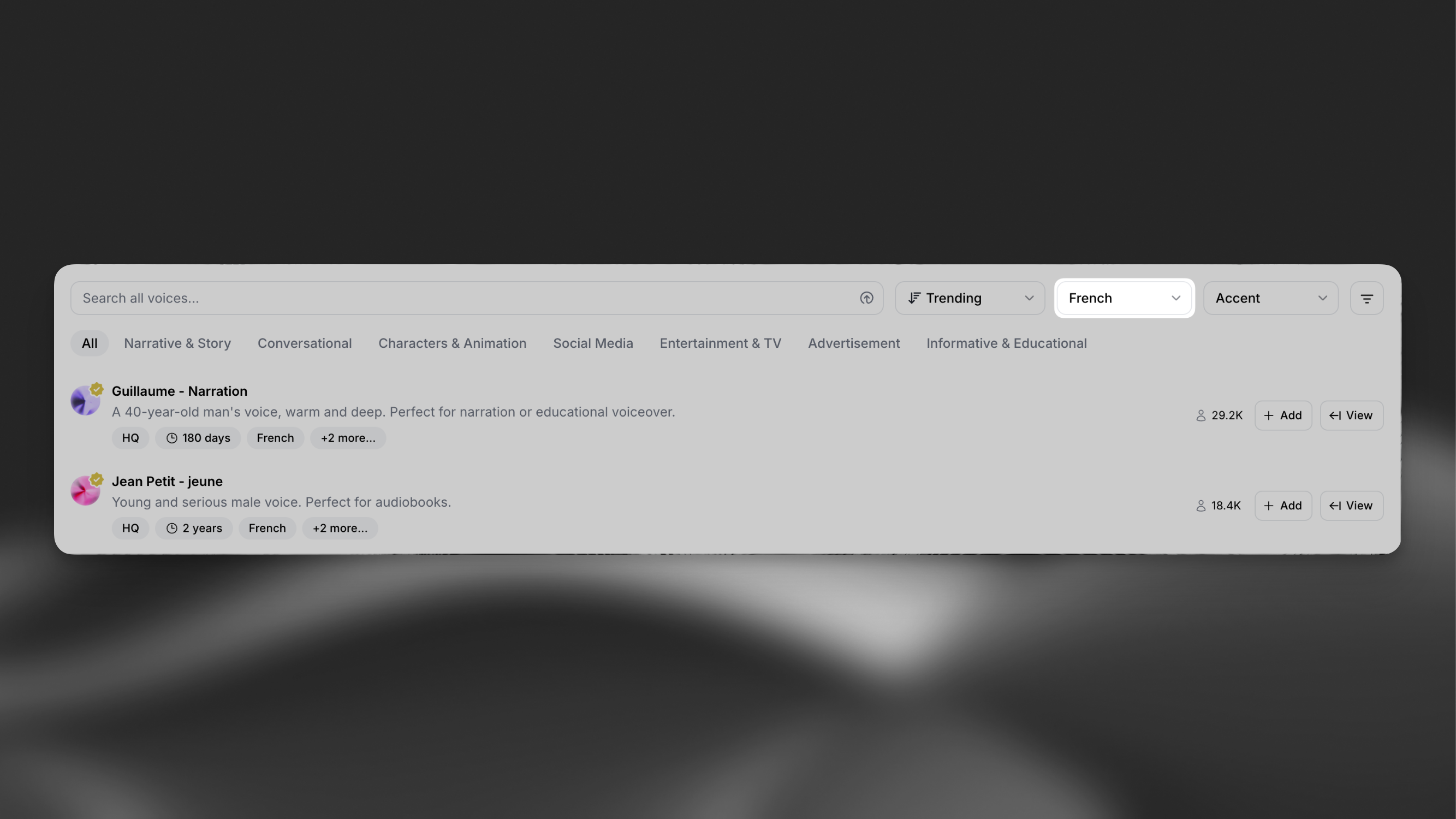
For optimal pronunciation, configure each additional language with a language-specific voice from our Voice Library.
Enable language detection
Add the language detection tool to your agent can automatically switch to the user’s preferred language.
Starting a call
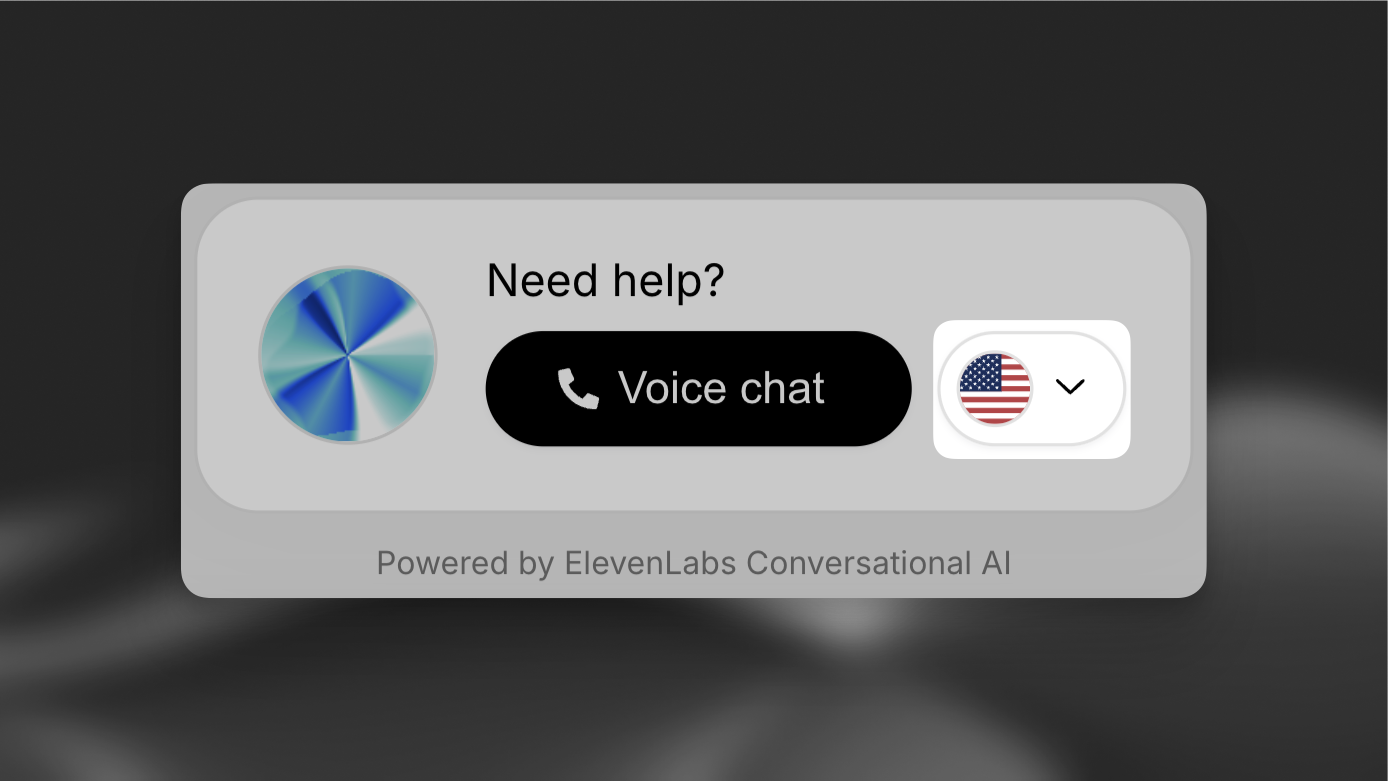
Now that the agent is configured to support additional languages, the widget will prompt the user for their preferred language before the conversation begins.
If using the SDK, the language can be set programmatically using conversation overrides. See the Overrides guide for implementation details.
Internationalization
Section titled “Internationalization”You can integrate the widget with your internationalization framework by dynamically setting the language and UI text attributes.
Widget
<elevenlabs-convai
  language="es"
  action-text={i18n["es"]["actionText"]}
  start-call-text={i18n["es"]["startCall"]}
  end-call-text={i18n["es"]["endCall"]}
  expand-text={i18n["es"]["expand"]}
  listening-text={i18n["es"]["listening"]}
  speaking-text={i18n["es"]["speaking"]}
></elevenlabs-convai>Best practices
Section titled “Best practices”Voice selection
Select voices specifically trained in your target languages. This ensures:
- Natural pronunciation
- Appropriate regional accents
- Better handling of language-specific nuances
First message customization
While automatic translations are provided, consider:
- Reviewing translations for accuracy
- Adapting greetings for cultural context
- Adjusting formal/informal tone as needed