Amazon Connect
Hand Amazon Connect voice contacts to ElevenAgents through Amazon Connect’s native third-party AI agent (A2A) integration.
Overview
Section titled “Overview”The Amazon Connect integration connects an Amazon Connect contact flow directly to an agent in ElevenAgents over Amazon Connect’s third-party AI agent protocol, an extension of the open A2A protocol. Amazon Connect owns telephony, routing, and the queue; ElevenAgents owns the conversation. No SIP trunk, Twilio number, or middleware is required. AWS documents the feature under Agent-to-agent collaboration; this guide covers the ElevenLabs specifics and the AWS steps needed to reach an ElevenLabs agent.
The same flow serves inbound calls and outbound contacts started with StartOutboundVoiceContact. When the ElevenLabs agent finishes, Amazon Connect continues your contact flow and branches on the outcome it received.
How the integration works
Section titled “How the integration works”- A contact flow reaches a Get customer input block that invokes an Amazon Lex V2 bot with the
AMAZON.QInConnectIntentintent. - Amazon Connect’s orchestration AI agent hands the conversation off immediately to the third-party application you registered for ElevenLabs.
- Amazon Connect opens a WebSocket to the ElevenLabs endpoint in the application’s
AccessUrl, authenticating with the API key stored in AWS Secrets Manager. - Amazon Connect signals that the caller’s channel is live, then Amazon Connect and ElevenLabs exchange 16-bit linear PCM audio as A2A messages. Amazon Connect proposes the sample rate and ElevenLabs adopts it, so no audio format changes are needed on the agent.
- When the agent ends the call or hands the caller to a human, ElevenLabs finishes the session with a
CompleteorEscalateoutcome and the flow continues from the Lex block; see Transferring to a human.
Requirements
Section titled “Requirements”Before you begin, ensure you have:
- An Amazon Connect instance on the Connect Customer tier with third-party AI agent support enabled for the account and Region.
- An Amazon Q in Connect assistant associated with the instance.
- AWS permissions to create KMS keys, Secrets Manager secrets, AppIntegrations applications, Connect security profiles, Amazon Q in Connect AI agents, Lex V2 bots, and contact flows.
- An ElevenLabs workspace with the Amazon Connect transport enabled.
- An ElevenLabs agent and a dedicated API key.
- AWS CLI v2 and awscurl (
pip install awscurl) for the calls whose request shapes are not in released CLI versions yet.
Configure ElevenLabs
Section titled “Configure ElevenLabs”Create or select an agent
Create the agent in ElevenAgents. Give it a first message if it should speak as soon as the hand-off completes; Amazon Connect plays nothing of its own during the session.
Enable End call
In Agent → Tools → System tools, enable End call so the agent can finish the session when the caller’s request is resolved. Amazon Connect then continues your flow with the
Completeoutcome.Add an Amazon Connect transfer rule (optional)
To let the agent hand the caller to a human, give it the Transfer to number system tool with a transfer rule whose provider configuration is
amazon_connect. The rule has no destination: the session ends with theEscalateoutcome and your contact flow chooses the queue. Transfer rules are configured through the API. Add the tool with aPATCHon the agent:Bash curl -X PATCH "https://api.elevenlabs.io/v1/convai/agents/agent_7101k5zvyjhmfg983brhmhkd98n6" \ -H "xi-api-key: $ELEVENLABS_API_KEY" -H "Content-Type: application/json" \ -d '{ "conversation_config": {"agent": {"prompt": {"built_in_tools": { "end_call": {"type": "system", "name": "end_call", "description": "", "params": {"system_tool_type": "end_call"}}, "transfer_to_number": { "type": "system", "name": "transfer_to_number", "description": "", "params": { "system_tool_type": "transfer_to_number", "transfers": [], "transfer_rules": [{ "condition": "the caller asks to speak with a human", "provider_configs": [ {"type": "amazon_connect", "config": {"type": "amazon_connect_escalate"}} ] }] } } }}}} }'Send the agent’s full
built_in_toolsobject, including tools it already has such asend_call. The agent picks the rule by itscondition; the option it echoes back is the fixed tokenamazon_connect, so one Amazon Connect rule per tool is enough. Phone numbers and SIP URIs configured for other providers are not offered on Amazon Connect calls.Create a dedicated API key
Create an API key in the same workspace as the agent and scope it to ElevenAgents. You will store it in AWS Secrets Manager in the next section; do not paste it anywhere else.
Note the WebSocket URL
Amazon Connect connects to a URL that contains your agent ID:
Environment AccessUrl Default wss://api.elevenlabs.io/v1/convai/conversation/amazon-connect/agent_7101k5zvyjhmfg983brhmhkd98n6Data residency wss://api.<region>.residency.elevenlabs.io/v1/convai/conversation/amazon-connect/agent_7101k5zvyjhmfg983brhmhkd98n6
Register the ElevenLabs application in AWS
Section titled “Register the ElevenLabs application in AWS”Everything in this section is an API call. Set the values you will reuse once:
export AWS_REGION=<REGION>          # Region of your Amazon Connect instance
export ACCOUNT_ID=<ACCOUNT_ID>
export INSTANCE_ID=<INSTANCE_ID>    # Amazon Connect instance ID
export INSTANCE_ARN=arn:aws:connect:$AWS_REGION:$ACCOUNT_ID:instance/$INSTANCE_ID
export AGENT_ID=<AGENT_ID>          # ElevenLabs agent ID
Create an Amazon Q in Connect assistant
Skip this step if the instance already has an assistant. Otherwise create one and associate it with the instance:
Bash aws qconnect create-assistant --name elevenlabs-assistant --type AGENT --region $AWS_REGION aws connect create-integration-association --instance-id $INSTANCE_ID \ --integration-type WISDOM_ASSISTANT --integration-arn <ASSISTANT_ARN> --region $AWS_REGIONRecord the assistant ID and ARN.
Store the API key
Amazon Connect reads the key from Secrets Manager with its own service principal, so the secret must be encrypted with a customer-managed KMS key that grants
connect.amazonaws.comdecrypt access. The defaultaws/secretsmanagerkey cannot be used.kms-key-policy.json
JSON { "Version": "2012-10-17", "Statement": [ { "Sid": "AccountAdmin", "Effect": "Allow", "Principal": { "AWS": "arn:aws:iam::<ACCOUNT_ID>:root" }, "Action": "kms:*", "Resource": "*" }, { "Sid": "AllowConnectDecrypt", "Effect": "Allow", "Principal": { "Service": "connect.amazonaws.com" }, "Action": ["kms:Decrypt", "kms:DescribeKey"], "Resource": "*" } ] }Save the ElevenLabs API key in a file so that it never appears in your shell history, then create the key and the secret:
Bash KMS_KEY_ID=$(aws kms create-key --description "ElevenLabs agent API key" \ --policy file://kms-key-policy.json --region $AWS_REGION \ --query KeyMetadata.KeyId --output text) SECRET_ARN=$(aws secretsmanager create-secret --name elevenlabs/agent-api-key \ --kms-key-id "$KMS_KEY_ID" --secret-string file://elevenlabs-api-key.txt \ --region $AWS_REGION --query ARN --output text) rm elevenlabs-api-key.txtGrant Amazon Connect read access to the secret:
secret-resource-policy.json
JSON { "Version": "2012-10-17", "Statement": [ { "Sid": "AllowConnectRead", "Effect": "Allow", "Principal": { "Service": "connect.amazonaws.com" }, "Action": ["secretsmanager:GetSecretValue", "secretsmanager:DescribeSecret"], "Resource": "<SECRET_ARN>" } ] }Bash aws secretsmanager put-resource-policy --secret-id "$SECRET_ARN" \ --resource-policy file://secret-resource-policy.json --region $AWS_REGION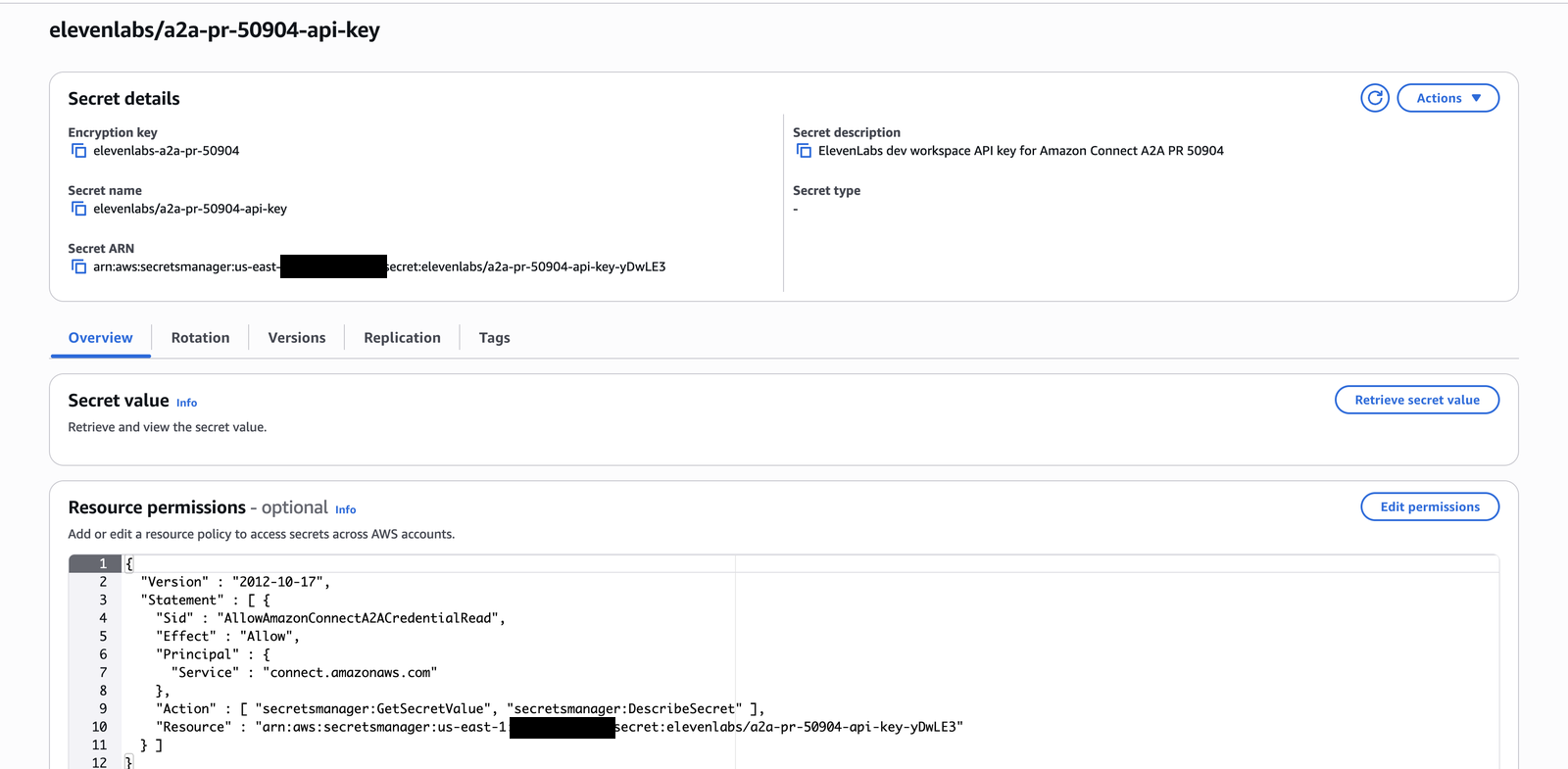
Create the third-party application
Register the ElevenLabs WebSocket URL as an AppIntegrations application of type
A2A_SERVER.AuthConfigis mandatory for this type.create-application.json
JSON { "Name": "elevenlabs-agent", "Namespace": "elevenlabs-agent", "Description": "ElevenLabs agent over the Amazon Connect A2A extension", "ApplicationType": "A2A_SERVER", "ApplicationSourceConfig": { "ExternalUrlConfig": { "AccessUrl": "wss://api.elevenlabs.io/v1/convai/conversation/amazon-connect/<AGENT_ID>" } }, "AuthConfig": { "AuthType": "API_KEY", "CredentialProviderIdentifier": "<SECRET_ARN>" } }Bash awscurl --service app-integrations --region $AWS_REGION -X POST \ -H 'Content-Type: application/json' --data @create-application.json \ "https://app-integrations.$AWS_REGION.amazonaws.com/applications"The response contains the application
IdandArn; export them asAPPLICATION_IDandAPPLICATION_ARN. The Amazon Connect console does not listA2A_SERVERapplications, so verify with the API:Bash aws appintegrations get-application --arn "$APPLICATION_ARN" --region $AWS_REGIONAssociate the application with your instance
Bash awscurl --service connect --region $AWS_REGION -X PUT -H 'Content-Type: application/json' \ --data "{\"IntegrationArn\": \"$APPLICATION_ARN\", \"IntegrationType\": \"APPLICATION\"}" \ "https://connect.$AWS_REGION.amazonaws.com/instance/$INSTANCE_ID/integration-associations" aws connect list-integration-associations --instance-id $INSTANCE_ID \ --integration-type APPLICATION --region $AWS_REGIONAllow the application in a security profile
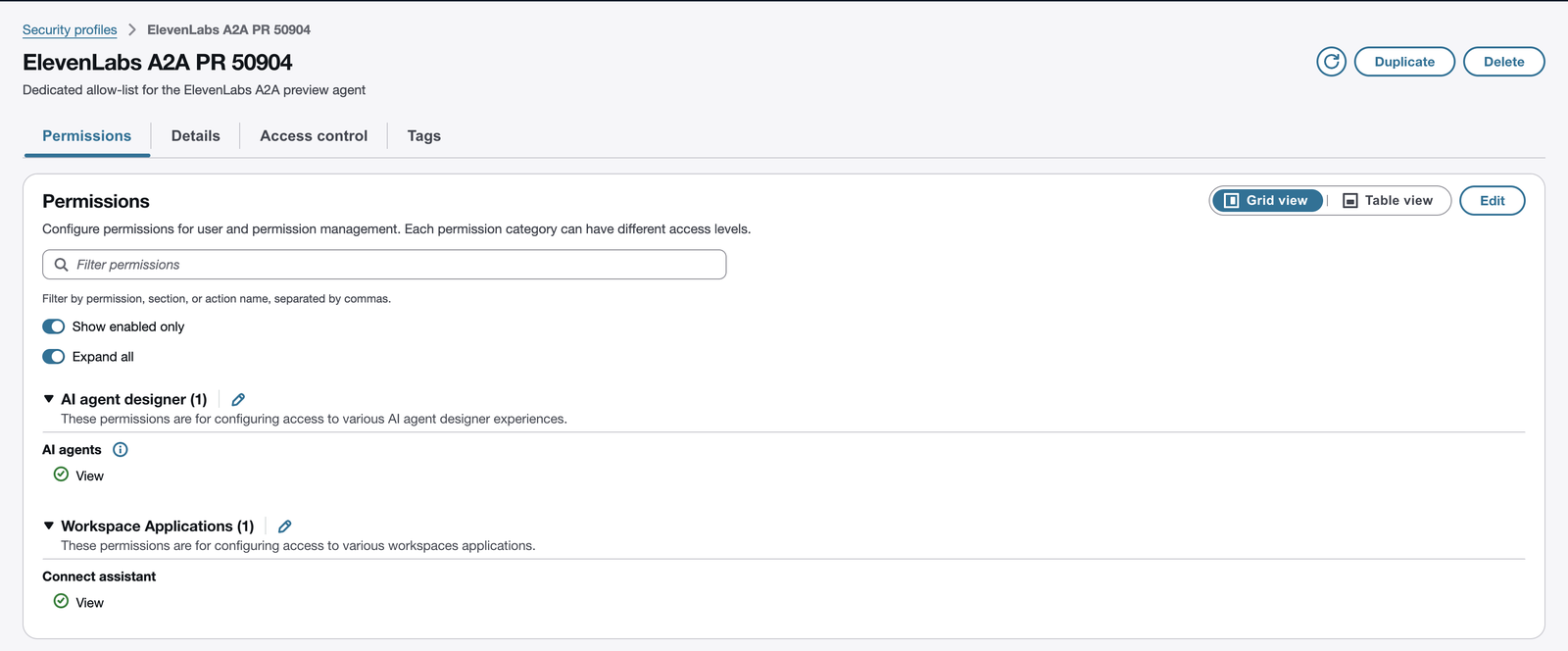
The security profile attached to the orchestration AI agent must list the application under its allowed AI agents, or the hand-off fails at runtime.
Bash SECURITY_PROFILE_ID=$(aws connect create-security-profile --instance-id $INSTANCE_ID \ --security-profile-name elevenlabs-a2a --permissions QConnectAIAgents.View Wisdom.View \ --region $AWS_REGION --query SecurityProfileId --output text) awscurl --service connect --region $AWS_REGION -X POST -H 'Content-Type: application/json' \ --data "{\"AllowedAIAgents\": [{\"Arn\": \"$APPLICATION_ARN\", \"Type\": \"THIRD_PARTY\"}]}" \ "https://connect.$AWS_REGION.amazonaws.com/security-profiles/$INSTANCE_ID/$SECURITY_PROFILE_ID"The admin website shows the profile and its permissions but not the allowed AI agents; those are only visible through the API.
Create and publish the orchestration AI agent
The orchestration agent hands every voice conversation to the application immediately, with audio streaming enabled. Voice sessions require immediate hand-off; text streaming (
audioStreamingEnabledset to false) anddelegateAgentConfigurationare not supported by ElevenLabs. An audio immediate hand-off orchestrator must also declare the reservedCompletetool of typeRETURN_TO_CONTROLintoolConfigurations; without it the create request fails withAn audio frontline orchestrator (with an audio immediate handoff) must configure the reserved 'Complete' RETURN_TO_CONTROL tool.create-ai-agent.json
JSON { "name": "elevenlabs-handoff", "type": "ORCHESTRATION", "visibilityStatus": "PUBLISHED", "configuration": { "orchestrationAIAgentConfiguration": { "connectInstanceArn": "<INSTANCE_ARN>", "locale": "en_US", "multiAgentConfigurations": [ { "handoffAgentConfiguration": { "agentTarget": { "applicationId": "<APPLICATION_ARN>" }, "instruction": { "instruction": "Immediately hand off every voice conversation to the ElevenLabs agent." }, "audioStreamingEnabled": true, "immediateHandoff": true } } ], "toolConfigurations": [ { "toolName": "Complete", "toolType": "RETURN_TO_CONTROL", "description": "Close the conversation when the customer has no more questions.", "instruction": { "instruction": "Mark the conversation as complete when the customer has no additional questions or needs." }, "inputSchema": { "type": "object", "properties": { "reason": { "type": "string", "description": "Reason for completion" } }, "required": ["reason"] }, "userInteractionConfiguration": { "isUserConfirmationRequired": false } } ] } } }Bash awscurl --service wisdom --region $AWS_REGION -X POST -H 'Content-Type: application/json' \ --data @create-ai-agent.json \ "https://wisdom.$AWS_REGION.amazonaws.com/assistants/<ASSISTANT_ID>/aiagents" aws qconnect create-ai-agent-version --assistant-id <ASSISTANT_ID> \ --ai-agent-id <AI_AGENT_ID> --region $AWS_REGIONPublishing returns a versioned ARN (
<AI_AGENT_ARN>:1); the contact flow references it. Attach the security profile to both the unversioned and the versioned agent:Bash for ARN in <AI_AGENT_ARN> <AI_AGENT_ARN>:1; do aws connect associate-security-profiles --instance-id $INSTANCE_ID --entity-arn "$ARN" \ --entity-type AI_AGENT --security-profiles Id=$SECURITY_PROFILE_ID --region $AWS_REGION done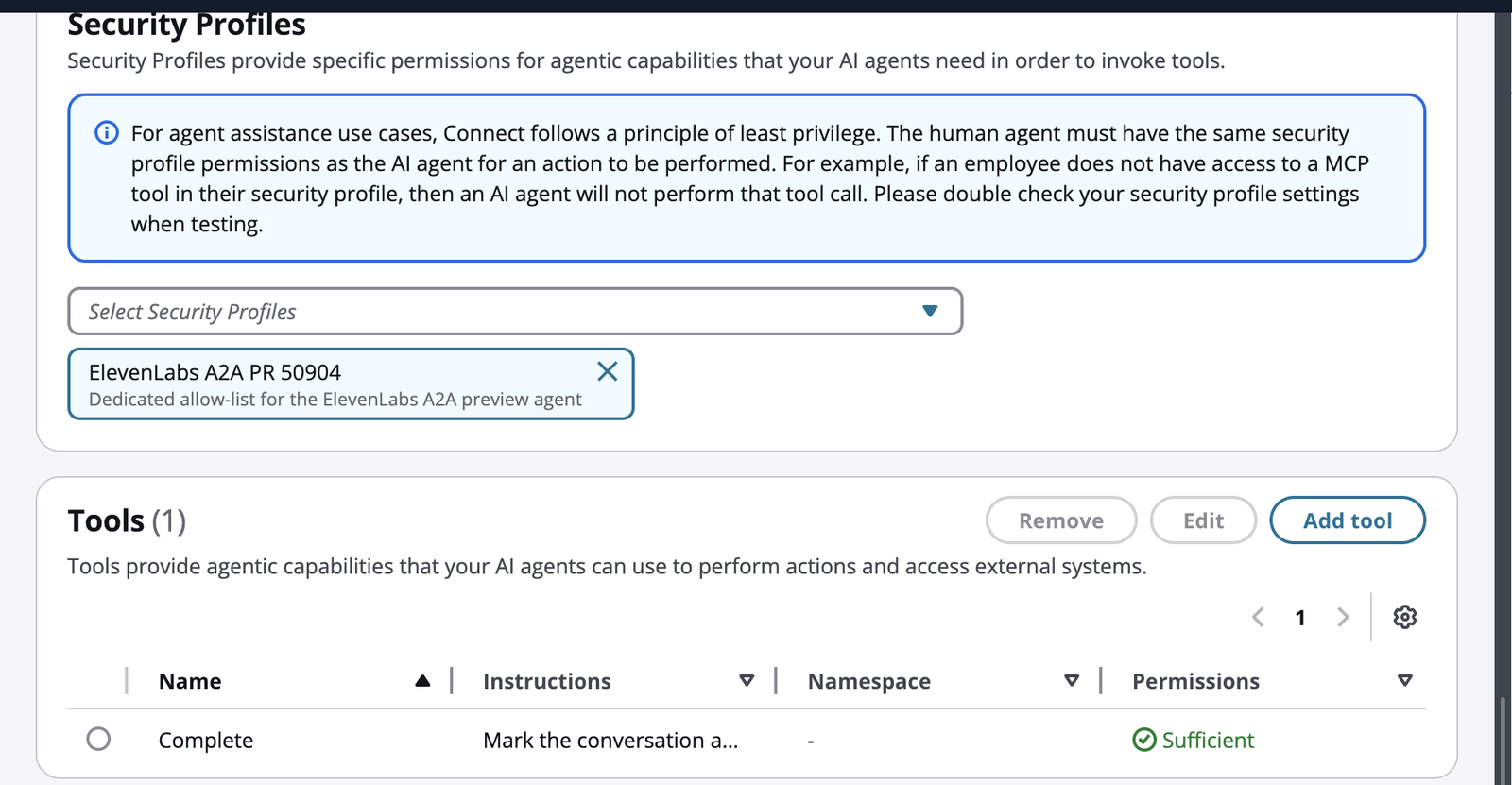
Build the contact flow
Section titled “Build the contact flow”Create the Lex bot
- Create a Lex V2 bot whose only intent is the built-in
AMAZON.QInConnectIntent, configured with your assistant ARN. Do not add other intents. - Enable speech-to-speech on the bot locale. Bidirectional audio streaming only works with Sonic speech-to-speech bots.
- Allow the bot’s IAM role to use the assistant. Without this the hand-off fails inside AWS with
HTTP 403before any request reaches ElevenLabs. Attach a policy like:
lex-role-policy.json
JSON { "Version": "2012-10-17", "Statement": [ { "Effect": "Allow", "Action": ["wisdom:CreateSession", "wisdom:GetAssistant"], "Resource": ["<ASSISTANT_ARN>", "<ASSISTANT_ARN>/*"] }, { "Effect": "Allow", "Action": ["wisdom:SendMessage", "wisdom:GetNextMessage"], "Resource": "arn:aws:wisdom:<REGION>:<ACCOUNT_ID>:session/<ASSISTANT_ID>/*" } ] }- Build the bot, create a version and an alias, and associate the alias with the instance:
Bash aws connect associate-bot --instance-id $INSTANCE_ID \ --lex-v2-bot AliasArn=<LEX_ALIAS_ARN> --region $AWS_REGION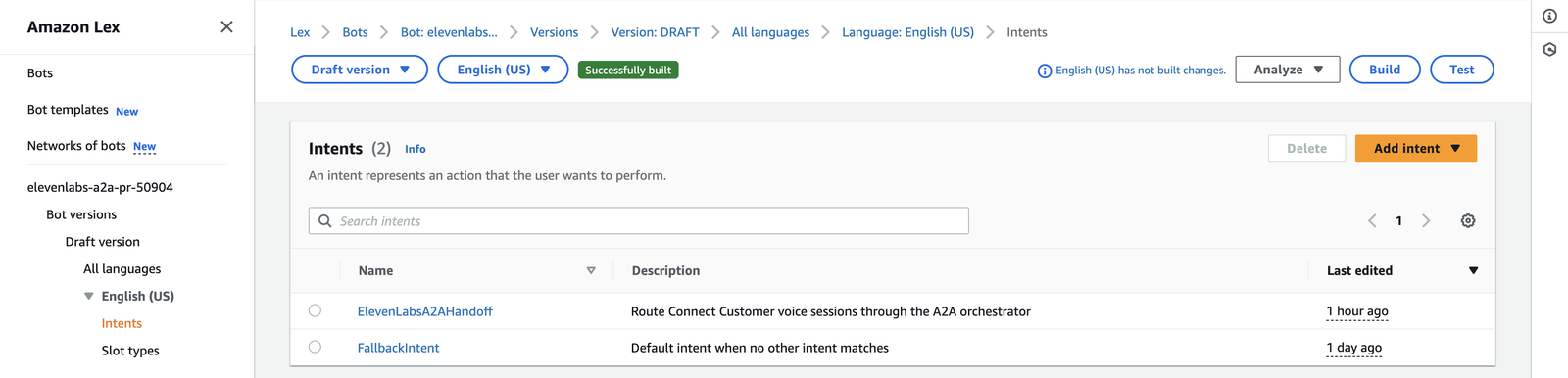
- Create a Lex V2 bot whose only intent is the built-in
Add the assistant and the Lex block
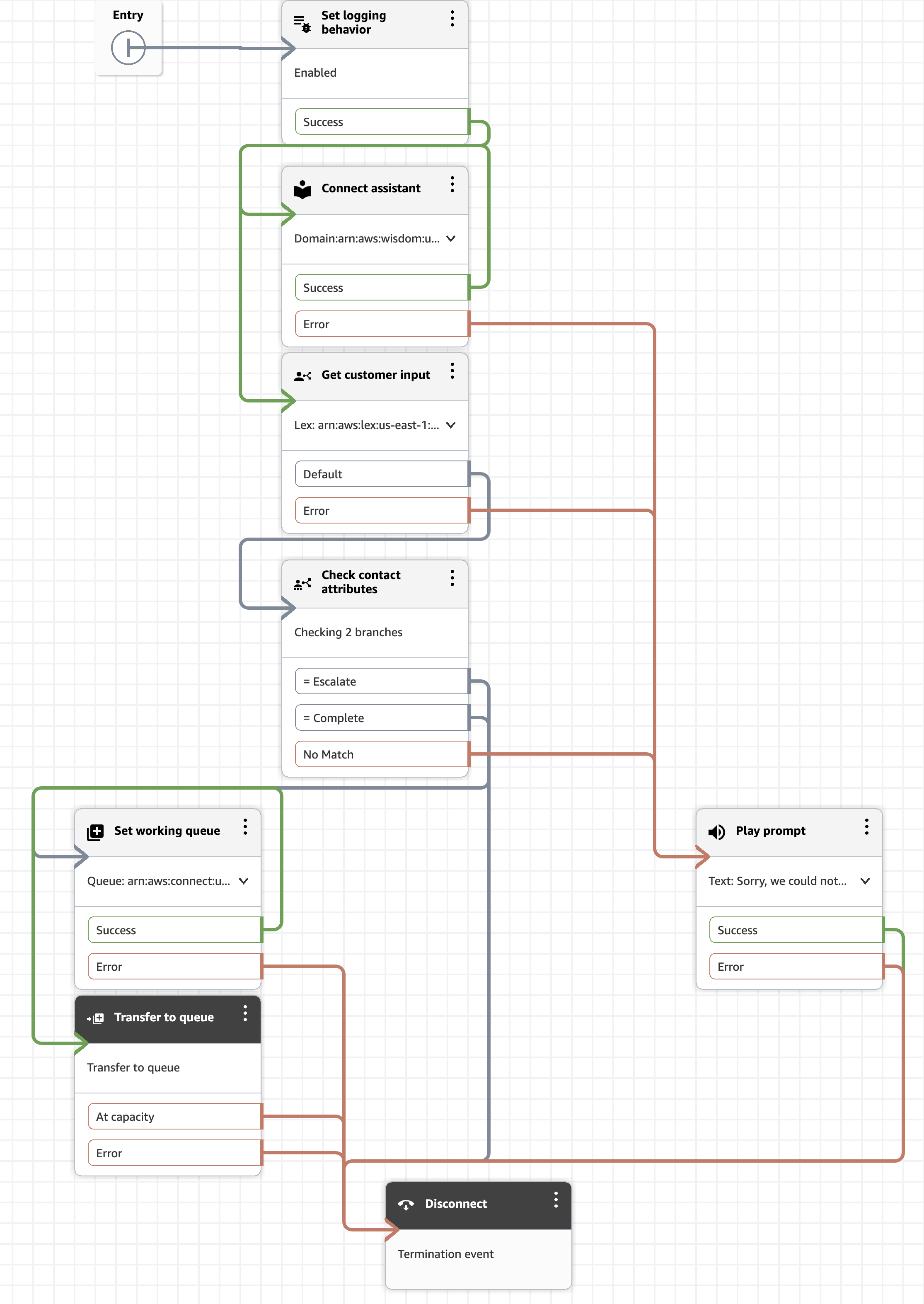
In the flow designer, add these blocks in order:
- Set logging behavior: enabled. The flow log is how you verify the hand-off below.
- Connect assistant: select your Amazon Q in Connect assistant.
- Get customer input: on the Amazon Lex tab choose Enter an ARN and paste the bot alias ARN. Leave the text-to-speech prompt as a single space so that Amazon Connect plays nothing before the hand-off. Under Session attributes, add two attributes set manually:
Destination key Value x-amz-lex:q-in-connect:ai-agent-arnThe versioned orchestration agent ARN ( ...:1).x-amz-lex:qic-audio-passthroughtrue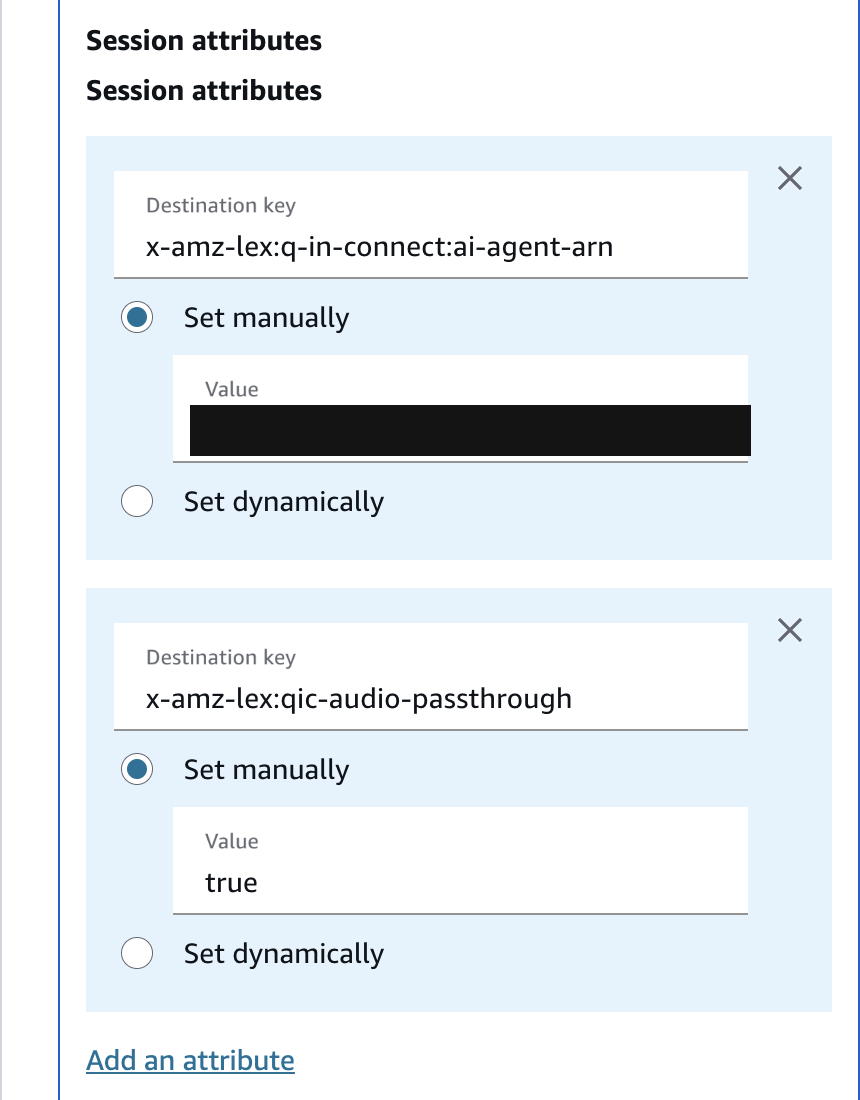
Branch on the outcome
Amazon Connect surfaces the ElevenLabs outcome to the flow as the
$.Lex.SessionAttributes.Toolattribute. Add a Check contact attributes block after the Lex block, set Namespace to Lex, Key to Session attributes, and Session Attribute Key toTool, then add one Equals condition per outcome and route No Match to an error prompt:Branch Meaning Suggested route CompleteThe agent ended the call, for example with the End call tool. Disconnect EscalateThe agent asked for a human (see Transferring to a human). Set working queue → Transfer to queue No Match Any other value. Play prompt → Disconnect 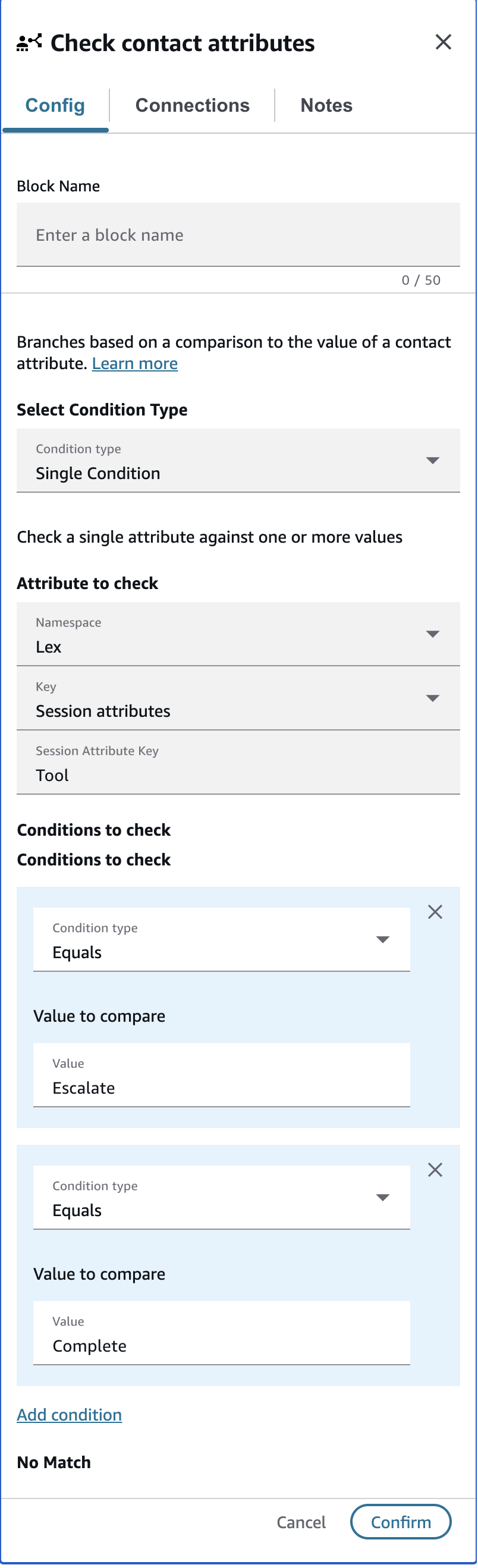
Publish and assign
Publish the flow, then point a claimed phone number at it:
Bash aws connect associate-phone-number-contact-flow --instance-id $INSTANCE_ID \ --phone-number-id <PHONE_NUMBER_ID> --contact-flow-id <CONTACT_FLOW_ID> --region $AWS_REGIONFor outbound calls, start the contact with the same flow; Amazon Connect dials the customer and hands the answered call to ElevenLabs:
Bash aws connect start-outbound-voice-contact --instance-id $INSTANCE_ID \ --contact-flow-id <CONTACT_FLOW_ID> --destination-phone-number <E164_NUMBER> \ --source-phone-number <YOUR_CONNECT_NUMBER> --region $AWS_REGION
Test the integration
Section titled “Test the integration”Place a call
Call the number. The agent’s first message plays a few seconds after the flow reaches the Lex block; the hand-off inside AWS takes about three seconds before ElevenLabs is contacted. Have a short conversation and say goodbye: the agent calls End call, the ElevenLabs session ends with
Complete, and your flow continues from the Lex block. If you added a transfer rule, ask for a human instead: the agent calls Transfer to number, the session ends withEscalate, and the flow takes that branch.Check the conversation in ElevenLabs
Open the conversation in Conversations. Its source is Amazon Connect and the Client data tab lists the
amazon_connect_*dynamic variables the session received.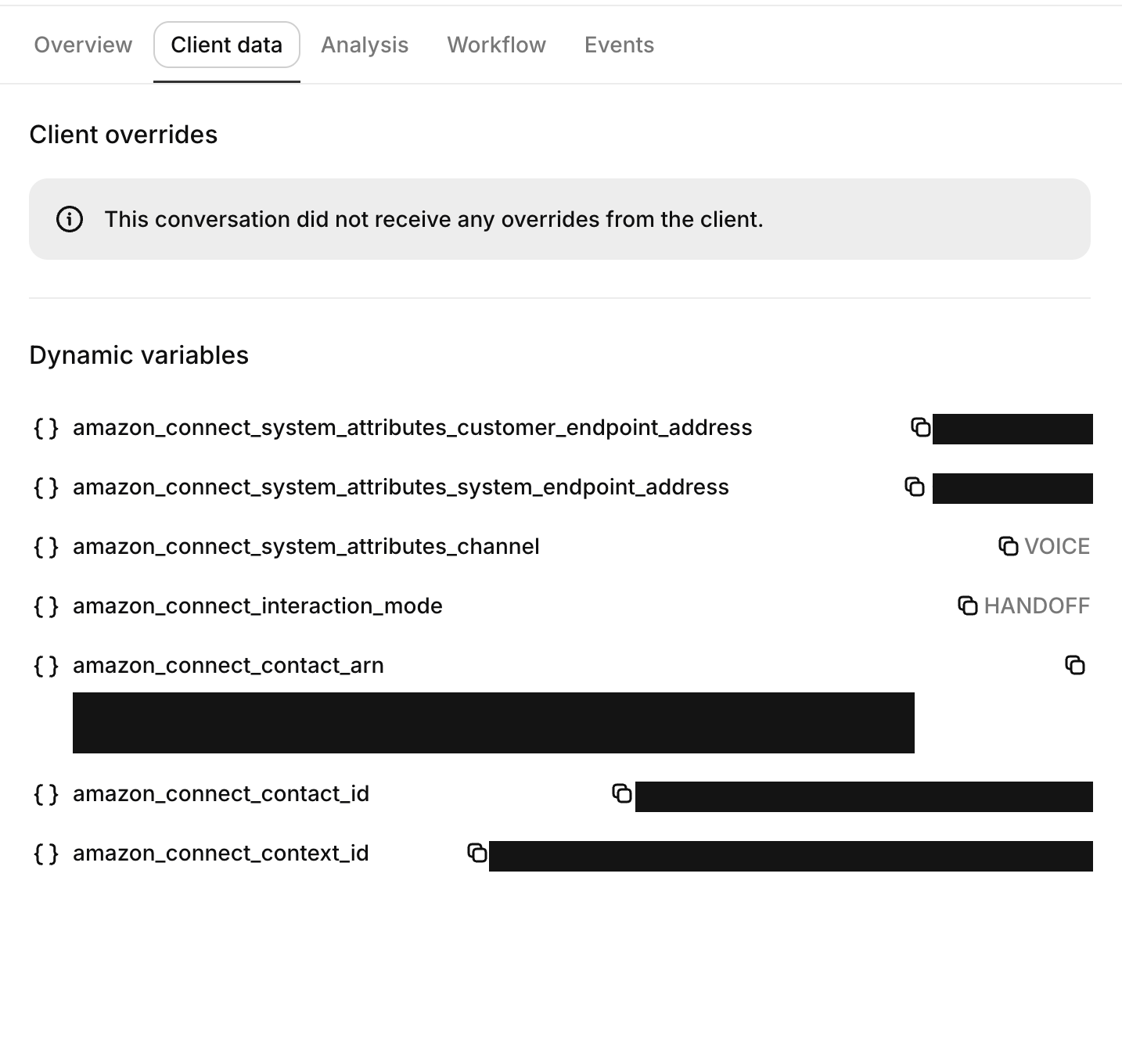
Check the flow log in AWS
With logging enabled, every block writes an entry to the instance’s flow log group. The Get customer input block records the outcome it received from ElevenLabs:
Bash aws logs filter-log-events --log-group-name /aws/connect/<INSTANCE_ALIAS> \ --start-time $(( $(date +%s) - 600 ))000 --region $AWS_REGION \ --query 'events[].message' --output text | tr '\t' '\n' | grep -o '"Results": *"[A-Za-z_]*"'Expect
"Results": "Complete", or"Results": "Escalate"after a transfer, for the Lex block, followed by the blocks on that branch.
Dynamic variables
Section titled “Dynamic variables”Amazon Connect sends the contact’s system attributes with every session. ElevenLabs exposes them, together with the session identifiers, as dynamic variables:
| Dynamic variable | Description |
|---|---|
system__caller_id |
The customer’s phone number (Amazon Connect’s customer endpoint). |
system__called_number |
The Amazon Connect phone number the contact is on (system endpoint). |
system__call_id |
The Amazon Connect contact ID. |
amazon_connect_system_attributes_channel |
The contact channel, for example VOICE. |
amazon_connect_system_attributes_customer_endpoint_address |
The customer endpoint address as sent by Amazon Connect. |
amazon_connect_system_attributes_system_endpoint_address |
The system endpoint address as sent by Amazon Connect. |
amazon_connect_interaction_mode |
The collaboration mode, for example HANDOFF. |
amazon_connect_contact_id |
The Amazon Connect contact ID. |
amazon_connect_contact_arn |
The full contact ARN. |
amazon_connect_context_id |
The A2A session (context) ID. |
amazon_connect_instance_id |
The instance ID. |
amazon_connect_instance_arn |
The instance ARN. |
On Amazon Connect sessions system__caller_id is always the customer and system__called_number is always the Amazon Connect number, for both inbound and outbound contacts.
Every other member of the contact context Amazon Connect sends is exposed the same way: nested names are joined with underscores and converted to snake case under the amazon_connect_ prefix. Custom contact attributes set in your flow with Set contact attributes are not part of the context Amazon Connect currently sends, even when the AI agent’s security profile can view contact attributes; if AWS starts including them, they will appear automatically under the same prefix. You cannot choose which contact data Amazon Connect shares; AWS passes a fixed set of context.
To pass additional context, use the conversation initiation webhook. For Amazon Connect sessions the webhook is called before the agent speaks with caller_id set to the customer’s number, called_number set to the Amazon Connect number, and call_id set to the Amazon Connect contact ID, so a Lambda in your flow can store contact attributes keyed by contact ID and the webhook can return them as dynamic variables and configuration overrides.
Transferring to a human
Section titled “Transferring to a human”Give the agent the Transfer to number system tool with an amazon_connect transfer rule, as shown in Configure ElevenLabs. When the rule’s condition is met, the agent calls the tool and ElevenLabs finishes the session with the Escalate outcome and the reason the agent gave. Your flow’s Escalate branch then handles the contact with Set working queue and Transfer to queue. The rule carries no destination, so the queue is chosen in the flow, not by the agent; queue treatment, whisper flows, and agent selection stay in Amazon Connect.
The End call tool produces a Complete outcome. Post-call analysis and the post-call webhook run as usual after either outcome.
Giving the human agent a summary
Section titled “Giving the human agent a summary”Amazon Connect exposes only the outcome to your flow: $.Lex.SessionAttributes.Tool (and the Lex intent name) carry Escalate, and nothing else from the ElevenLabs session, not the transfer reason, reaches the flow. To brief the human who takes the call, store the summary on the contact yourself and let an agent whisper flow read it out:
-
Expose an endpoint that calls Amazon Connect’s
UpdateContactAttributesAPI. A minimal Lambda behind an HTTP API is enough; the caller must be allowedconnect:UpdateContactAttributeson the instance’s contacts:Python import json, os, boto3 connect = boto3.client("connect") def handler(event, _context): if (event.get("headers") or {}).get("x-shared-secret") != os.environ["SHARED_SECRET"]: return {"statusCode": 401, "body": ""} body = json.loads(event.get("body") or "{}") connect.update_contact_attributes( InstanceId=os.environ["INSTANCE_ID"], InitialContactId=body["contact_id"], Attributes={"handoff_summary": body["summary"][:1000]}, ) return {"statusCode": 200, "body": json.dumps({"ok": True})} -
Give the agent a webhook tool that
POSTs to that endpoint withcontact_idfilled from theamazon_connect_contact_iddynamic variable and asummarythe model writes. Keep the shared secret in a workspace secret and send it as a request header. In the system prompt, tell the agent to call this tool first and to call Transfer to number only after it has returned; a model that emits both calls in one turn races the transfer against the summary. With that instruction, the attribute was on the contact about a second after the agent’s request in our tests, three seconds before Amazon Connect resumed the flow. -
In the contact flow’s
Escalatebranch, add a Set whisper flow block before Transfer to queue that points at an agent whisper flow whose Play prompt reads$.Attributes.handoff_summary. Amazon Connect speaks it to the human agent while the caller hears the queue treatment, then bridges the two. Do not sethandoff_summaryagain in a later block of the flow: an empty value there replaces what the endpoint wrote.
The same attribute is available to a Check contact attributes block for routing decisions. The post-call webhook fires after the flow has already continued, so it suits CRM updates rather than routing decisions.
Traces
Section titled “Traces”Amazon Connect requires external agents to send trace data for every collaboration. When Amazon Connect subscribes to tracing on the session, ElevenLabs sends an OpenTelemetry trace for each agent turn containing the caller’s transcript, the agent’s response, each tool call with its result, and per-span timing. Amazon Connect stores these traces with the contact; see AI agent traces for how to view them. Transcripts and tool results in these traces are subject to the same redaction settings as the rest of your contact data in Amazon Connect, so review your data-handling requirements before enabling the integration. Like post-call webhooks, traces are delivered to your own systems: agents in zero retention mode still send them, because zero retention governs what ElevenLabs stores, not what your Amazon Connect instance receives.
Amazon Connect proposes 16-bit mono linear PCM at 8, 16, or 24 kHz on each session and ElevenLabs adopts the proposal, so the agent’s configured audio formats are not used for Amazon Connect sessions. Caller barge-in is detected by ElevenLabs and reported to Amazon Connect so buffered playback is flushed immediately. Keypad input collected by Amazon Connect is delivered to the agent as DTMF digits. Amazon Connect’s own silence marker is ignored; use the agent’s turn timeout to re-prompt a quiet caller.
Limitations and unsupported features
Section titled “Limitations and unsupported features”- Client tools and the Play keypad touch tone system tool are not supported. Transfer to number works only through an Amazon Connect transfer rule: the agent cannot dial a phone number or SIP URI from an Amazon Connect call, and the flow decides which queue receives an escalated caller.
- Data collection results are not returned to the flow, and Amazon Connect decides which contact data it shares. Use the conversation initiation webhook keyed by
amazon_connect_contact_idfor additional context, a webhook tool that callsUpdateContactAttributesfor routing data, and the post-call webhook for everything else. - Configuration overrides such as
system__override_first_messagecannot be passed from the flow. Return them from the conversation initiation webhook instead. - Voice sessions require immediate hand-off. The Amazon Connect chat channel, text streaming, and behind-the-scenes (
delegateAgentConfiguration) collaboration are not supported. - Traces sent to Amazon Connect cover the caller’s transcript, the agent’s responses, tool calls with their results, and timing. Tool call parameters are not included.
- Amazon Connect’s third-party agent support is only available where AWS has enabled it and may incur additional AWS charges.
Troubleshooting
Section titled “Troubleshooting”The flow fails with 'A2A WebSocket upgrade ... failed (HTTP 403)'
- The error is raised inside AWS before any request reaches ElevenLabs. Check CloudTrail for
AccessDeniedonwisdom:SendMessagefrom the Lex service role: the role attached to the bot needswisdom:CreateSession,wisdom:GetAssistant,wisdom:SendMessage, andwisdom:GetNextMessageon the assistant and its sessions. - Confirm the security profile allows the application and is associated with the published orchestration agent version referenced by the flow.
- Confirm the secret’s KMS key and resource policy grant
connect.amazonaws.comaccess.
The flow fails with 'the hand-off to the target agent could not be completed'
- Amazon Connect gives the WebSocket connection roughly 20 seconds to come up. Confirm the
AccessUrlis reachable from AWS:wss://, the right agent ID, no network allow-list in the way. - If you proxy the connection through your own infrastructure, keep that proxy warm. A cold serverless instance can take longer than the hand-off window, and Amazon Connect gives up before ElevenLabs ever sees the request.
The Lex block takes its Error branch and the caller hears nothing
- Confirm both session attributes are set on the Get customer input block:
x-amz-lex:q-in-connect:ai-agent-arnwith the published, versioned agent ARN andx-amz-lex:qic-audio-passthroughset totrue. - Confirm the security profile that allows the application is attached to that agent version.
- Read the block’s entry in the flow log; it carries the error Amazon Connect encountered.
The session ends immediately after connecting
- Confirm the
AccessUrluseswss://, contains the correct agent ID, and points at the region your workspace lives in. - Confirm the API key is active, belongs to the agent’s workspace, and has no IP restrictions.
- Confirm the Amazon Connect transport is enabled for your workspace.
The caller hears the flow's error prompt after the agent finishes
In the Lex block, make sure the Default output leads to the block that compares $.Lex.SessionAttributes.Tool, and compare against the title-case values Escalate and Complete.
The agent never speaks and the session ends after a few seconds
Confirm the collaborator is configured with audioStreamingEnabled set to true. With text streaming, Amazon Connect sends text turns and expects text responses, which ElevenLabs does not support; the ElevenLabs logs show INIT_SESSION carries no audio configuration.
Dynamic variables are missing
Amazon Connect provides the contact system attributes and identifiers listed above. Custom contact attributes set in the flow do not reach the agent; pass them through the conversation initiation webhook instead. If the agent’s first message or prompt references a variable that is never provided, the session fails at startup.