Audio Native with Framer
Integrate Audio Native into your Framer websites.
Add Audio Native script to your page
Navigate to your Framer page, sign in and go to your site settings. From the Audio Native embed code, extract the
<script>tag and paste it in the “End of<body>tag” field.Embed script <script src="https://elevenlabs.io/player/audioNativeHelper.js" type="text/javascript"></script>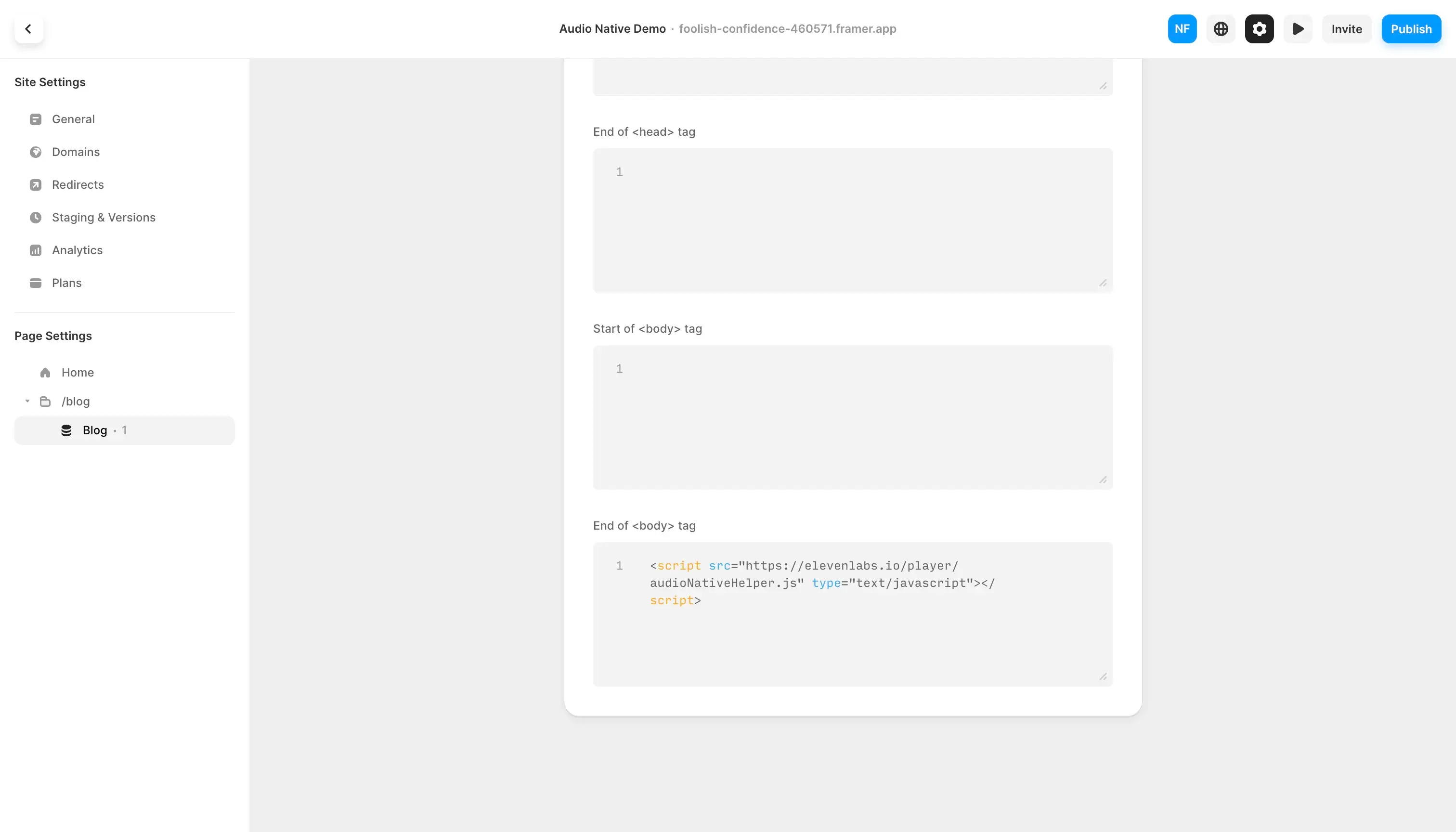
Add an Embed Element
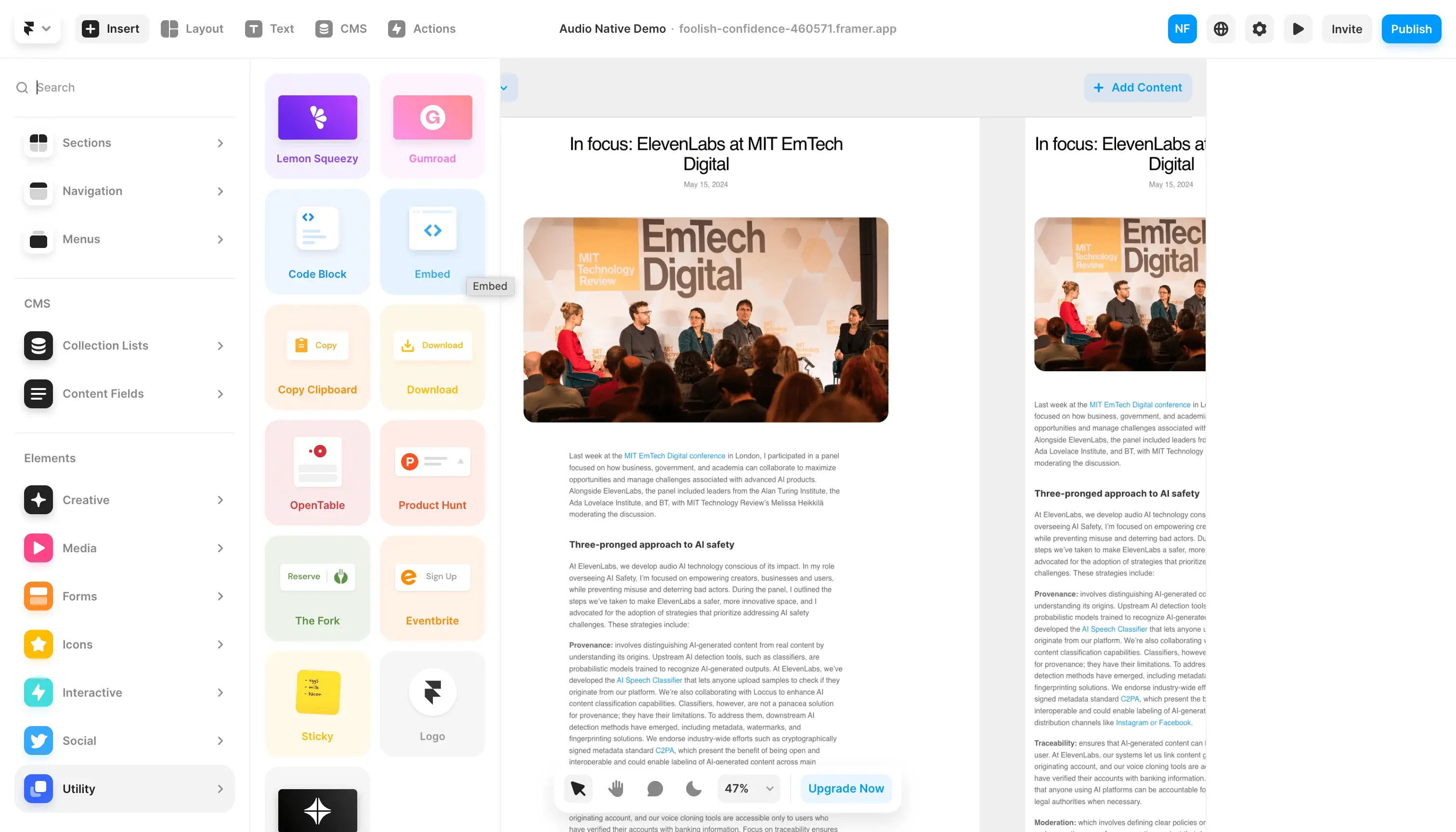
On your Framer blog page, add an Embed Element from Utilities.
In the config for the Embed Element, switch the type to HTML and paste the
<div>snippet from the Audio Native embed code into the HTML box.Embed div <div id="elevenlabs-audionative-widget" data-height="90" data-width="100%" data-frameborder="no" data-scrolling="no" data-publicuserid="public-user-id" data-playerurl="https://elevenlabs.io/player/index.html" data-projectid="project-id" > Loading the <a href="https://elevenlabs.io/text-to-speech" target="_blank" rel="noopener">Elevenlabs Text to Speech</a> AudioNative Player... </div>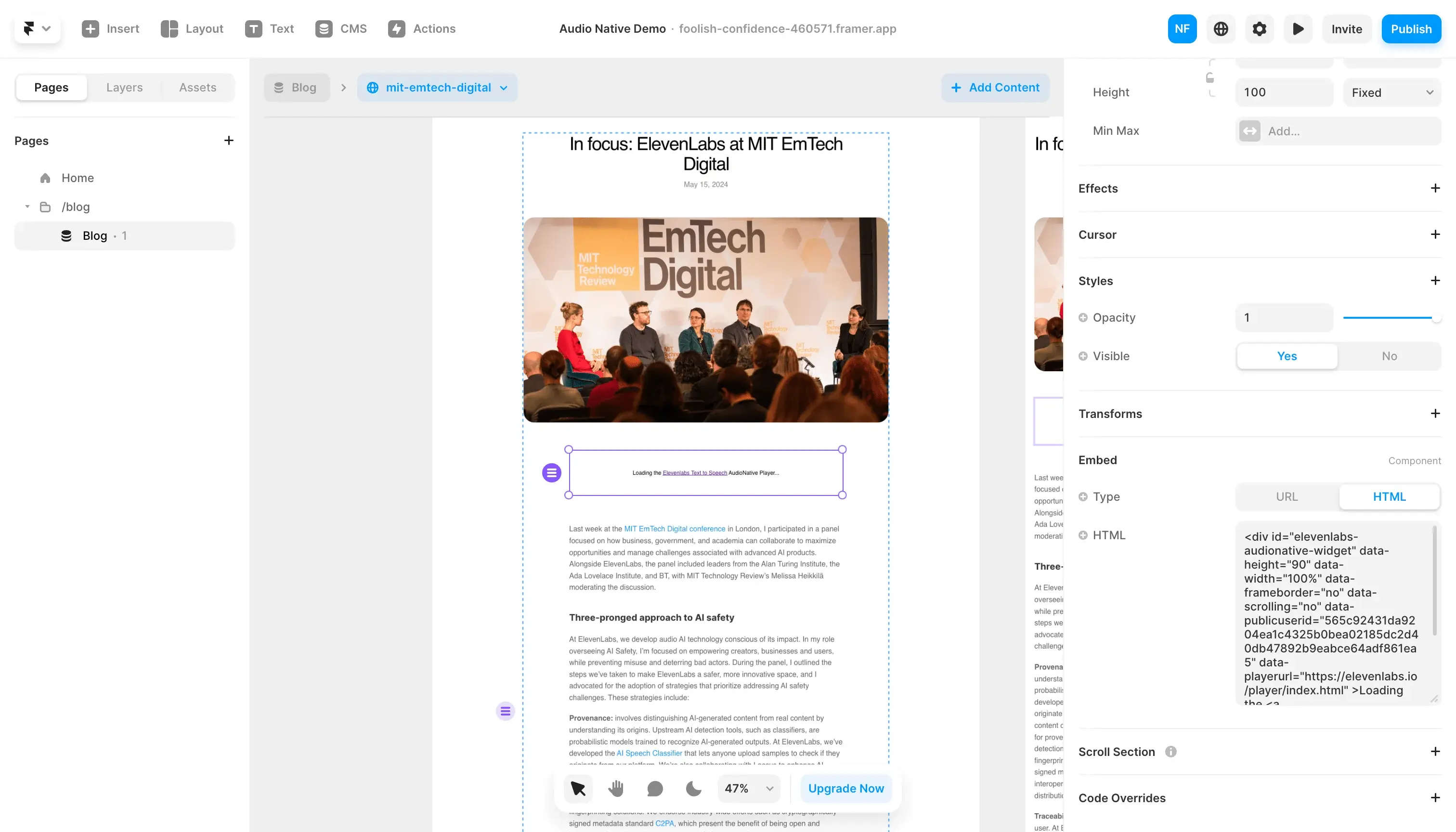
Publish your changes
Finally, publish your changes and navigate to the live version of your page. You should see a message to let you know that the Audio Native project is being created. After a few minutes the text in your blog will be converted to an audio article and the embedded audio player will appear.