ElevenLabs Documentation Docs

Search documentation

Type to search this documentation.

On this pageOverview

Audio Native

Audio Native

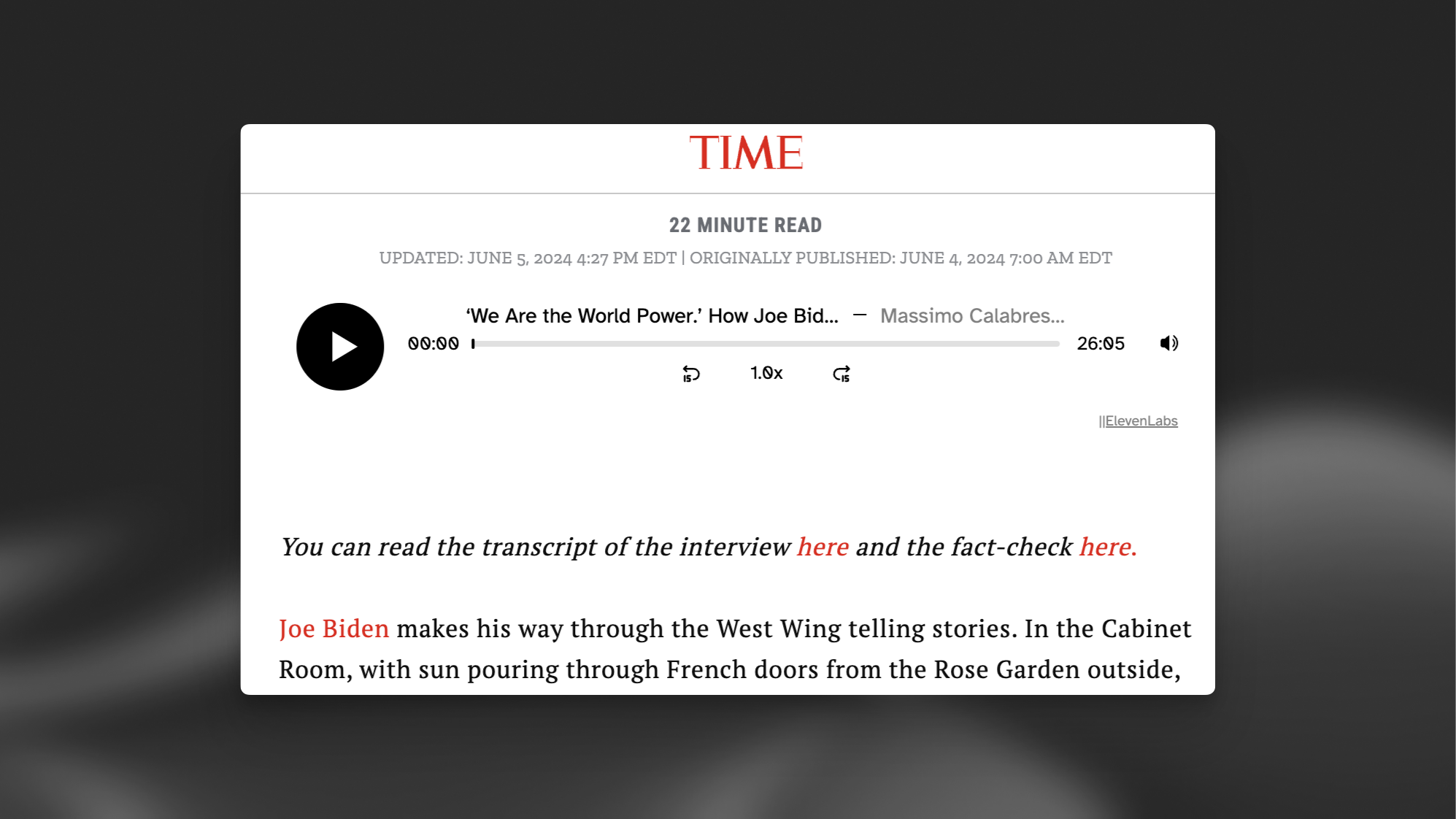
Audio Native is an embedded audio player that automatically voices content of a web page using ElevenLab’s Text to Speech service. It can also be used to embed pre-generated content from a project into a web page. All it takes to embed on your site is a small HTML snippet. In addition, Audio Native provides built-in metrics allowing you to precisely track audience engagement via a listener dashboard.

The end result will be a Audio Native player that can narrate the content of a page, or, like in the case below, embed pre-generated content from a project:

In the ElevenLabs dashboard, under "Audio Tools" navigate to "Audio Native".

Customize the player appearance by selecting background and text colors.

The URL allowlist is the list of web pages that will be permitted to play your content.

You can choose to add a specific web page (e.g. https://elevenlabs.io/blog) or add a whole domain to the allowlist (e.g. http://elevenlabs.io). If a player is embedded on a page that is not in the allowlist, it will not work as intended.

Once you've finished configuring the player and allowlist, copy the embed code and paste it into your website's source code.

To integrate Audio Native into your web techology of choice, see the following guides:

You can use the Audio Native API to programmatically create an Audio Native player for your existing content.

Python

Python
from elevenlabs import ElevenLabs

elevenlabs = ElevenLabs(
api_key="YOUR_API_KEY",
)
response = elevenlabs.audio_native.create(
name="name",
)

# Use the snippet in response.html_snippet to embed the player on your website

JavaScript

JavaScript
import { ElevenLabsClient } from "@elevenlabs/elevenlabs-js";

const elevenlabs = new ElevenLabsClient({ apiKey: "YOUR_API_KEY" });
const { html_snippet } = await elevenlabs.audioNative.create({
    name: "my-audio-native-player"
});

// Use the HTML code in html_snippet to embed the player on your website

To configure the voice and model that will be used to read the content of the page, navigate to the "Settings" tab and select the voice and model you want to use.

Sometimes you may want to specify the pronunciation of certain words, such as character or brand names, or specify how acronyms should be read. Pronunciation dictionaries allow this functionality by enabling you to upload a lexicon or dictionary file that includes rules about how specified words should be pronounced, either using a phonetic alphabet (phoneme tags) or word substitutions (alias tags).

Whenever one of these words is encountered in a project, the AI will pronounce the word using the specified replacement. When checking for a replacement word in a pronunciation dictionary, the dictionary is checked from start to end and only the first replacement is used.

What is Audio Native?
Audio Native is an embedded audio player that automatically voices content of a web page using ElevenLab’s text-to-speech service. It can also be used to embed pre-generated content from a Studio project into a web page. All it takes to deploy on your site is a brief snippet of html. In addition, Audio Native comes with built-in metrics so you can track audience engagement through a listener dashboard.
Audio Native is available on the Creator plan and above.
For more details, please see our Audio Native overview.

Section titled “What is Audio Native?Audio Native is an embedded audio player that automatically voices content of a web page using ElevenLab’s text-to-speech service. It can also be used to embed pre-generated content from a Studio project into a web page. All it takes to deploy on your site is a brief snippet of html. In addition, Audio Native comes with built-in metrics so you can track audience engagement through a listener dashboard.Audio Native is available on the Creator plan and above.For more details, please see our Audio Native overview.”

On what plans is Audio Native available?
Audio Native is available on the Creator plan and above.
For more information, please see our Audio Native overview.

Section titled “On what plans is Audio Native available?Audio Native is available on the Creator plan and above.For more information, please see our Audio Native overview.”

How to update an Audio Native player
Made edits to your website or decided to use a new voice? Here’s how to update your Audio Native player to reflect those changes:
Open the Studio project\ Go to the Audio Native page, click the three dots next to the page you'd like to update, and select Edit Audio. This will open the corresponding Studio project.<br>
Make your changes\ Update your project as needed, such as changing the voice or editing the script.
Export the project as MP3\ Go to Export and export the project.<br>
\ Note: This step is required for updating Audio Native, even if you don't need the MP3 file.
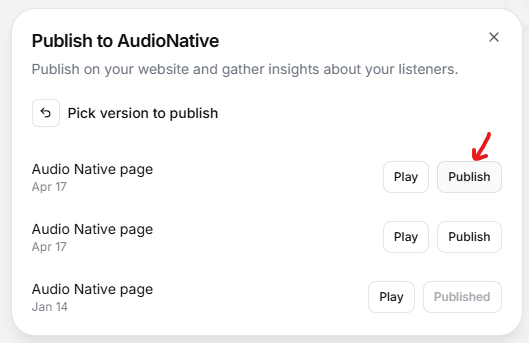
Publish the updated version\ Once the MP3 export is complete, go to Export > Publish > Audio Native.
Select the updated version\ Click Published version and select the newly exported version of your audio to update the embedded player.<br>
Your Audio Native player will now reflect the latest version of your project.
### Updating the Player Title and Author
To change the title or author shown in the Audio Native player:
* Go to the corresponding Studio project editor
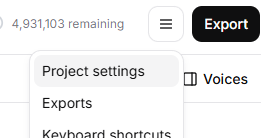
* Click the hamburger menu (☰) and select Project Settings<br>
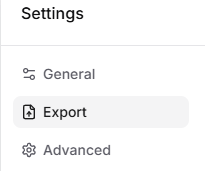
* Go to the Export tab<br>
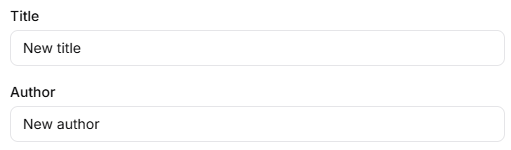
* Edit the Title and Author fields<br>
These changes will be reflected automatically in the embedded player.

Section titled “How to update an Audio Native playerMade edits to your website or decided to use a new voice? Here’s how to update your Audio Native player to reflect those changes:Open the Studio project\ Go to the Audio Native page, click the three dots next to the page you'd like to update, and select Edit Audio. This will open the corresponding Studio project.<br>Make your changes\ Update your project as needed, such as changing the voice or editing the script.Export the project as MP3\ Go to Export and export the project.<br>\ Note: This step is required for updating Audio Native, even if you don't need the MP3 file.Publish the updated version\ Once the MP3 export is complete, go to Export > Publish > Audio Native.Select the updated version\ Click Published version and select the newly exported version of your audio to update the embedded player.<br>Your Audio Native player will now reflect the latest version of your project.### Updating the Player Title and AuthorTo change the title or author shown in the Audio Native player:* Go to the corresponding Studio project editor* Click the hamburger menu (☰) and select Project Settings<br>* Go to the Export tab<br>* Edit the Title and Author fields<br>These changes will be reflected automatically in the embedded player.”
Suggest an edit

Propose a replacement for this page. The site team reviews it before applying any changes.

Export
Documentation menu