Transcripts
Using the ElevenLabs Transcript Editor
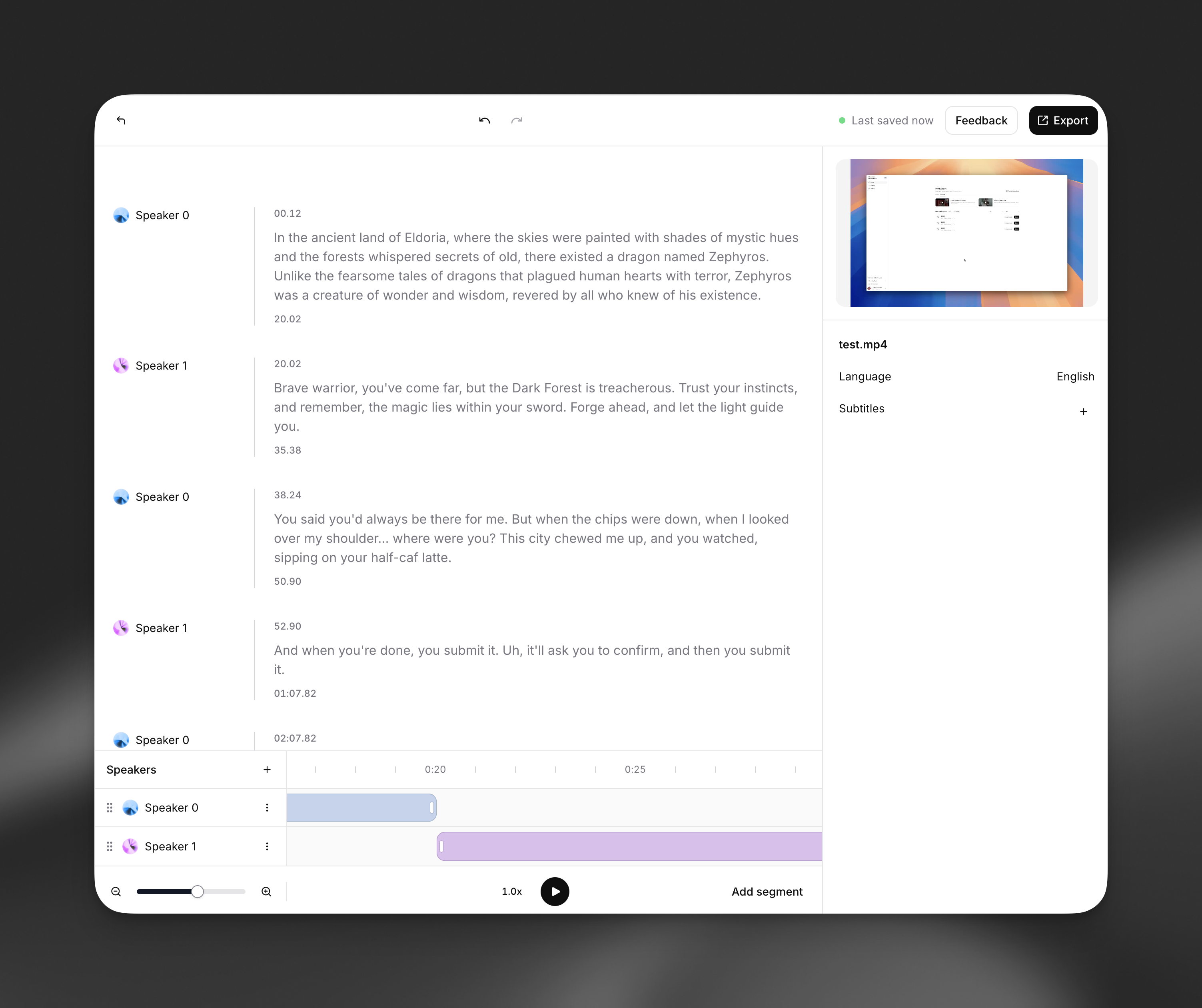
Transcript Editor
Section titled “Transcript Editor”Open transcript
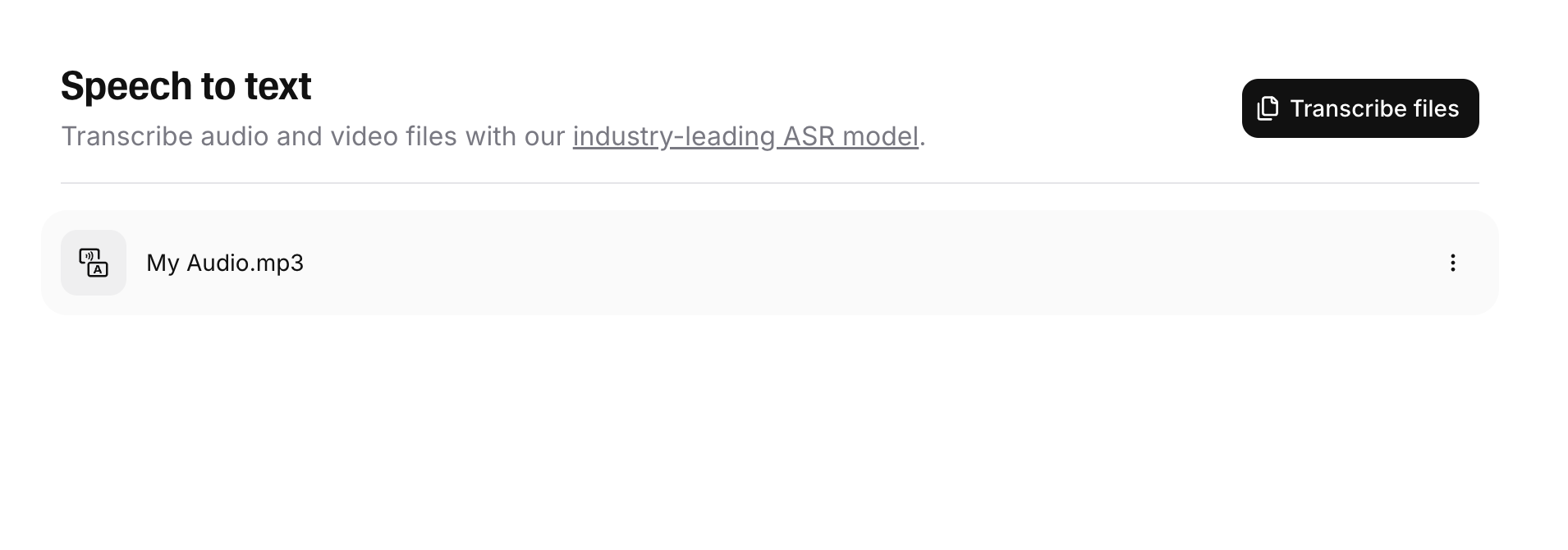
In the ElevenLabs dashboard, navigate to the Speech to Text page and click any transcript to open the Transcript Editor.
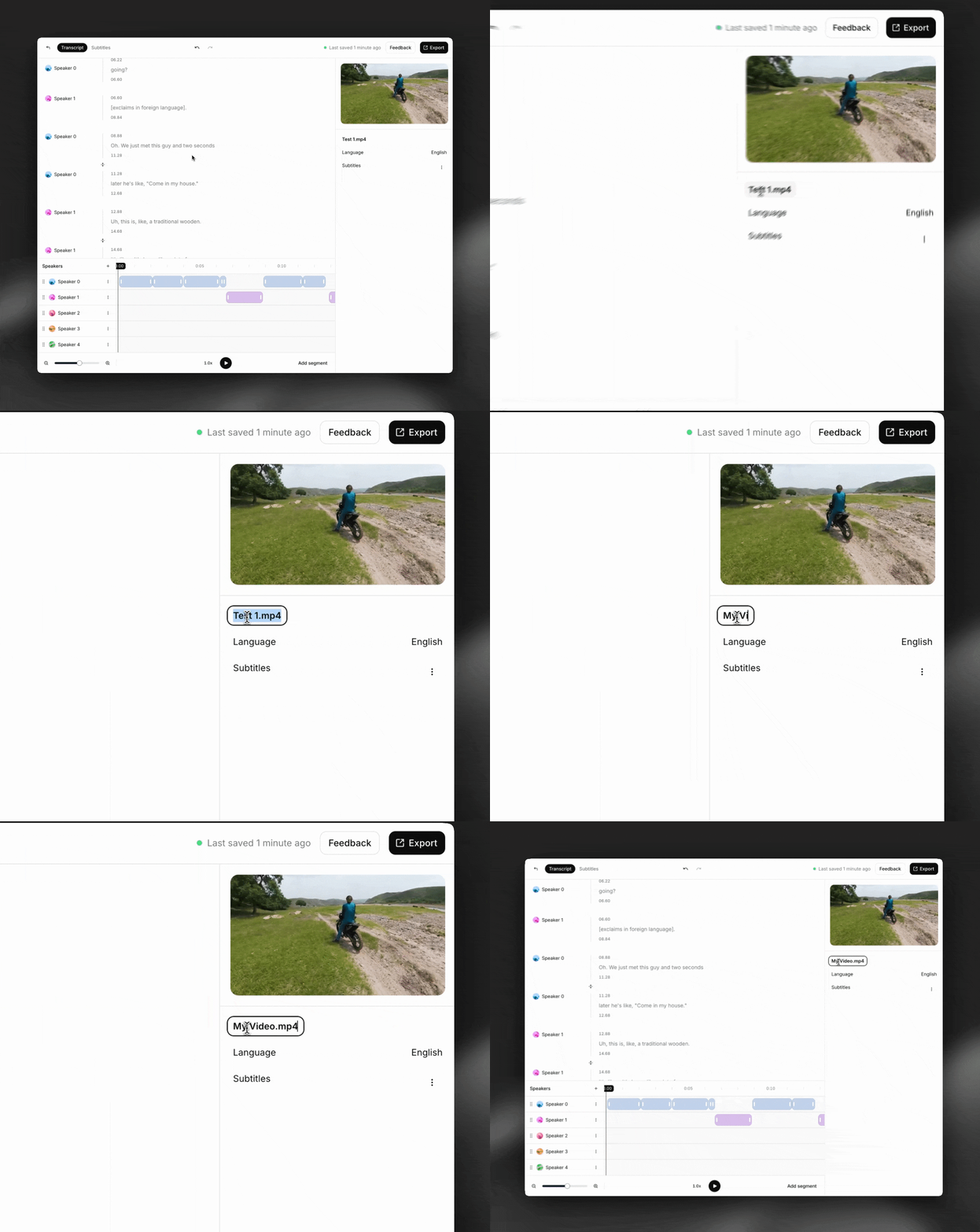
Edit basic details
You can rename your transcript in the panel on the right side of the screen.
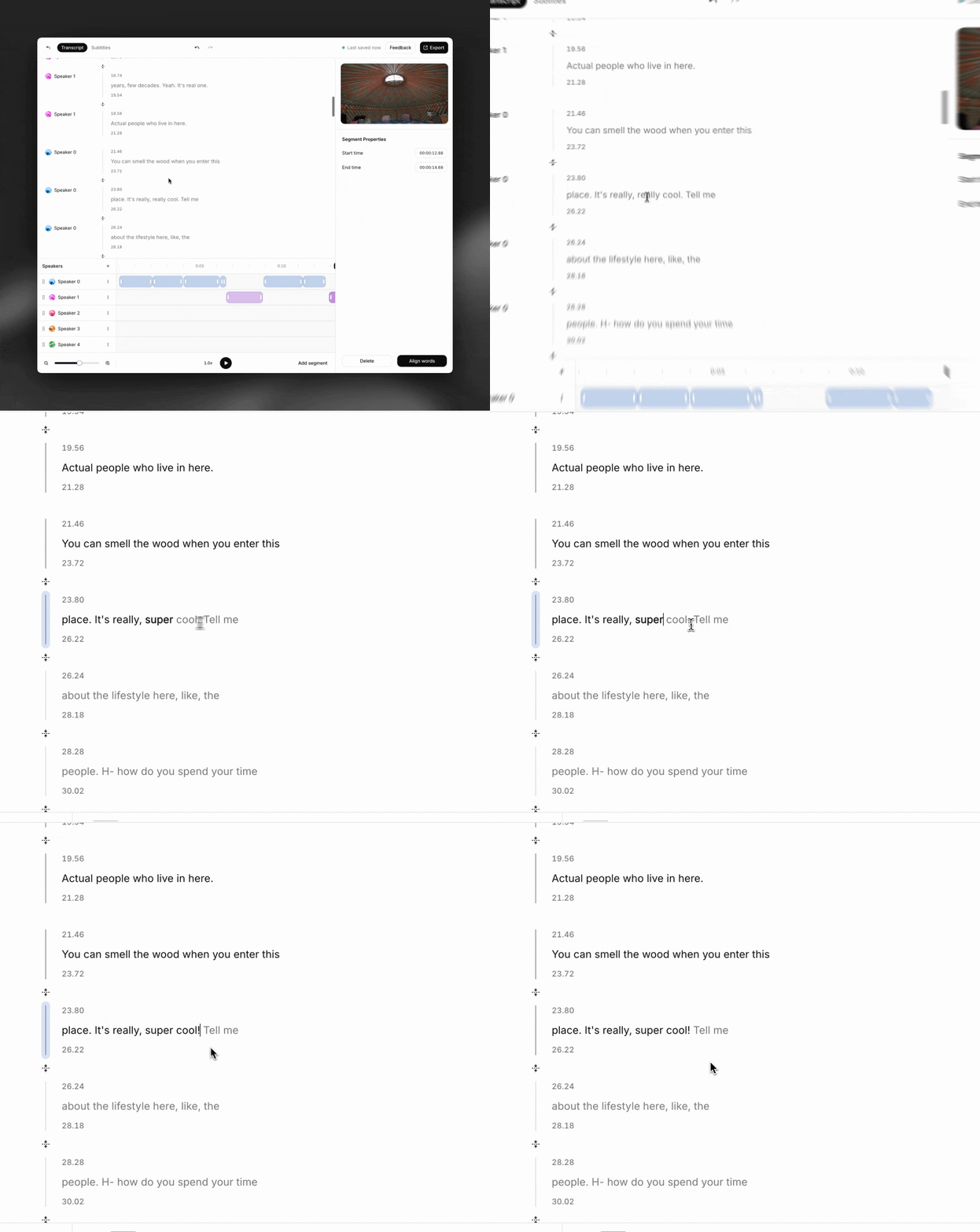
Edit text
Our transcript editor is WYSIWYG. Click anywhere in the transcript and start typing to edit the text.
Tip: Use command+z to undo changes easily.
Adjust segment start and end times
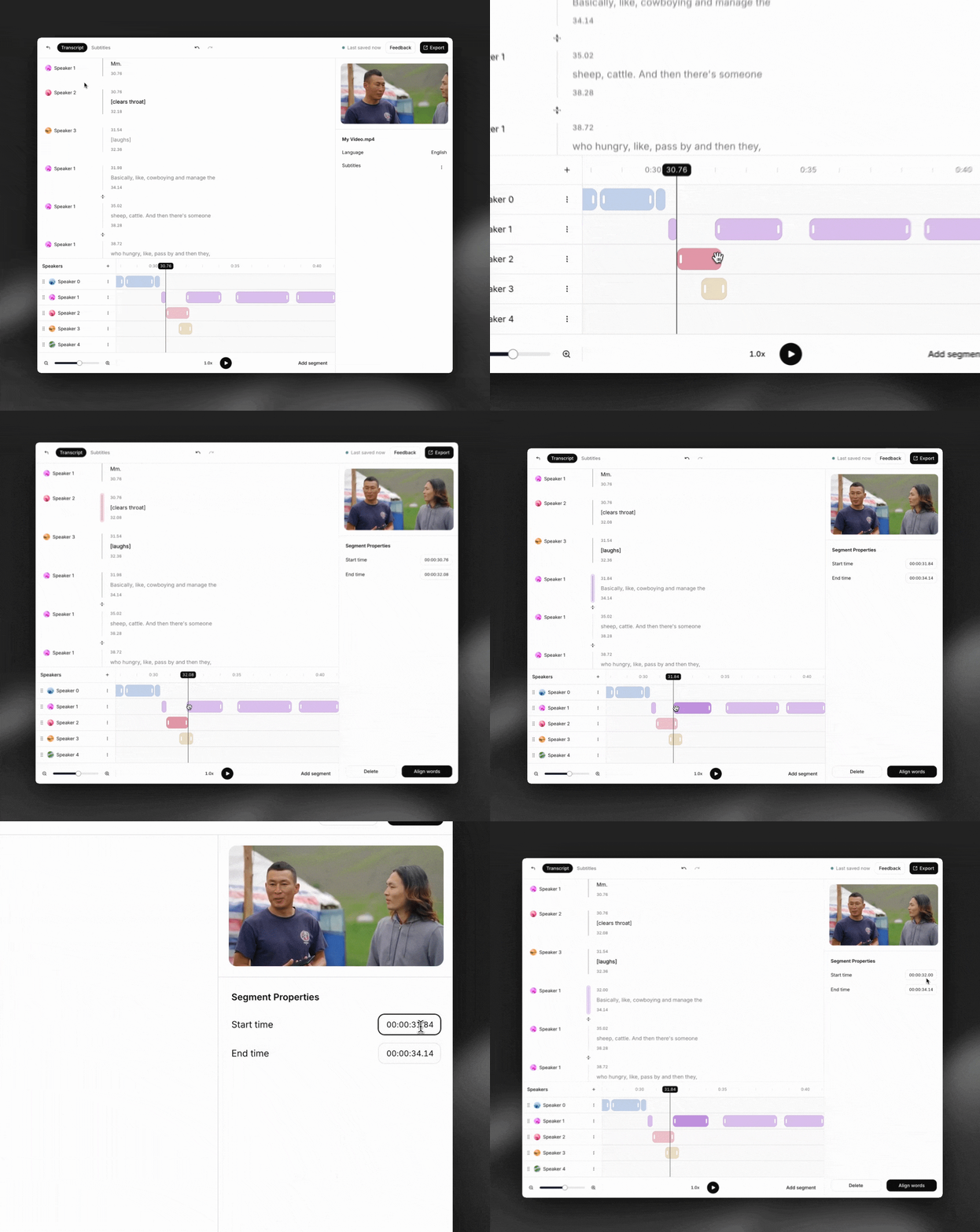
Drag the handles on the timeline to adjust the start and end timestamps for a segment. You can also type in exact timestamps in the panel on the right side of the screen.
Split and merge segments
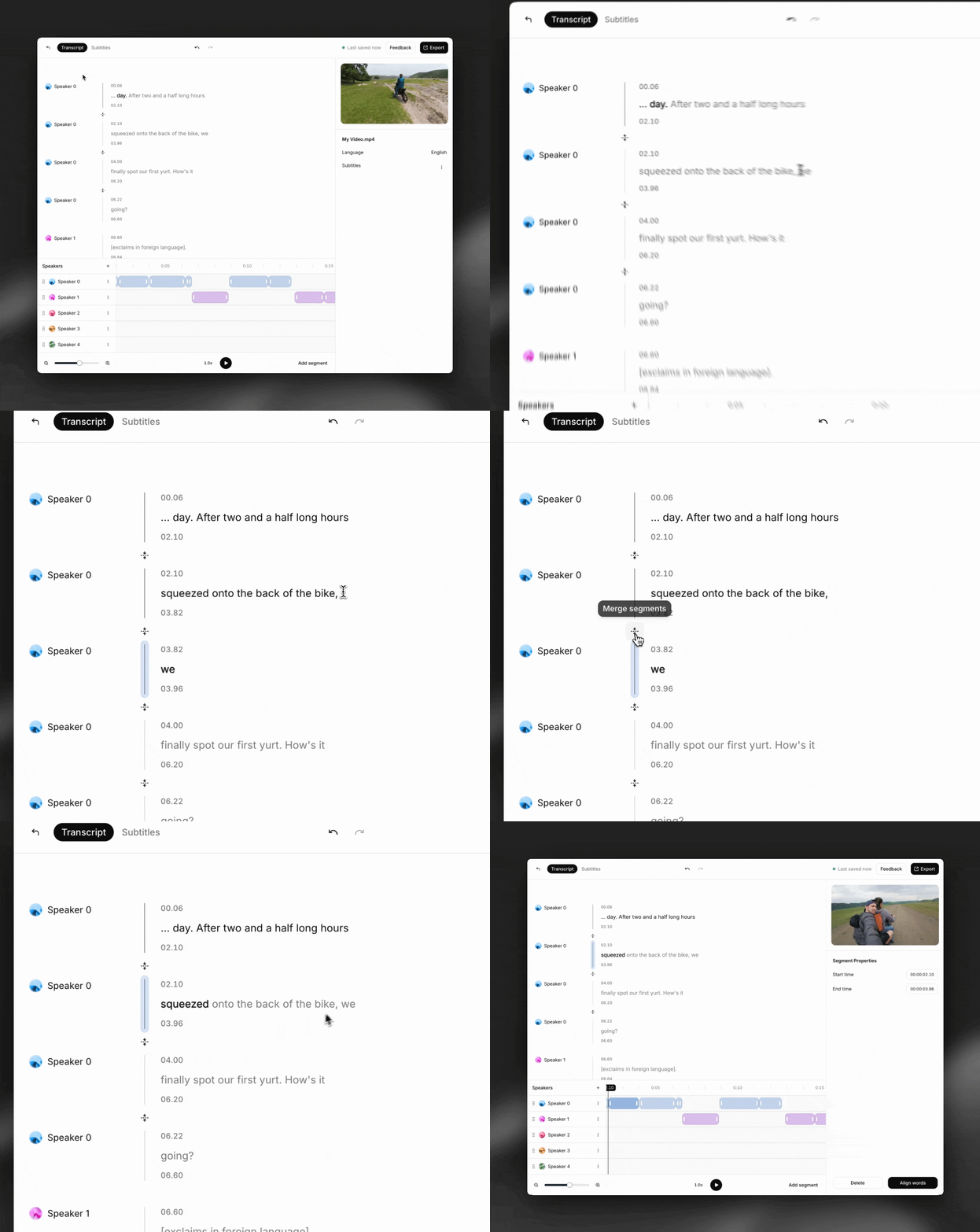
To split a segment, click in the text where you want to split and press Enter.
To merge two segments, click the ‘merge segments’ button. Note that two conditions must be fulfilled for a merge to be possible:
- Both segments must belong to the same speaker
- The segments must be adjacent to each other
Add or remove segments
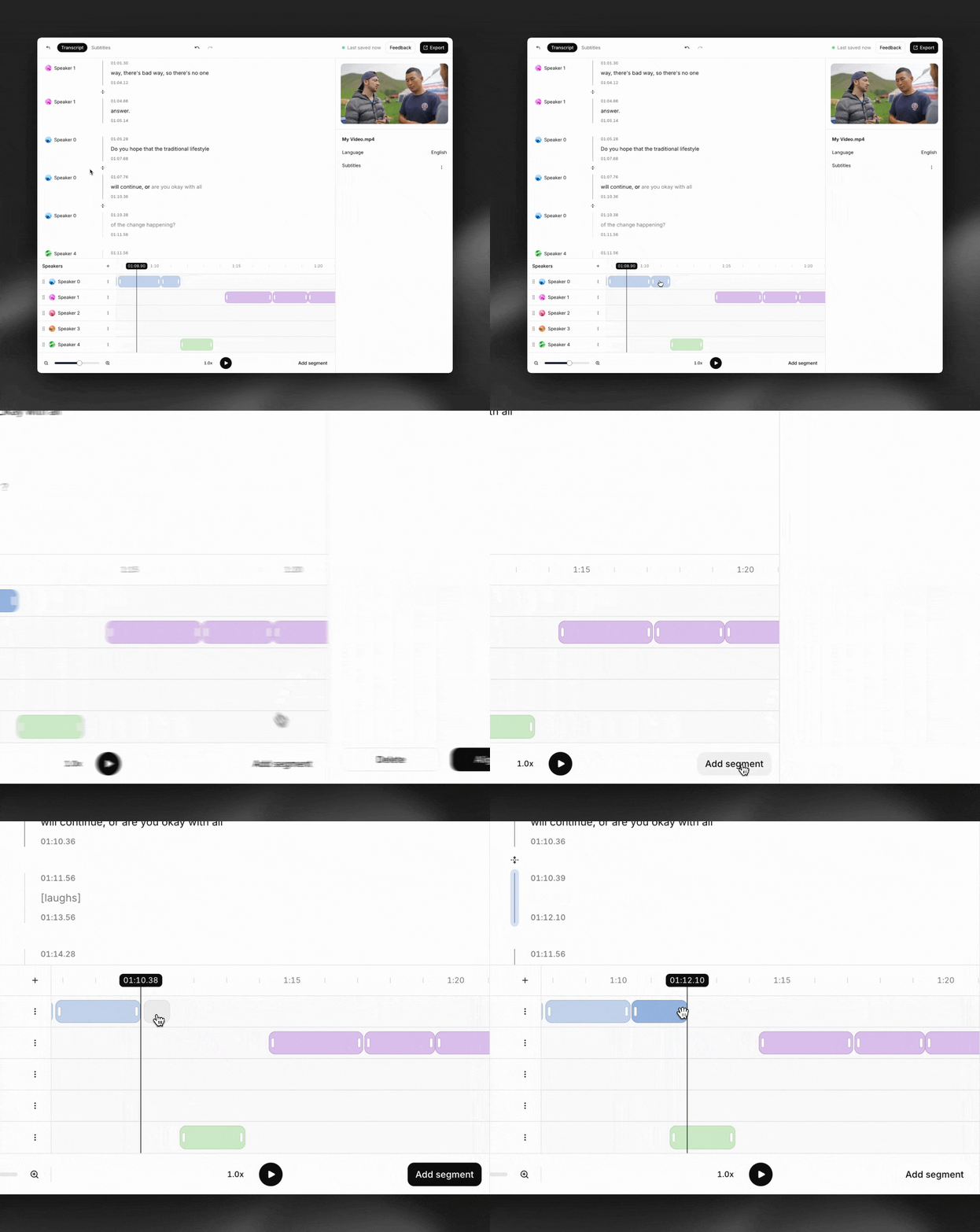
To add a segment, click on the ‘Add Segment’ icon and select a location on the timeline.
To delete a segment, select the segment and click ‘Delete’ in the panel on the right side of the screen or press the Delete key
Re-align words inside a segment
Click ‘align words’ after making changes to a segment to recompute word-level timestamps.

Re-assign segments to different speakers
There are 2 ways to assign segments to different speakers:
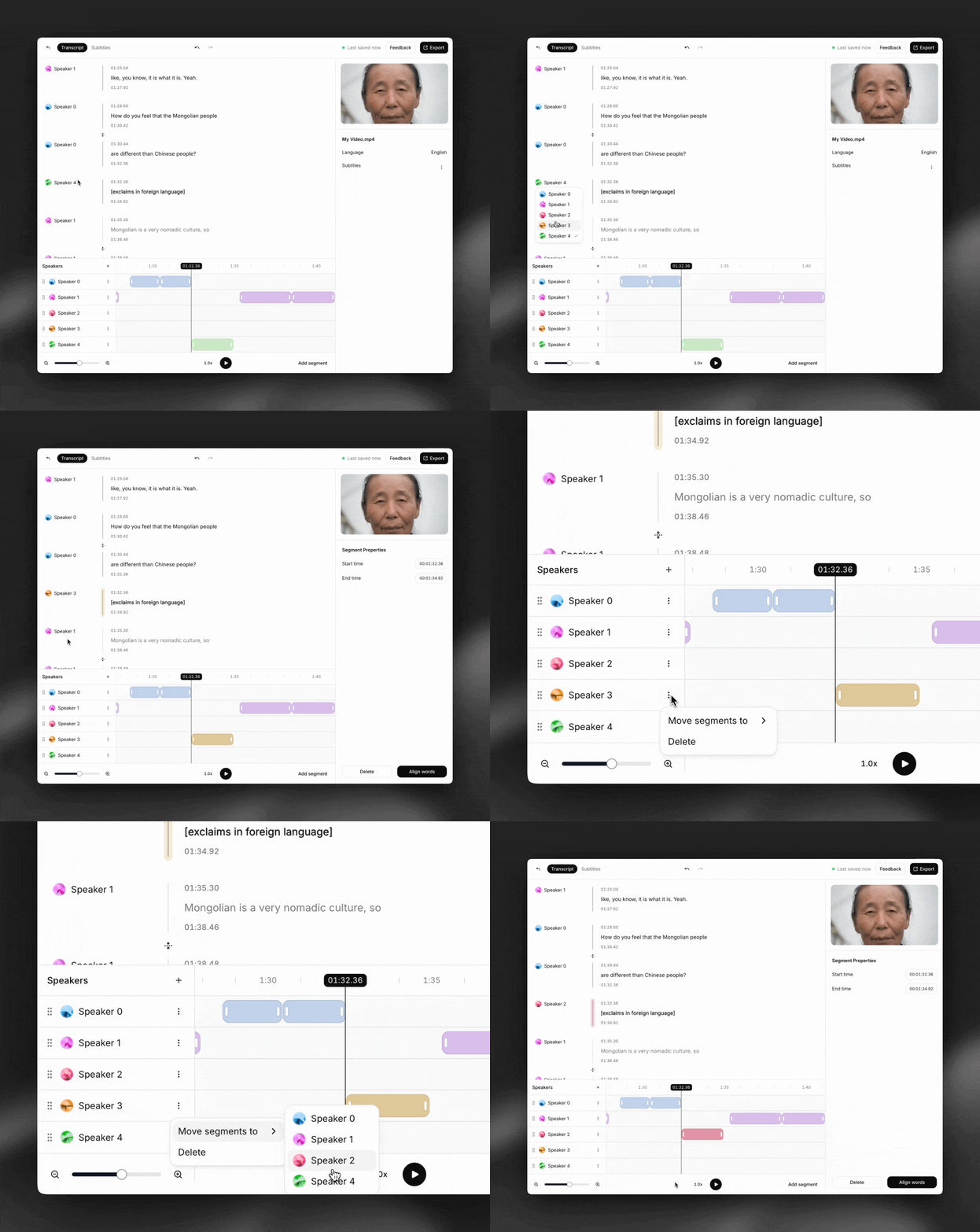
- Individually: click the orb next to the speaker name for a segment, and select a new speaker from the dropdown list.
- Bulk: to reassign all segments from one speaker to another, click on the three dots (⋮) and select ‘Move Segments To’. Then select the new speaker.
Add or delete speakers
To add a speaker, click the ’+’ icon above the speaker tracks. To delete a speaker, click on the three dots (⋮) next to the speaker’s track and click ‘Delete.’
Important note: if you delete a speaker, all of their associated segments will also be deleted.
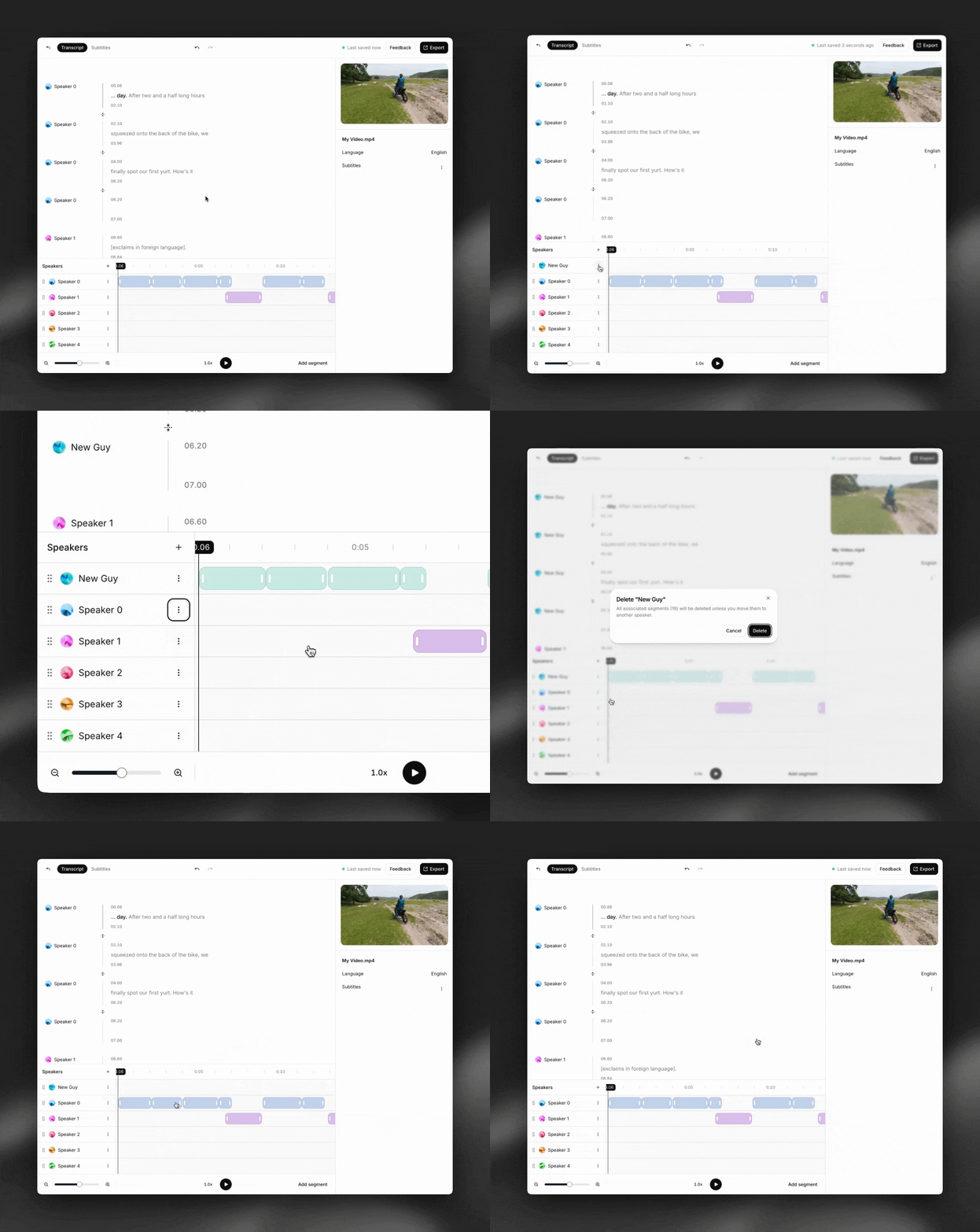
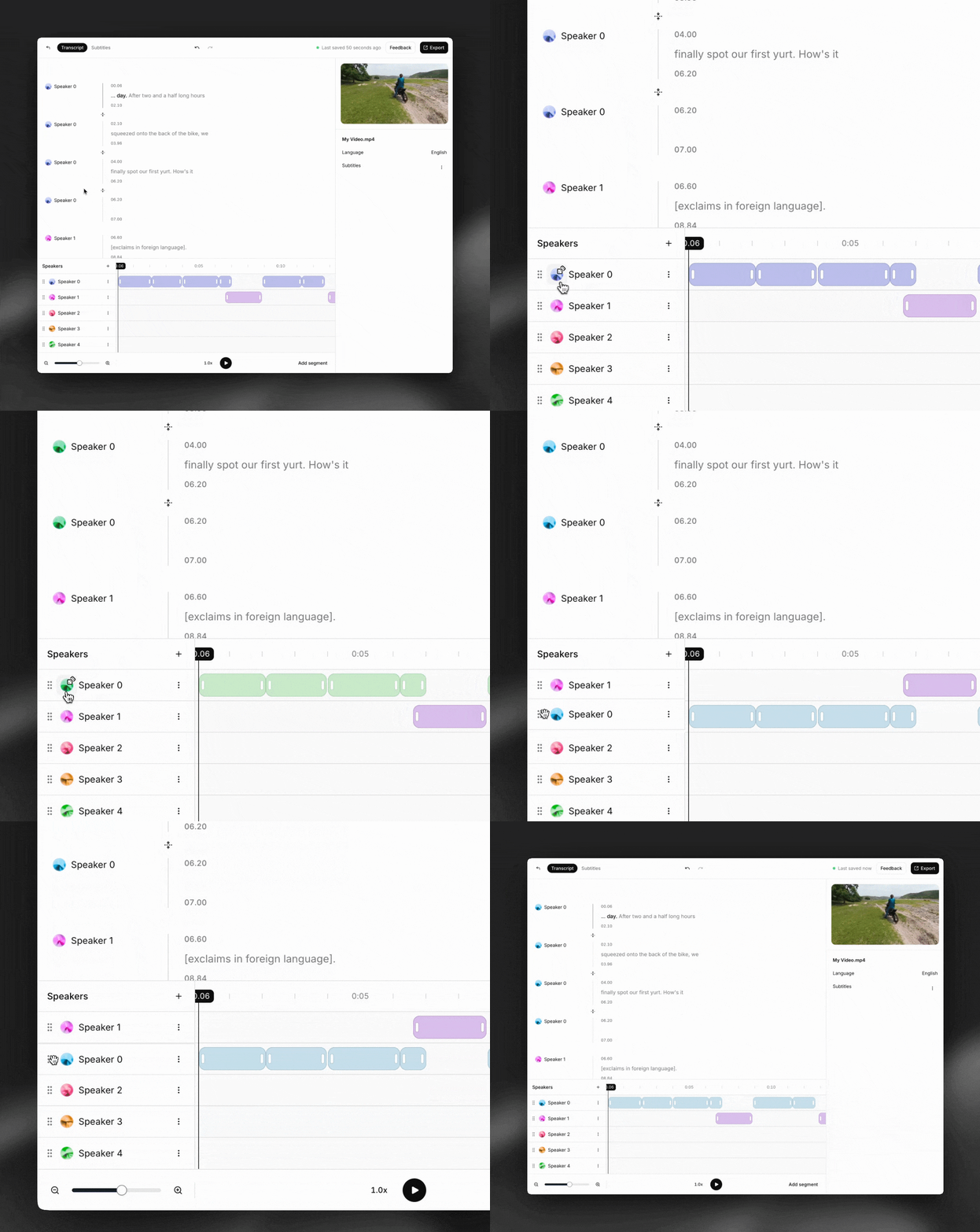
Reorder speaker tracks and change colors
Click and drag to reorder speaker tracks on the timeline. You can also change the color of a speaker track (which also applies to all its segments) by clicking the orb next to the speaker name.
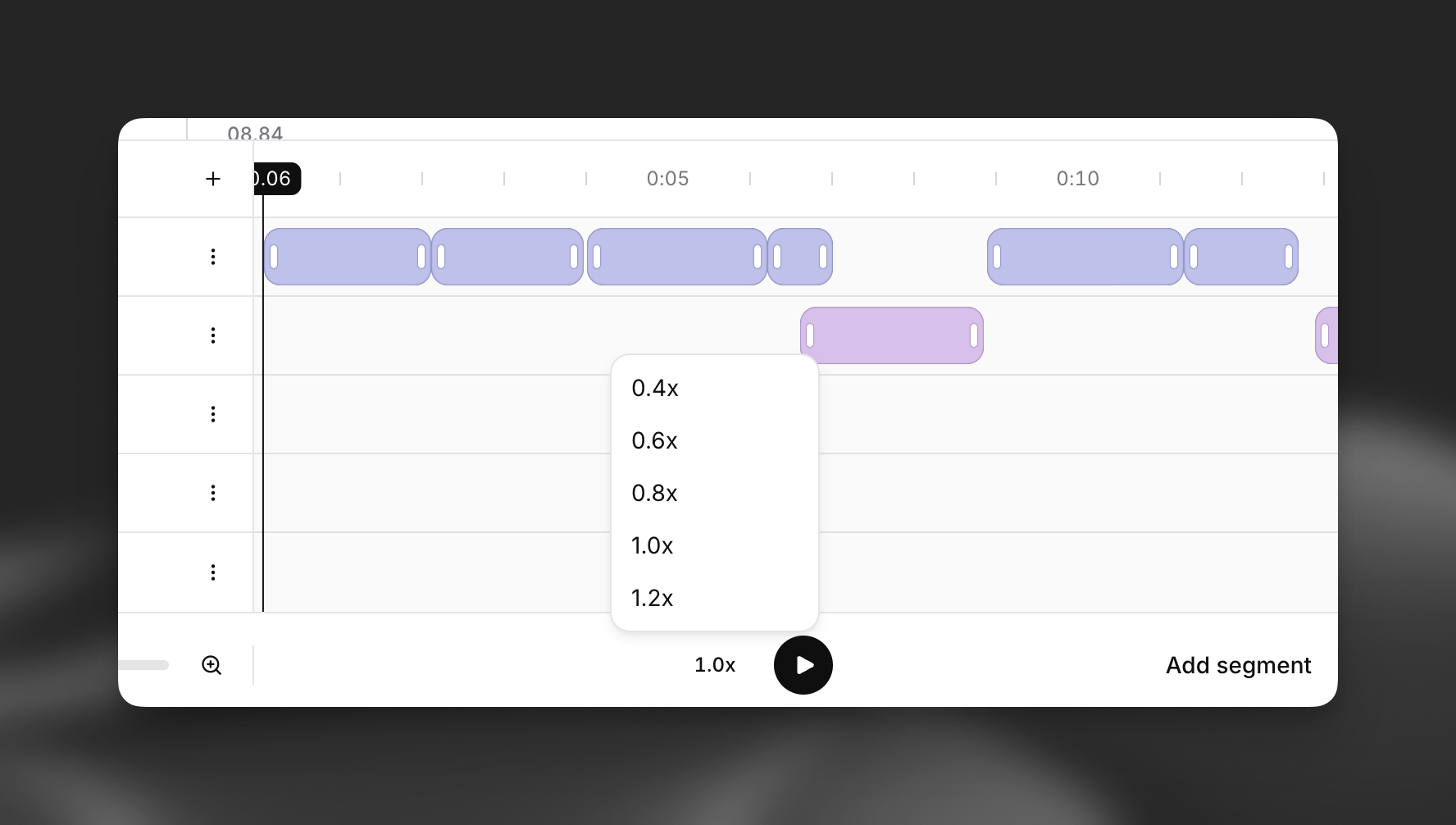
Adjust playback speed
You can adjust the playback speed of the source media by clicking the indicator next to the play button.
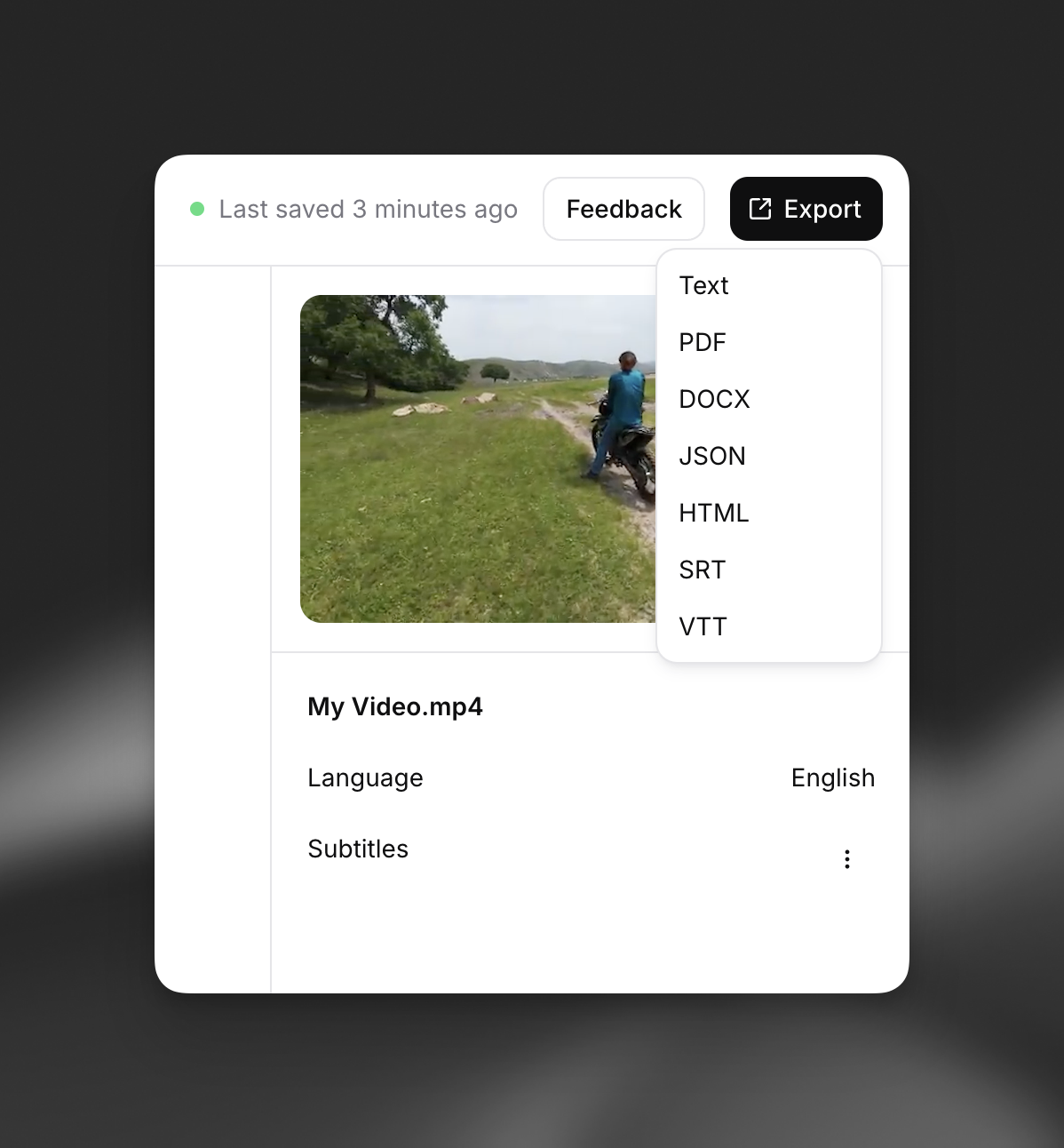
Export transcript
Click the export button in the top right of the screen and select one of the transcript export formats:
- Plain text
- JSON
- HTML
- SRT
- VTT
| Does the transcript editor also support subtitles? Yes – you can add subtitles by clicking the ’+’ next to ‘Subtitles’ in the panel on the right side of the screen. To learn more about editing subtitles, please see our Subtitle guide. |
|---|
| Can someone review my transcript to make sure it's accurate? Yes – our Productions team offers human transcription services from $2.00 per minute of audio. What you get from us: Expert review by a native speaker Optional ‘Verbatim Mode’ for maximum coverage of non-verbal sounds ([cough], [sigh], etc.) and other environmental sounds and audio events ([dog barking], [car horn], etc.) For more information please see the ‘Productions’ section of your ElevenLabs account (currently in beta and available to select users) or contact us at productions@elevenlabs.io. |