Workflows
Overview
Section titled “Overview”Agent Workflows provide a powerful visual interface for designing complex conversation flows in ElevenAgents. Instead of relying on linear conversation paths, workflows enable you to create sophisticated, branching conversation graphs that adapt dynamically to user needs.
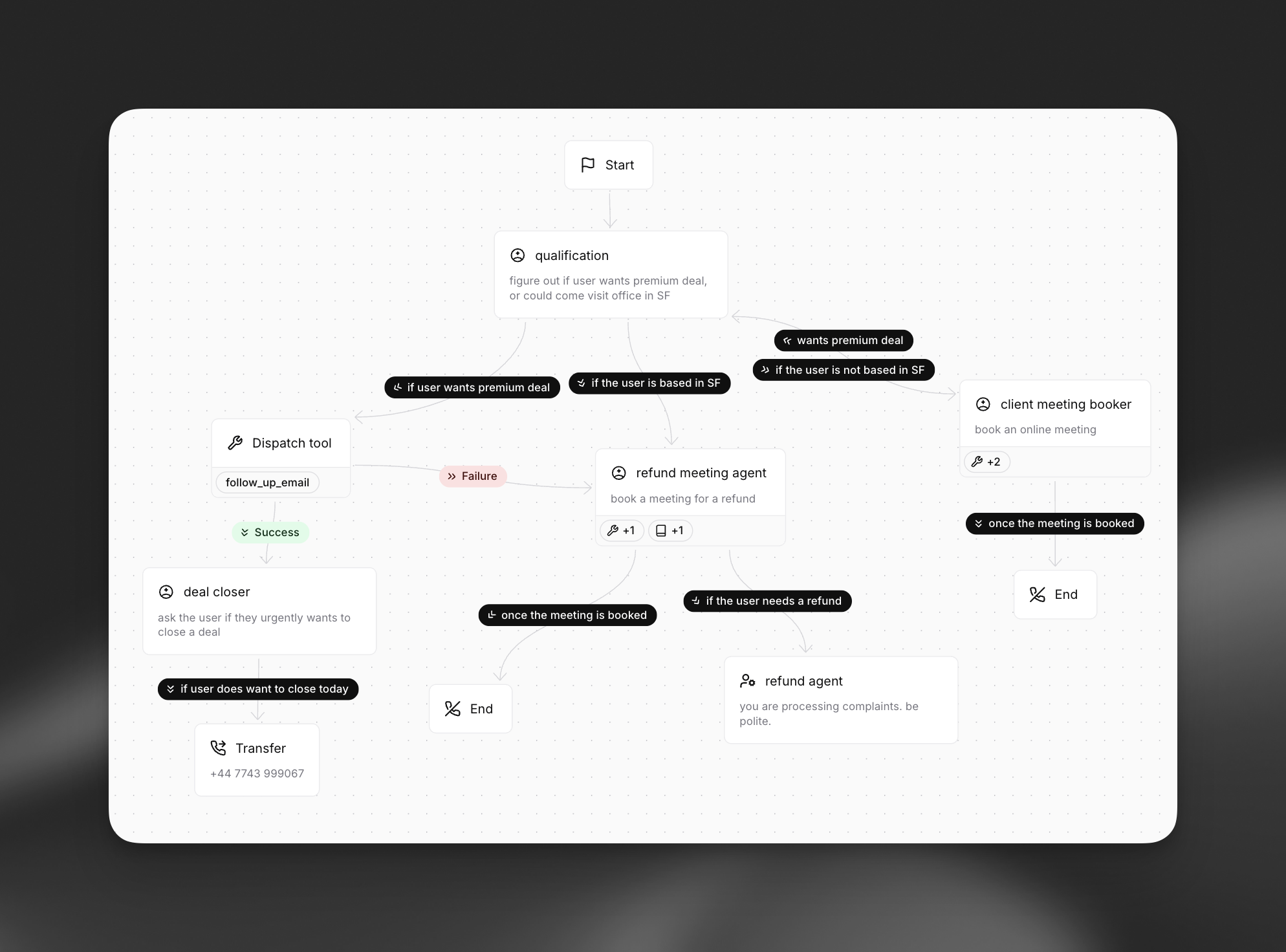
Building workflows
Section titled “Building workflows”The dashboard is the recommended way to design workflows because of the visual graph editor. Workflows are stored as part of the agent's conversation_config.workflow, so you can also pull, edit, and push the JSON via the CLI or update it via the SDK — useful for version control and CI/CD.
Build via the dashboard
Section titled “Build via the dashboard”Open your agent in the dashboard, navigate to the Workflow tab, and use the visual editor to add nodes, configure subagent behavior, and connect edges. Save your changes.
Update via the CLI
Section titled “Update via the CLI”Pull the agent configuration
Section titled “Pull the agent configuration”elevenlabs agents pull --agent "<agent-name>"Edit `agent_configs/<agent-name>.json`
Section titled “Edit `agent_configs/<agent-name>.json`”The workflow graph lives under conversation_config.workflow. nodes and edges are objects keyed by ID. Below is a minimal three-node workflow that routes the start node into a support subagent and then to an end node:
{
  "conversation_config": {
    "workflow": {
      "nodes": {
        "start_node": {
          "type": "start",
          "edge_order": ["start_to_support"]
        },
        "support_agent": {
          "type": "override_agent",
          "label": "Support agent",
          "additional_prompt": "Help the user with their support request, then transition to the end node when resolved.",
          "edge_order": ["support_to_end"]
        },
        "end_node": {
          "type": "end"
        }
      },
      "edges": {
        "start_to_support": {
          "source": "start_node",
          "target": "support_agent",
          "forward_condition": { "type": "unconditional" }
        },
        "support_to_end": {
          "source": "support_agent",
          "target": "end_node",
          "forward_condition": {
            "type": "llm",
            "condition": "The support request has been resolved."
          }
        }
      }
    }
  }
}
Most teams design workflows in the dashboard first, then commit the resulting JSON to version control.
Push your changes
Section titled “Push your changes”elevenlabs agents push --agent "<agent-name>"Update via the API
Section titled “Update via the API”from elevenlabs import ElevenLabs
elevenlabs = ElevenLabs()
elevenlabs.conversational_ai.agents.update(
agent_id="agent_7101k5zvyjhmfg983brhmhkd98n6",
conversation_config={
"workflow": {
"nodes": {
"start_node": {
"type": "start",
"edge_order": ["start_to_support"],
},
"support_agent": {
"type": "override_agent",
"label": "Support agent",
"additional_prompt": "Help the user with their support request, then transition to the end node when resolved.",
"edge_order": ["support_to_end"],
},
"end_node": {"type": "end"},
},
"edges": {
"start_to_support": {
"source": "start_node",
"target": "support_agent",
"forward_condition": {"type": "unconditional"},
},
"support_to_end": {
"source": "support_agent",
"target": "end_node",
"forward_condition": {
"type": "llm",
"condition": "The support request has been resolved.",
},
},
},
},
},
)import { ElevenLabsClient } from "@elevenlabs/elevenlabs-js";
const elevenlabs = new ElevenLabsClient();
await elevenlabs.conversationalAi.agents.update("agent_7101k5zvyjhmfg983brhmhkd98n6", {
conversationConfig: {
workflow: {
nodes: {
start_node: {
type: "start",
edgeOrder: ["start_to_support"],
},
support_agent: {
type: "override_agent",
label: "Support agent",
additionalPrompt:
"Help the user with their support request, then transition to the end node when resolved.",
edgeOrder: ["support_to_end"],
},
end_node: { type: "end" },
},
edges: {
start_to_support: {
source: "start_node",
target: "support_agent",
forwardCondition: { type: "unconditional" },
},
support_to_end: {
source: "support_agent",
target: "end_node",
forwardCondition: {
type: "llm",
condition: "The support request has been resolved.",
},
},
},
},
},
});Node types
Section titled “Node types”Workflows are composed of different node types, each serving a specific purpose in your conversation flow.
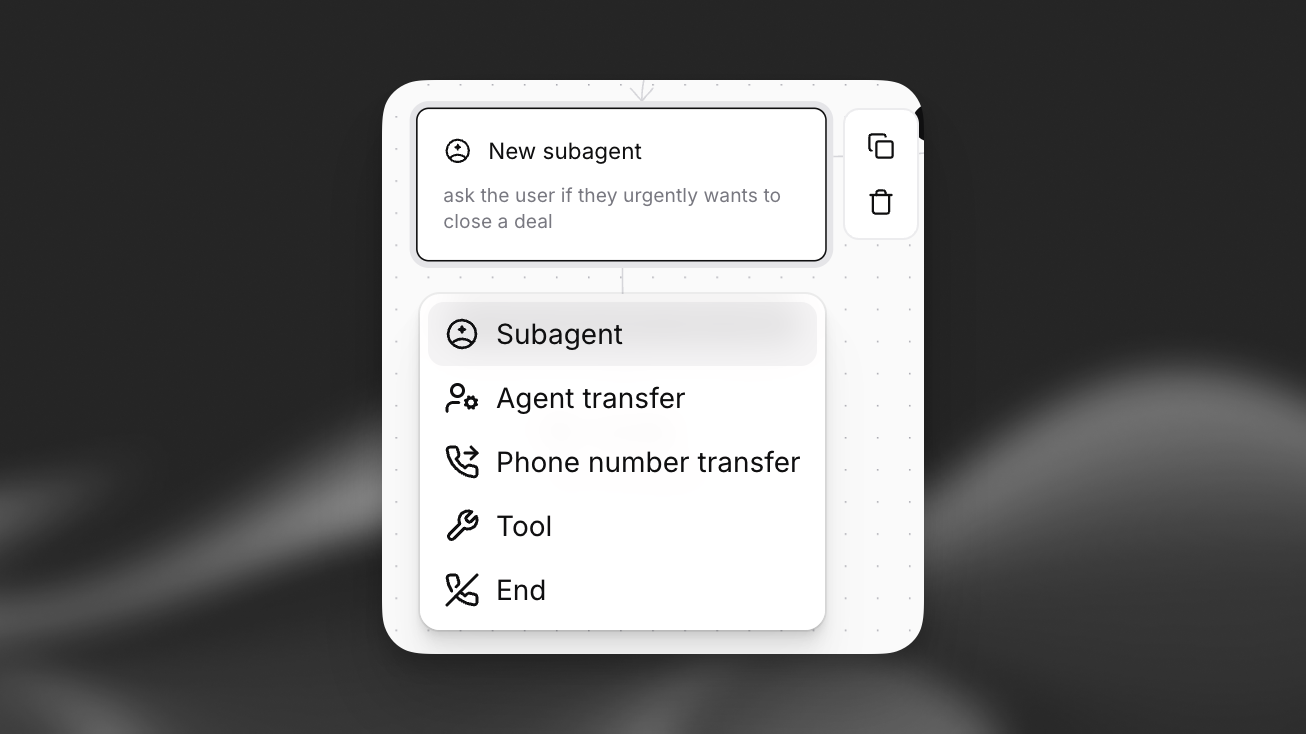
Subagent nodes
Section titled “Subagent nodes”Subagent nodes allow you to modify agent behavior at specific points in your workflow. These modifications are applied on top of the base agent configuration, or can override the current agent's config completely, giving you fine-grained control over each conversation phase. Any of an agent's configuration, tools available, and attached knowledge base items can be updated/overwitten.
General
Section titled “General”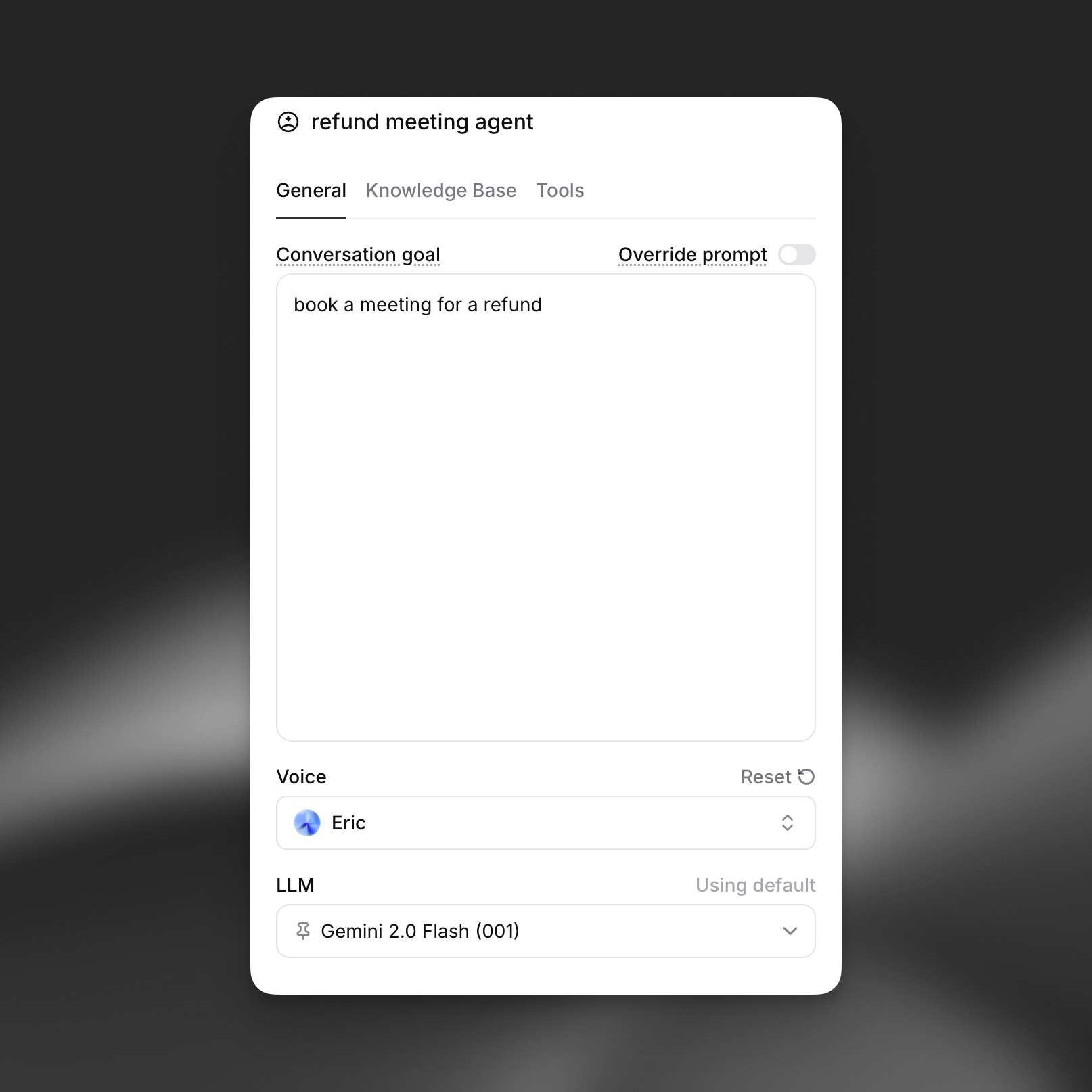
Modify core agent settings for this specific node:
- System Prompt: Append or override system instructions to guide agent behavior
- LLM Selection: Choose a different language model (e.g., switch from Gemini 2.0 Flash to a more powerful model for complex reasoning tasks)
- Voice Configuration: Change voice settings including speed, tone, or even switch to a different voice
Use Cases:
- Use a more powerful LLM for complex decision-making nodes
- Apply stricter conversation guidelines during sensitive information gathering
- Change voice characteristics for different conversation phases
- Modify agent personality for specific interaction types
Knowledge Base
Section titled “Knowledge Base”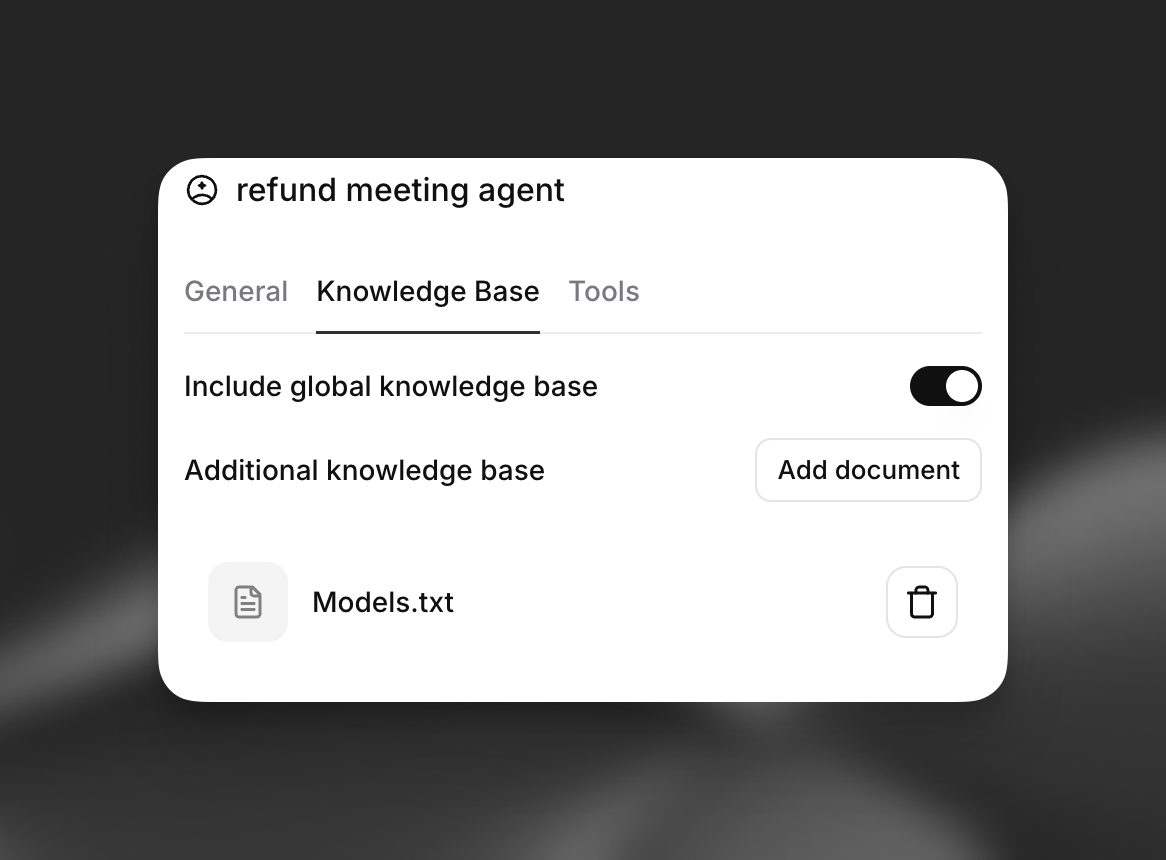
Add node-specific knowledge without affecting the global knowledge base:
- Include Global Knowledge Base: Toggle whether to include the agent's main knowledge base
- Additional Documents: Add documents specific to this conversation phase
- Dynamic Knowledge: Inject contextual information based on workflow state
Use Cases:
- Add product-specific documentation during sales conversations
- Include compliance guidelines during authentication
- Provide troubleshooting guides for support flows
- Add pricing information only after qualification
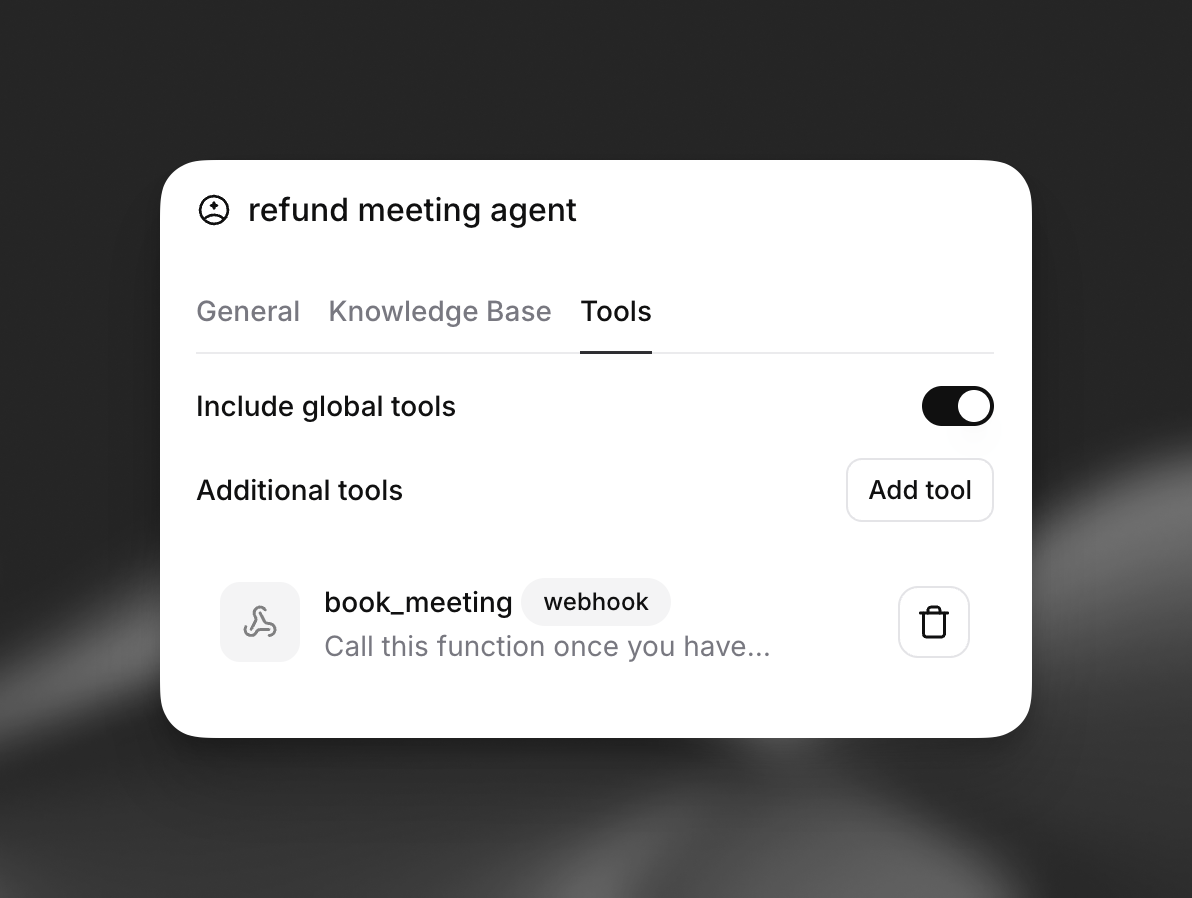
Manage which tools are available to the agent at this node:
- Include Global Tools: Toggle whether to include tools from the main agent configuration
- Additional Tools: Add tools specific to this workflow node (e.g., webhook tools like
book_meeting) - Tool Type: Specify whether tools are webhooks, API calls, or other integrations
Use Cases:
- Add authentication tools only after initial qualification
- Enable payment processing tools at checkout nodes
- Provide CRM access after user verification
- Add scheduling tools for appointment booking phases
- Include webhook tools for specific actions like booking meetings
Dispatch tool node
Section titled “Dispatch tool node”Tool nodes execute a specific tool call during conversation flow. Unlike tools within subagents, tool nodes are dedicated execution points that guarantee the tool is called.
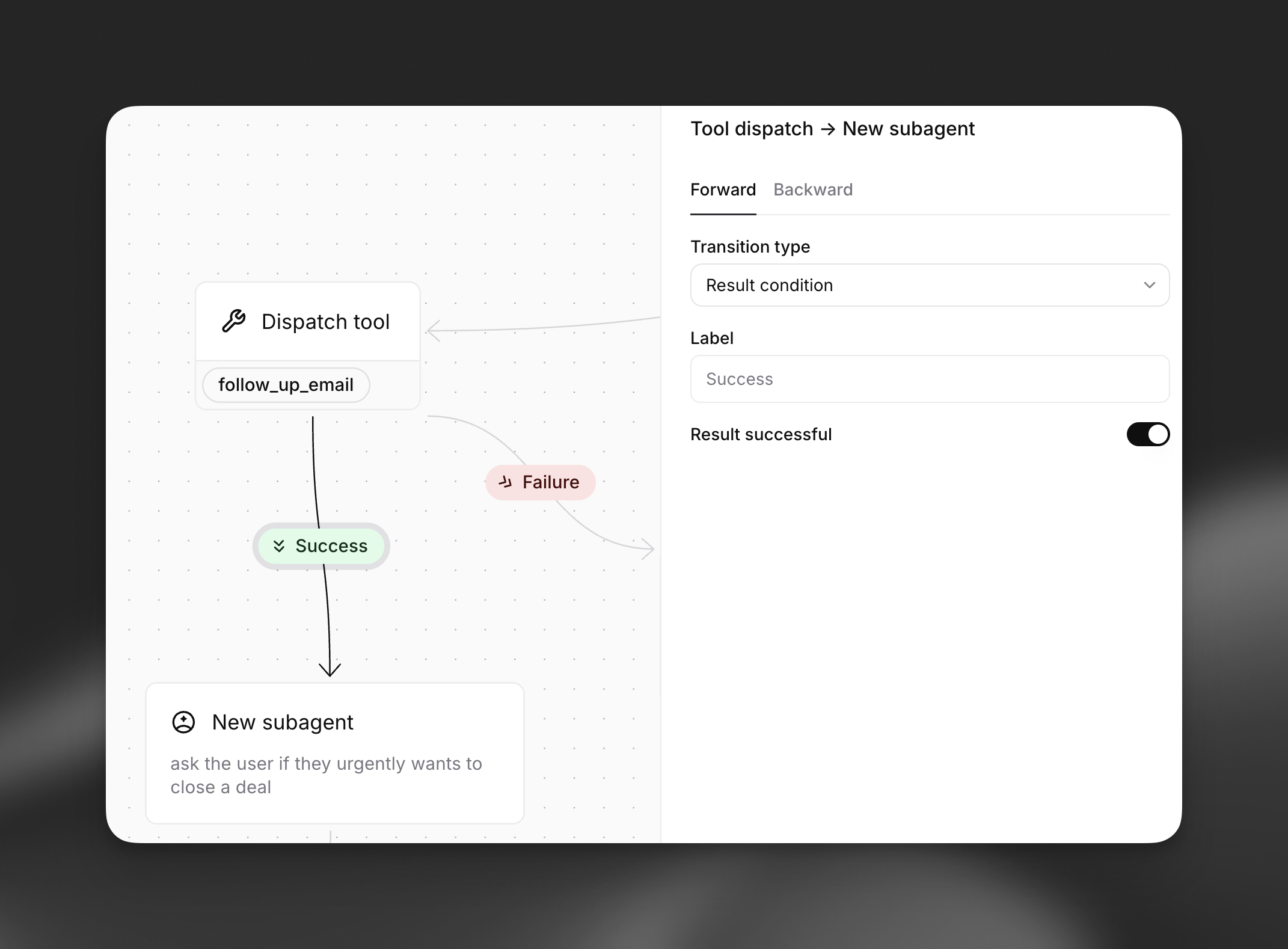
Special Edge Configuration: Tool nodes have a unique edge type that allows routing to a new node based on the tool execution result. You can define:
- Success path: Where to route when the tool executes successfully
- Failure path: Where to route when the tool fails or returns an error
In future, futher branching conditions will be provided.
Agent transfer node
Section titled “Agent transfer node”Agent transfer node facilitate handoffs the conversation between different conversational agents, learn more here.
Transfer to number node
Section titled “Transfer to number node”Transfer to number nodes transitions from a conversation with an AI agent to a human agent via phone systems, learn more here
End node
Section titled “End node”End call nodes terminate the conversation flow gracefully, learn more here
Edges and flow control
Section titled “Edges and flow control”Edges define how conversations flow between nodes in your workflow. They support sophisticated routing logic that enables dynamic, context-aware conversation paths.
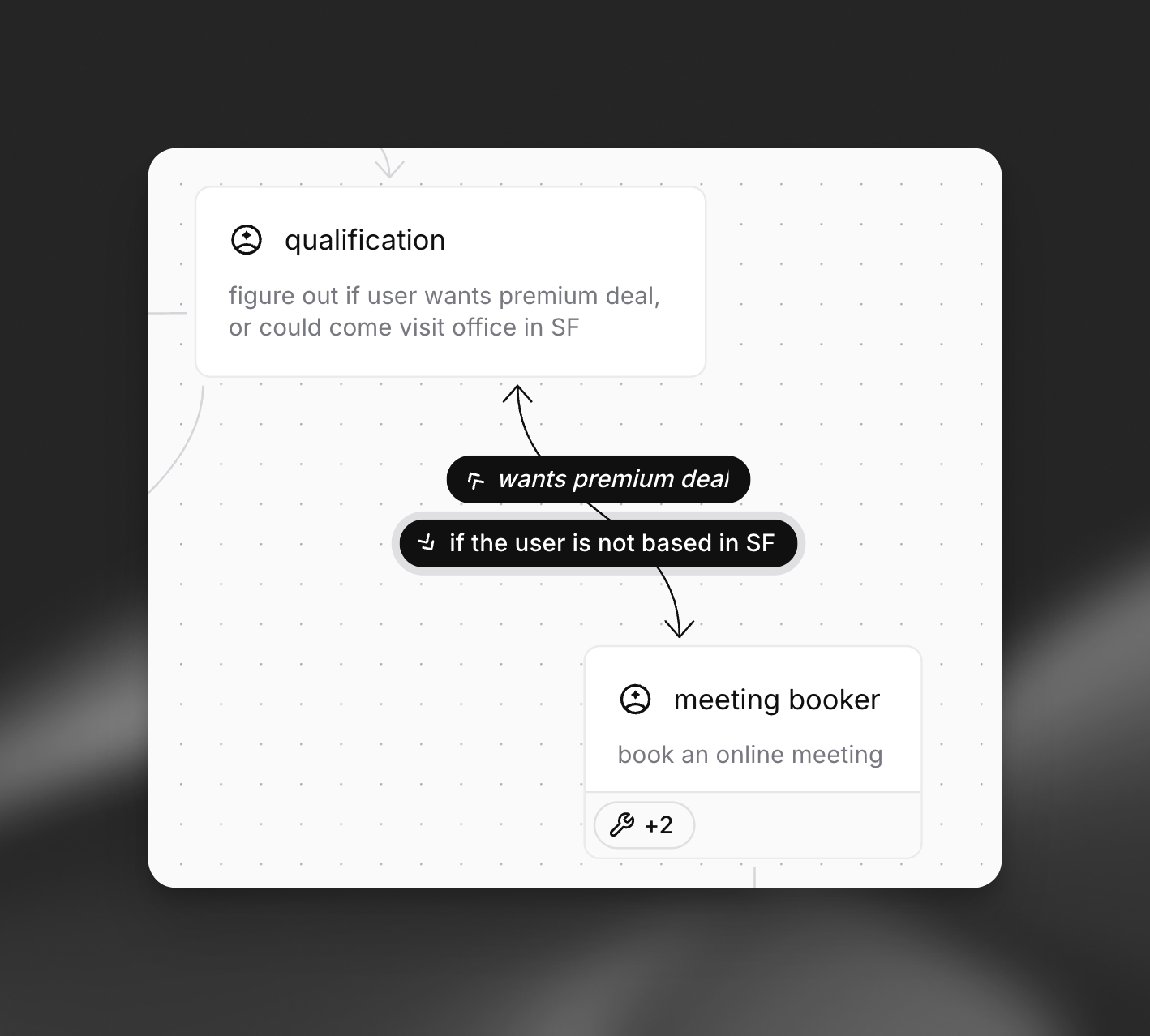
Forward Edges
Section titled “Forward Edges”Forward edges move the conversation to subsequent nodes in the workflow. They represent the primary flow of your conversation.
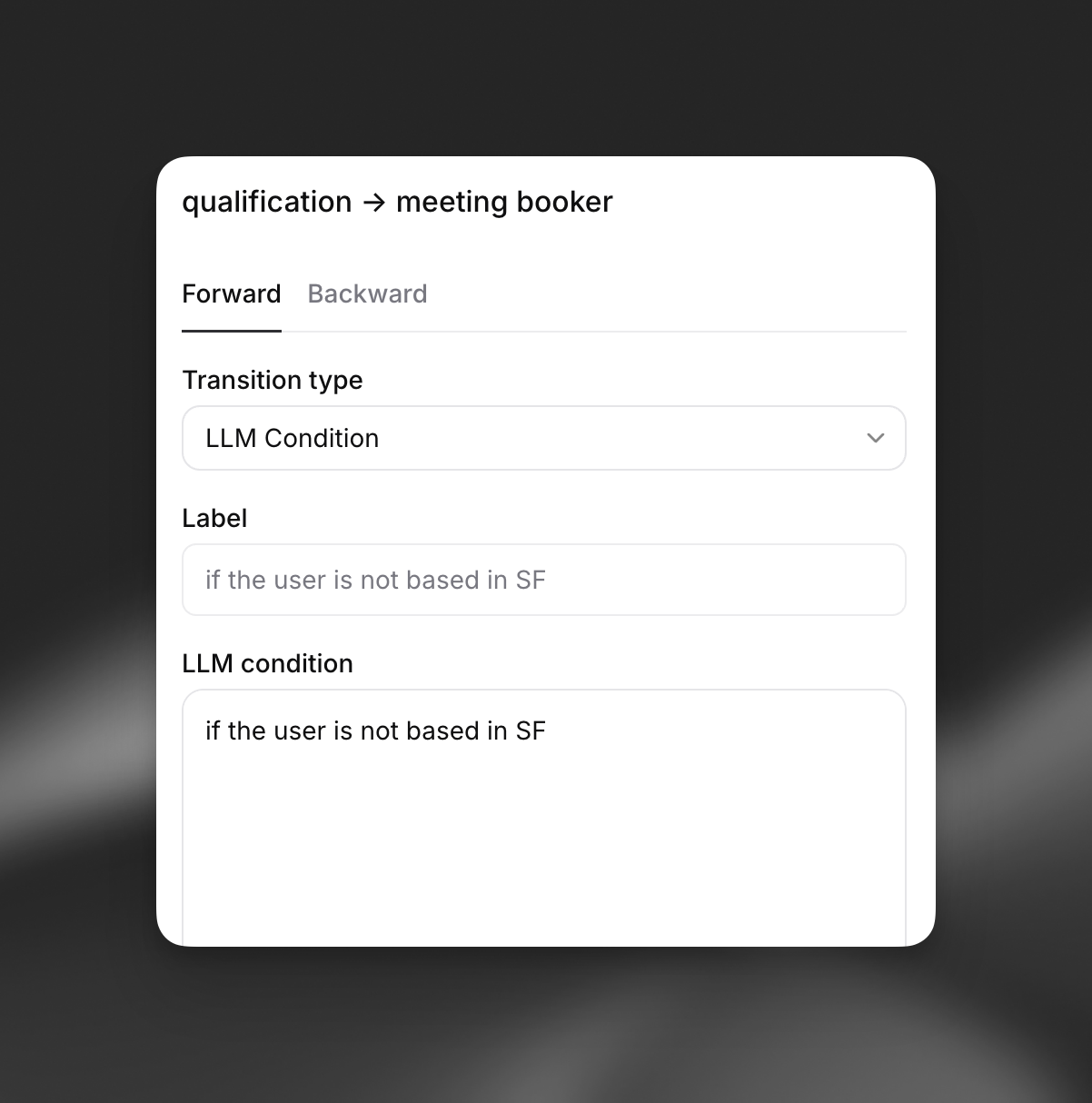
Backward Edges
Section titled “Backward Edges”Backward edges allow conversations to loop back to previous nodes, enabling iterative interactions and retry logic.
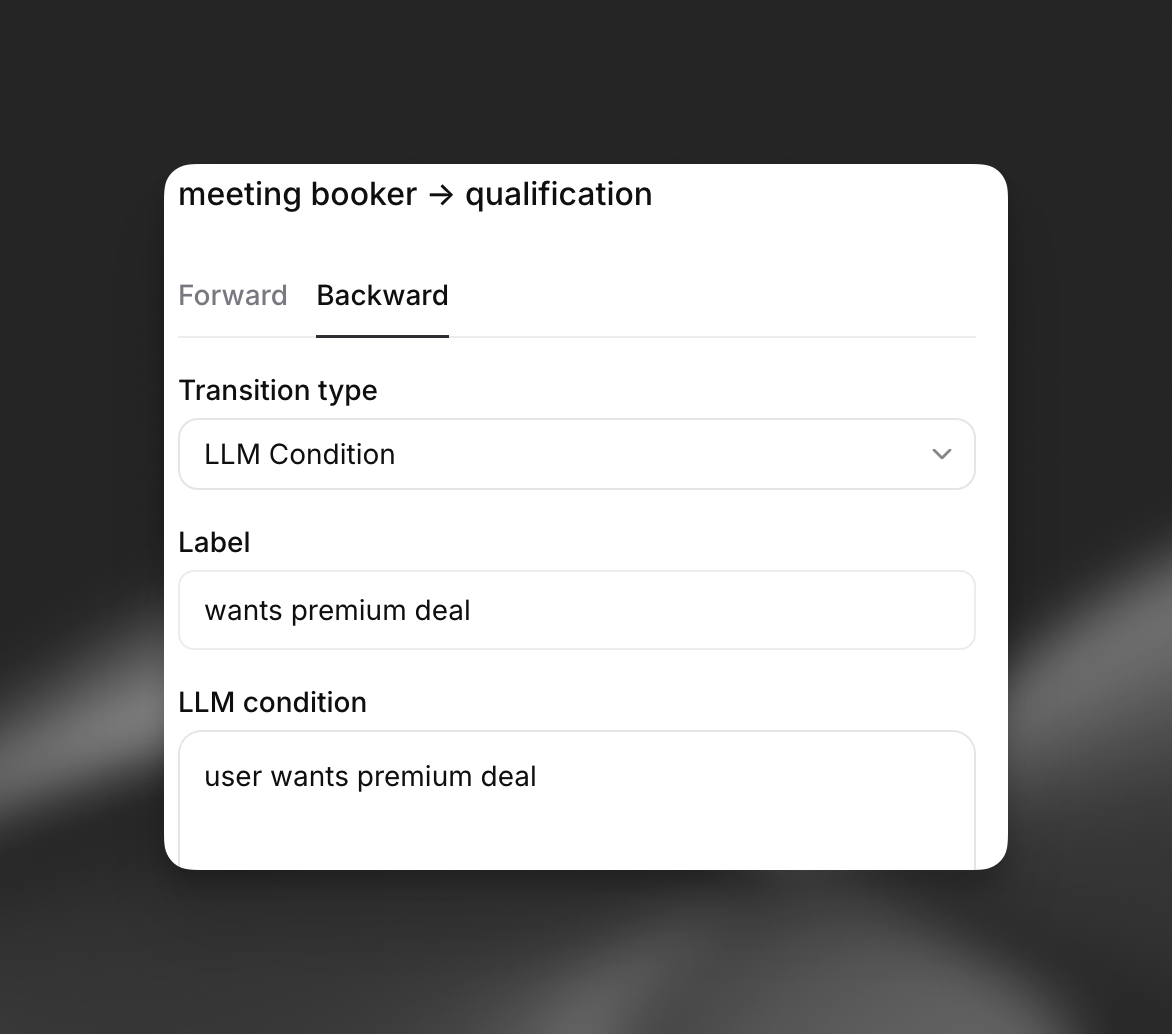
Use Cases:
- Retry failed authentication attempts
- Loop back for additional information gathering
- Re-qualification after changes in user requirements
- Iterative troubleshooting processes
LLM Condition
Section titled “LLM Condition”Use LLM conditions to create dynamic conversation flows based on natural language evaluation. The LLM evaluates conditions in real-time to determine the appropriate path.
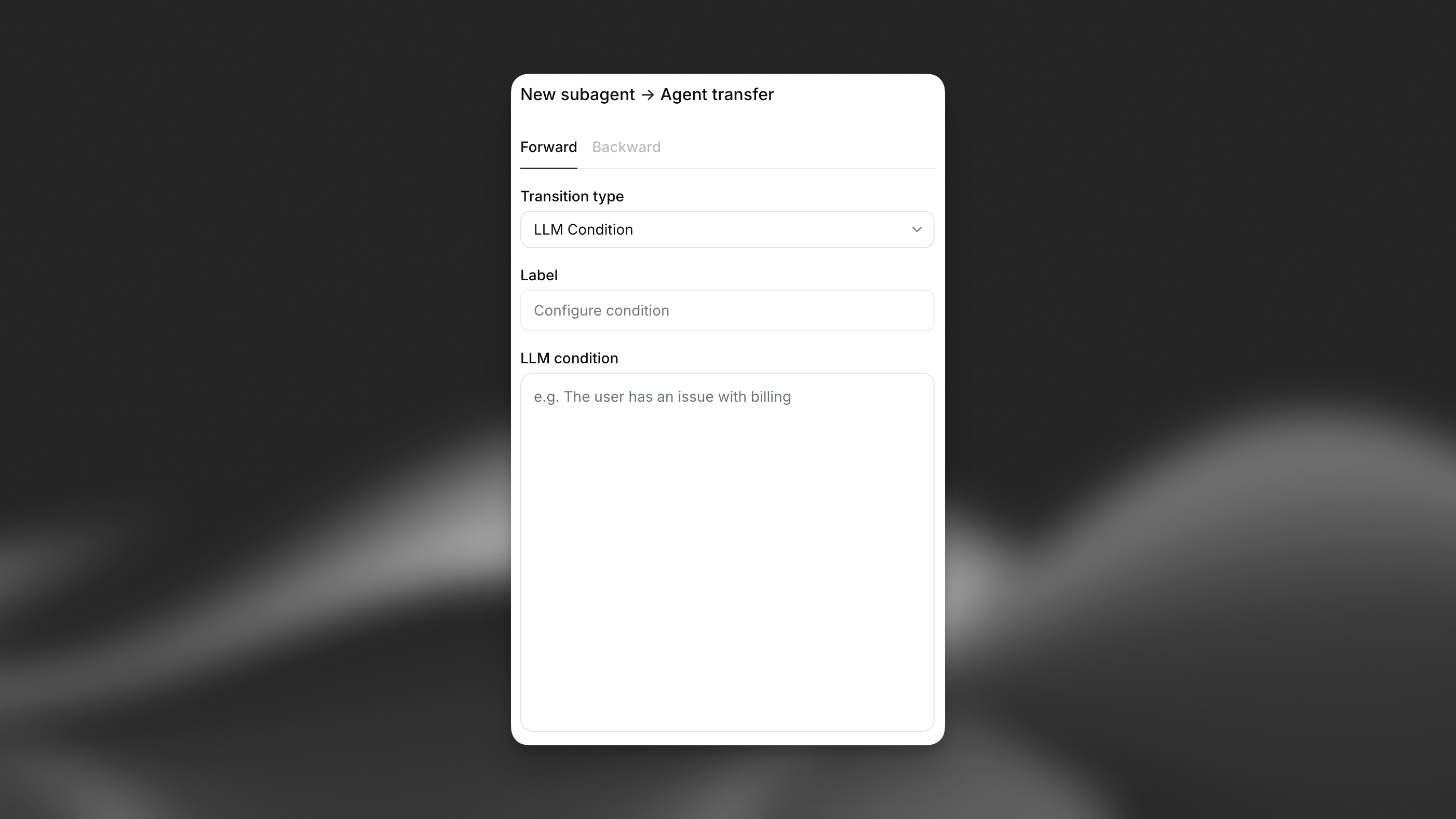
Configuration Options:
- Label: Human-readable description of the edge condition (not processed by LLM)
- LLM Condition: Natural language condition evaluated by the LLM
Expression
Section titled “Expression”Use expressions to create conditional logic based on variables and structured data.
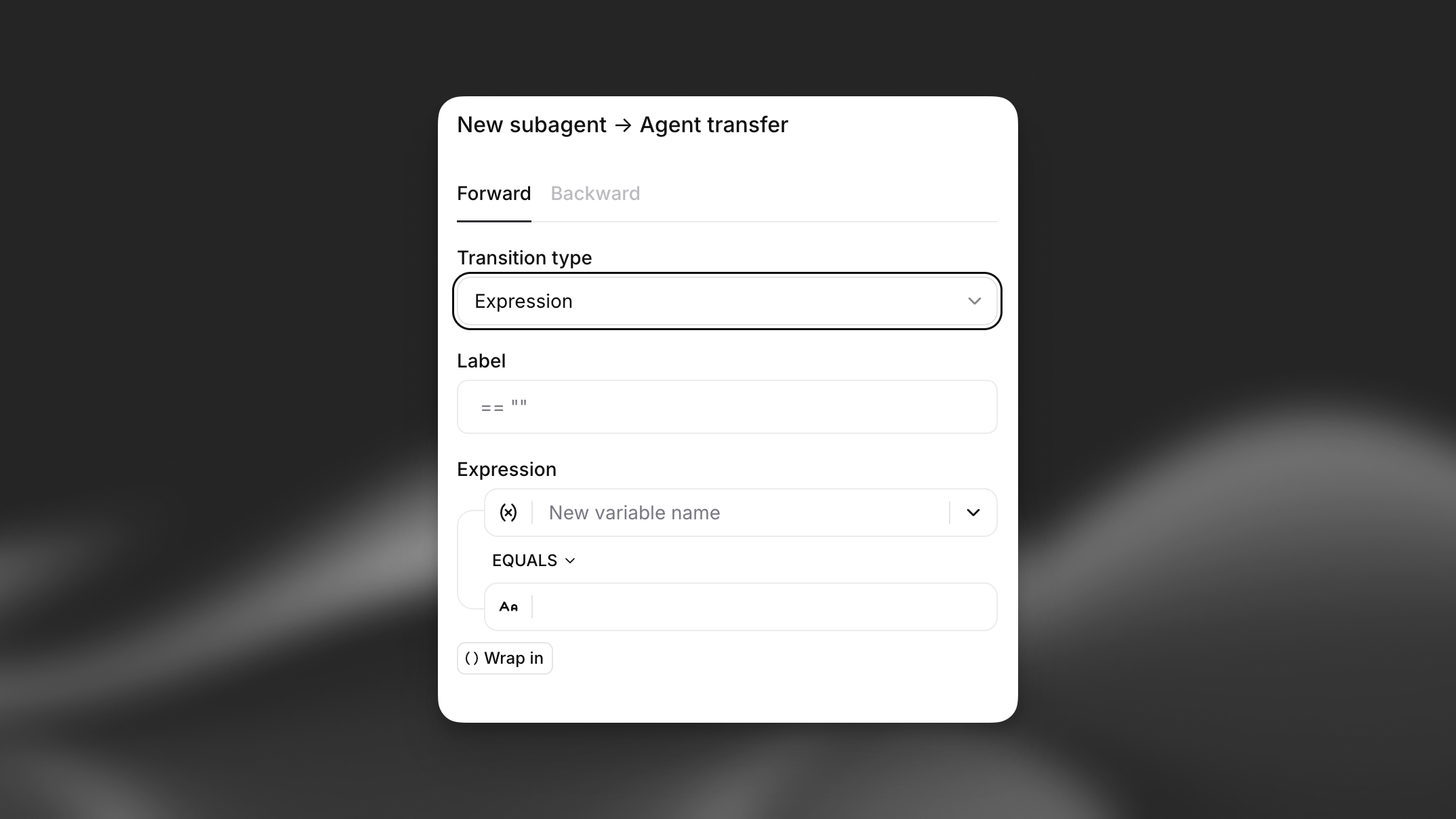
Configuration Options:
- Label: Human-readable description of the edge condition (not processed by LLM)
- Expression: Deterministic evaluation criteria based on data structure
Unconditional transitions automatically move the conversation to the next node without any conditions.
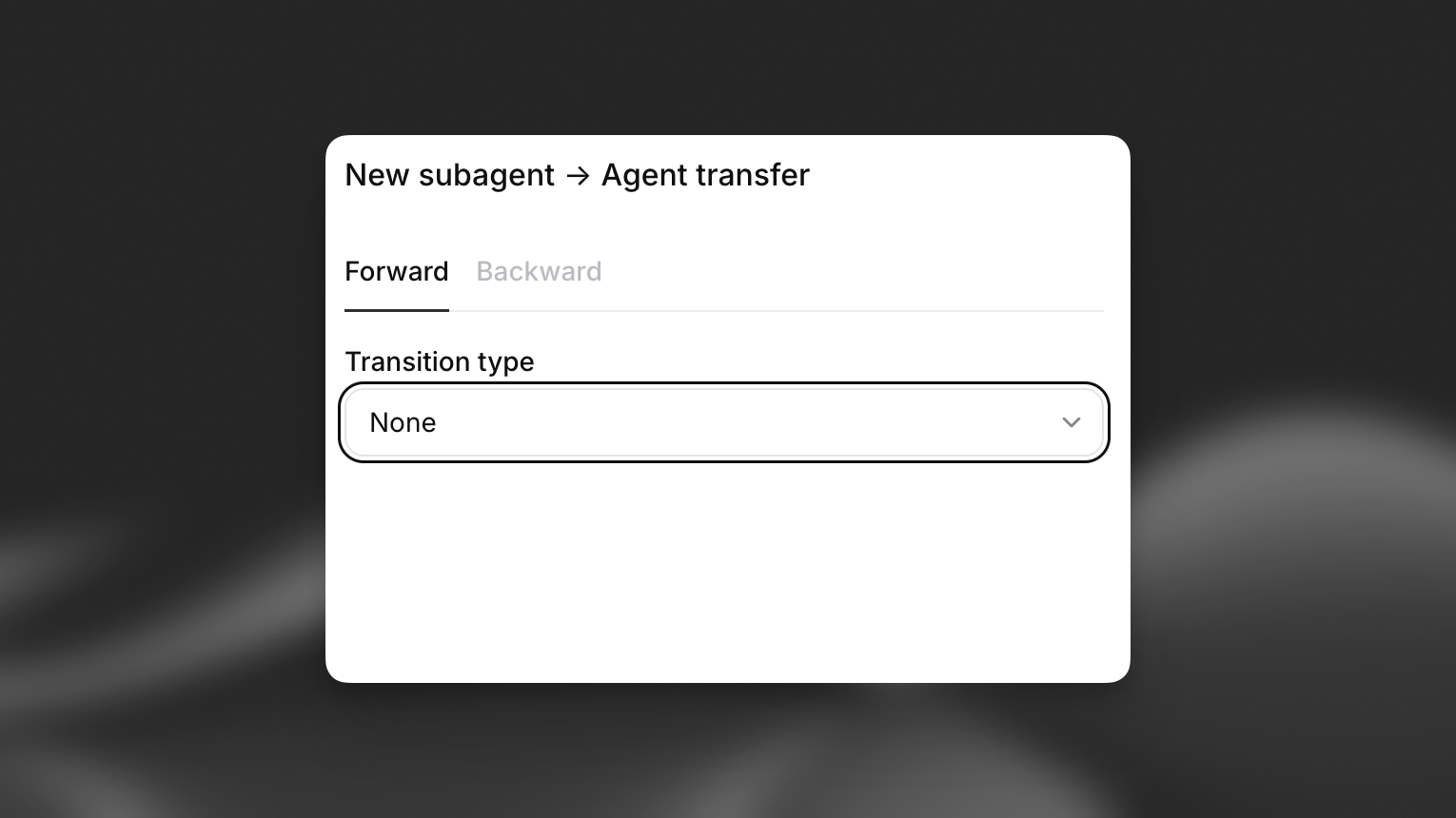
Use Cases:
- Sequential steps that always follow one another
- Automatic progression after completing an action
- Default fallback paths
Analytics
Section titled “Analytics”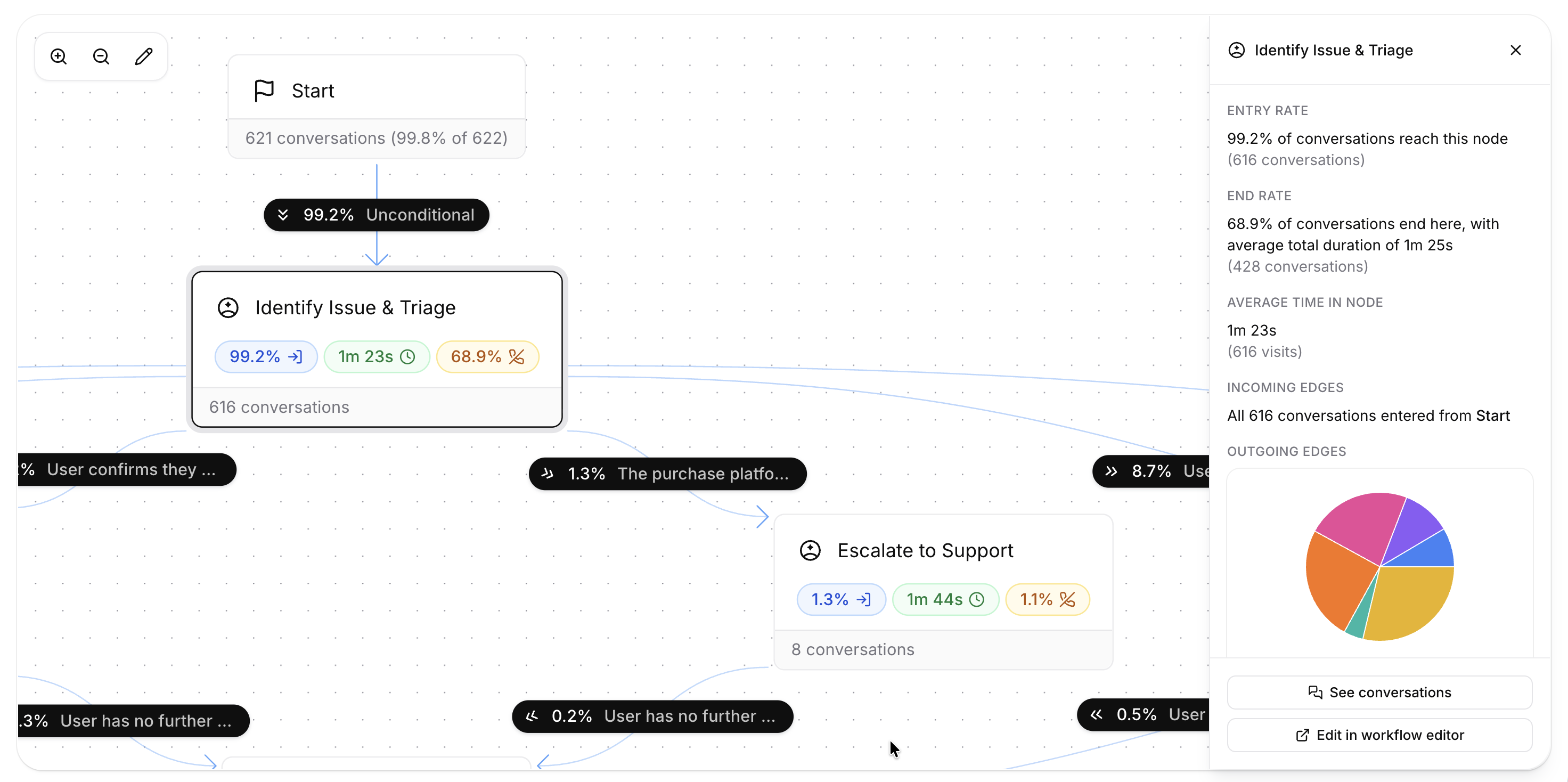
Once a workflow is live, the Workflow tab in the analytics dashboard overlays usage data on the graph: per-node entries, average time spent, and terminations, plus the incoming and outgoing edge distribution for each node. From the node inspector you can also jump straight to the matching conversations in history via the Node entered filter.