Connect your WhatsApp business account with ElevenLabs Agents
Overview
Section titled “Overview”You can connect your WhatsApp business account to an ElevenLabs Agent. The agent can then handle:
- Message conversations — text, voice notes, media, and interactive messages
- Calls — inbound and outbound
Agents on other channels can also send WhatsApp messages through WhatsApp tools.
New to WhatsApp on ElevenLabs? Follow the getting started guide.
Importing a WhatsApp business account
Section titled “Importing a WhatsApp business account”Import your account
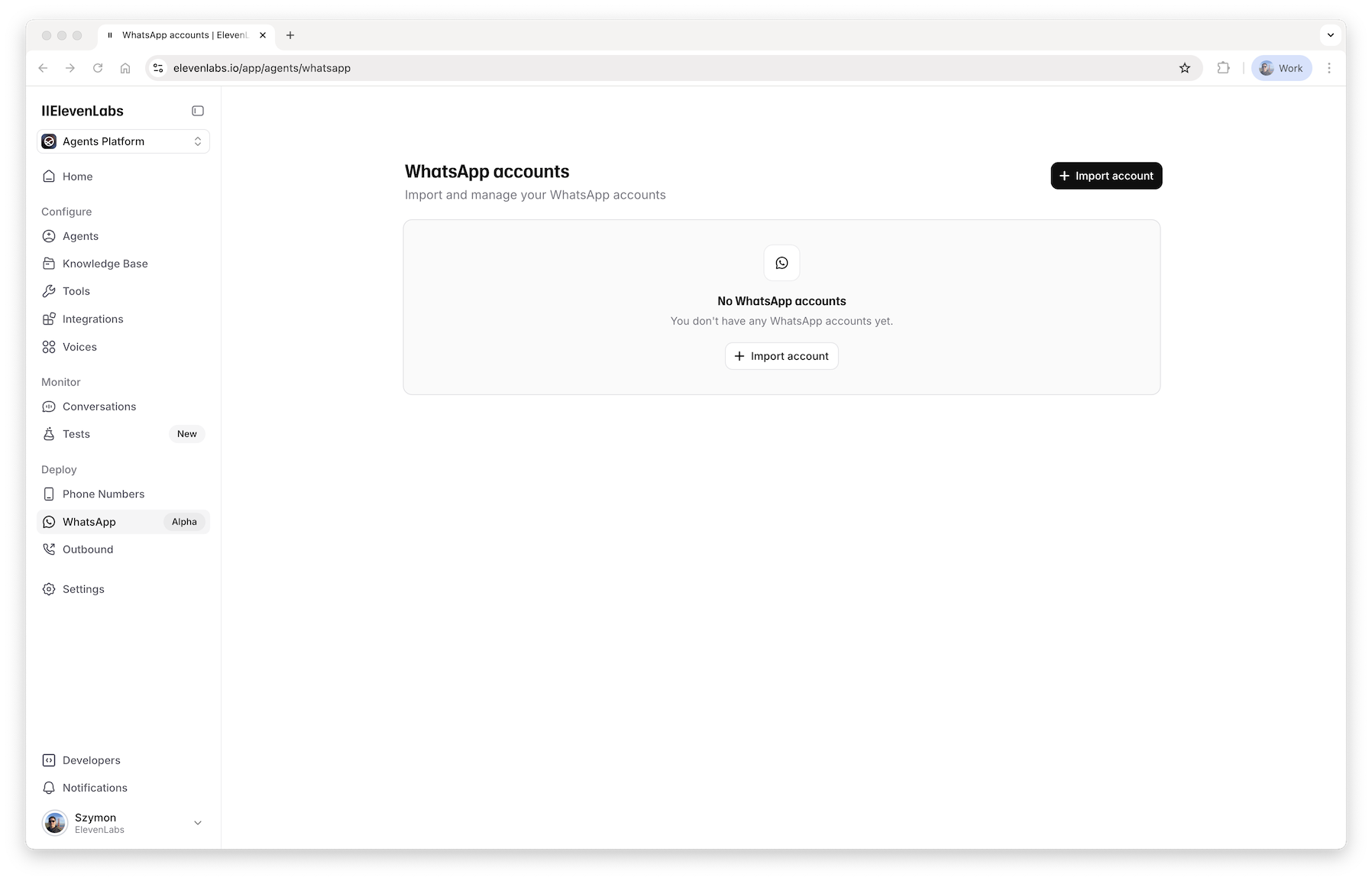
Go to the WhatsApp page and click the Import account button:
Authorize ElevenLabs
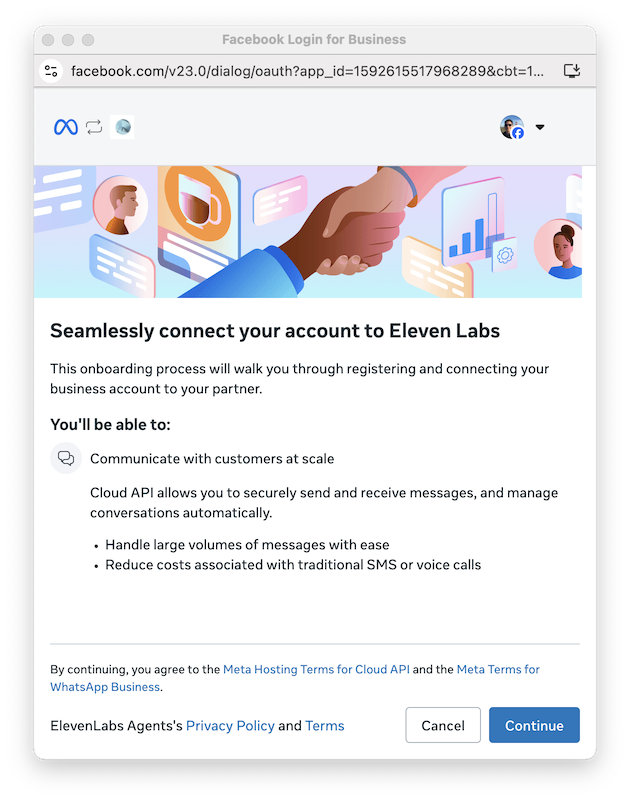
This will open the authorization flow where you select your account and give ElevenLabs permission to manage it:
Assign an agent
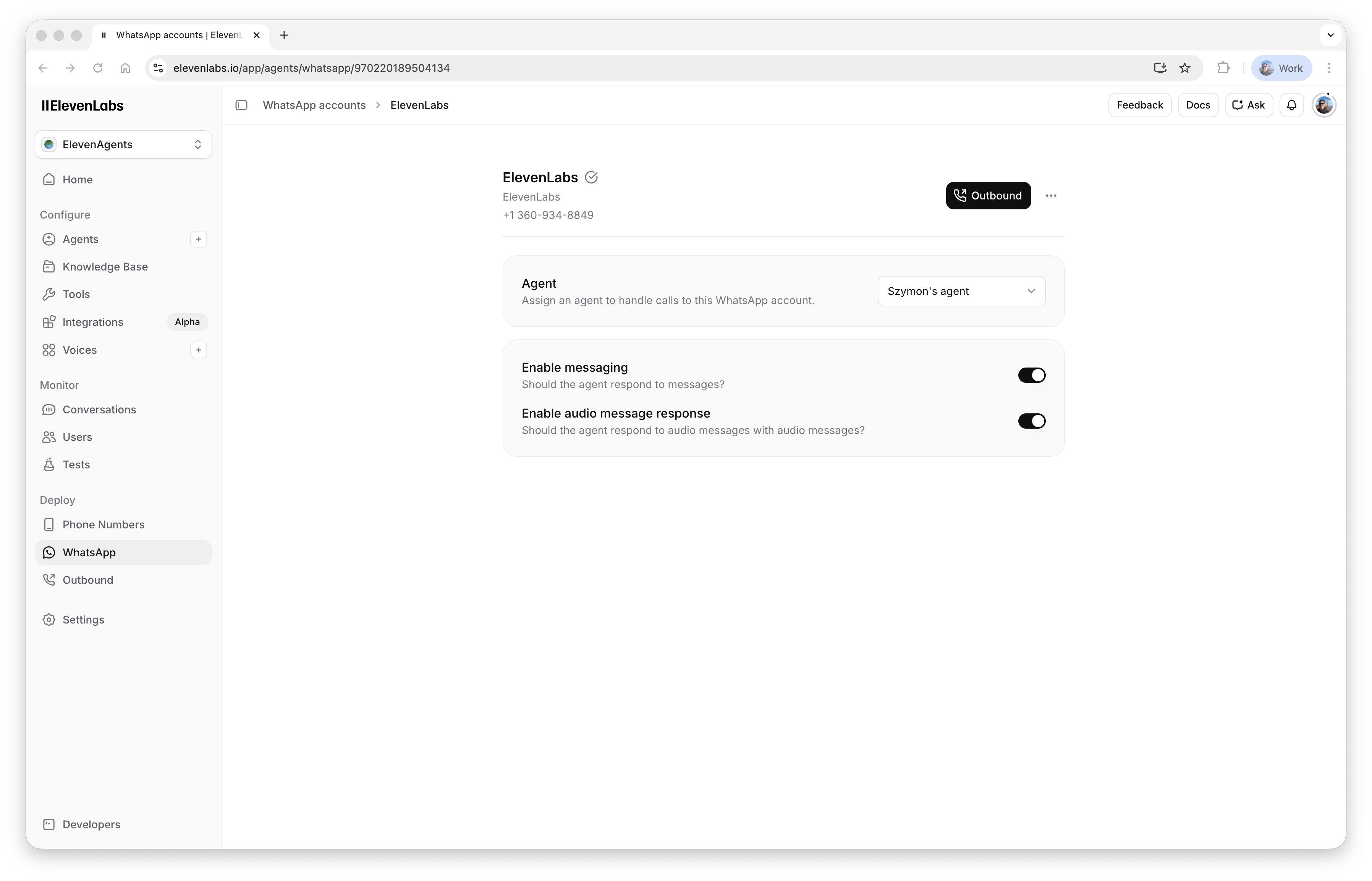
When you finish importing your account, you will be taken to its settings page where you can assign an agent to it:
Configure WhatsApp Manager
Go to WhatsApp Manager to:
- Configure your profile picture, etc.: open the Phone numbers page, select a phone number and go to the Profile tab
- Allow voice calls: open the Phone numbers page, select a phone number and go to the Call settings tab
- If you want to make outbound calls, add a payment method: open the Overview page and click the Add payment method button
Account settings
Section titled “Account settings”Each imported number has settings that control the agent’s behavior:
- Enable messaging — whether the agent responds to messages. Turn it off to let ElevenLabs handle only calls while your own application handles messages.
- Enable audio message response — when on (the default), the agent answers voice notes with voice notes; when off, it always replies with text.
- Enable typing indicator — when on (the default), the agent marks incoming messages as read and shows a typing indicator while composing its response.
Message conversations
Section titled “Message conversations”WhatsApp message conversations end when the agent uses the End conversation system tool, the configured Max conversation duration elapses, or the default inactivity timeout elapses after the agent’s most recent response.
Inbound
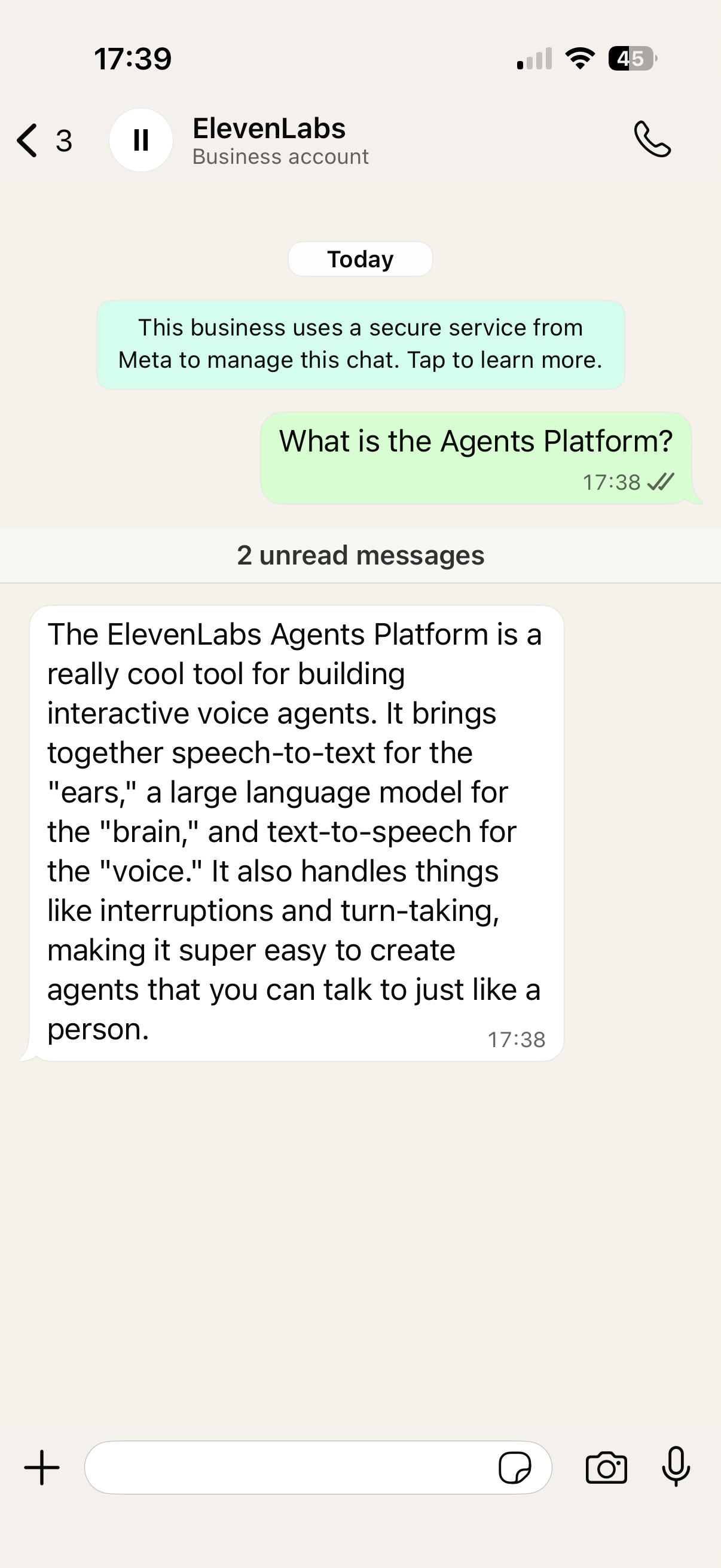
Section titled “Inbound”You can send a message to your WhatsApp business account and the agent will respond:
When either timeout expires, ElevenAgents sends the configured Max conversation duration message before closing the conversation. If the message is empty, the conversation closes without a farewell.
The agent understands more than plain text:
- Quoted replies — when the user long-presses a message and replies to it, the agent knows which message they are responding to.
- Reactions — emoji reactions to the agent’s messages are passed to the agent.
- Template button taps — when the user taps a quick-reply button on a template, the agent sees which button was chosen.
- Interactive replies — taps on interactive buttons and lists arrive with the selected option.
Outbound
Section titled “Outbound”You can start a conversation by sending a Meta-approved message template, from the dashboard or the API, and schedule outbound calls with a call permission request. See Outbound messages & templates for template creation, code examples, recipient format rules, and batch campaigns.
Message types
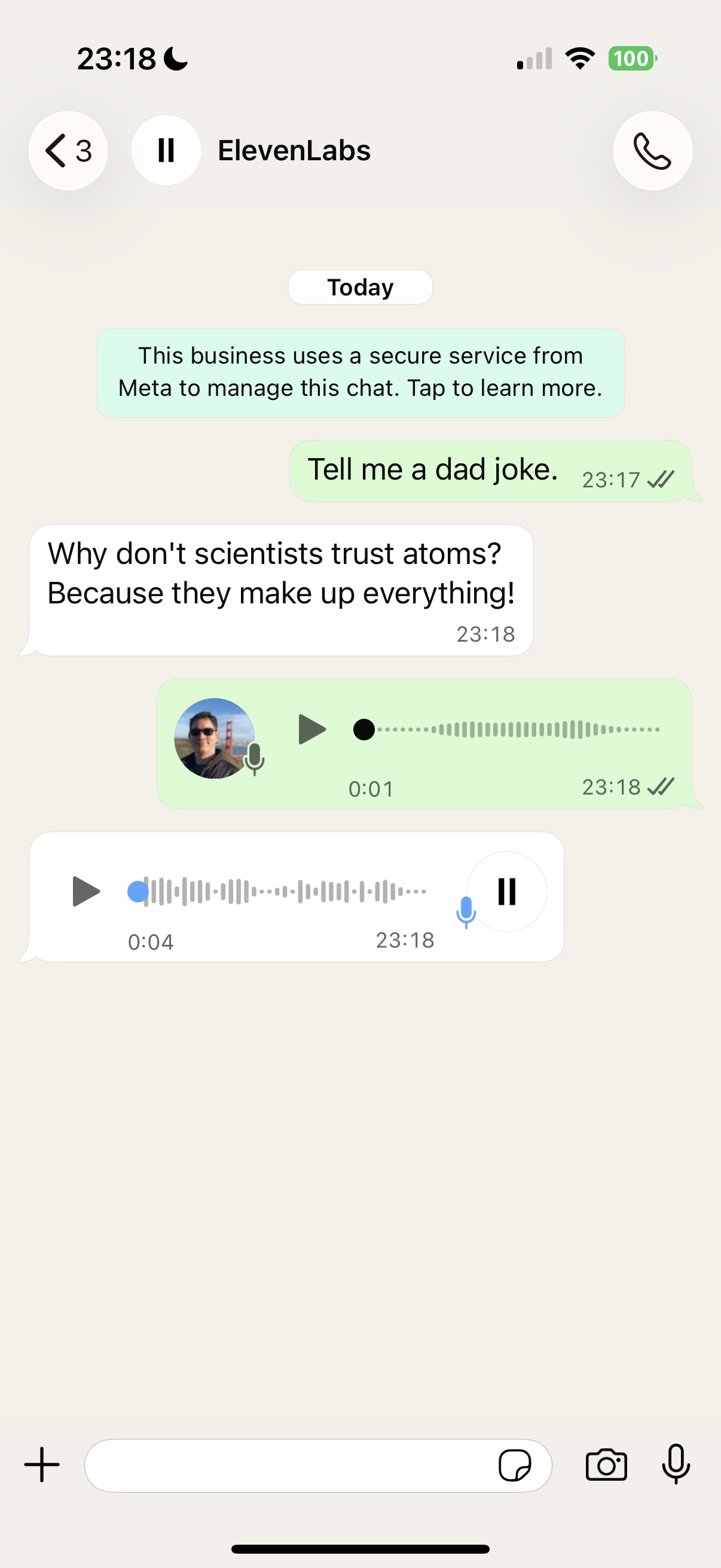
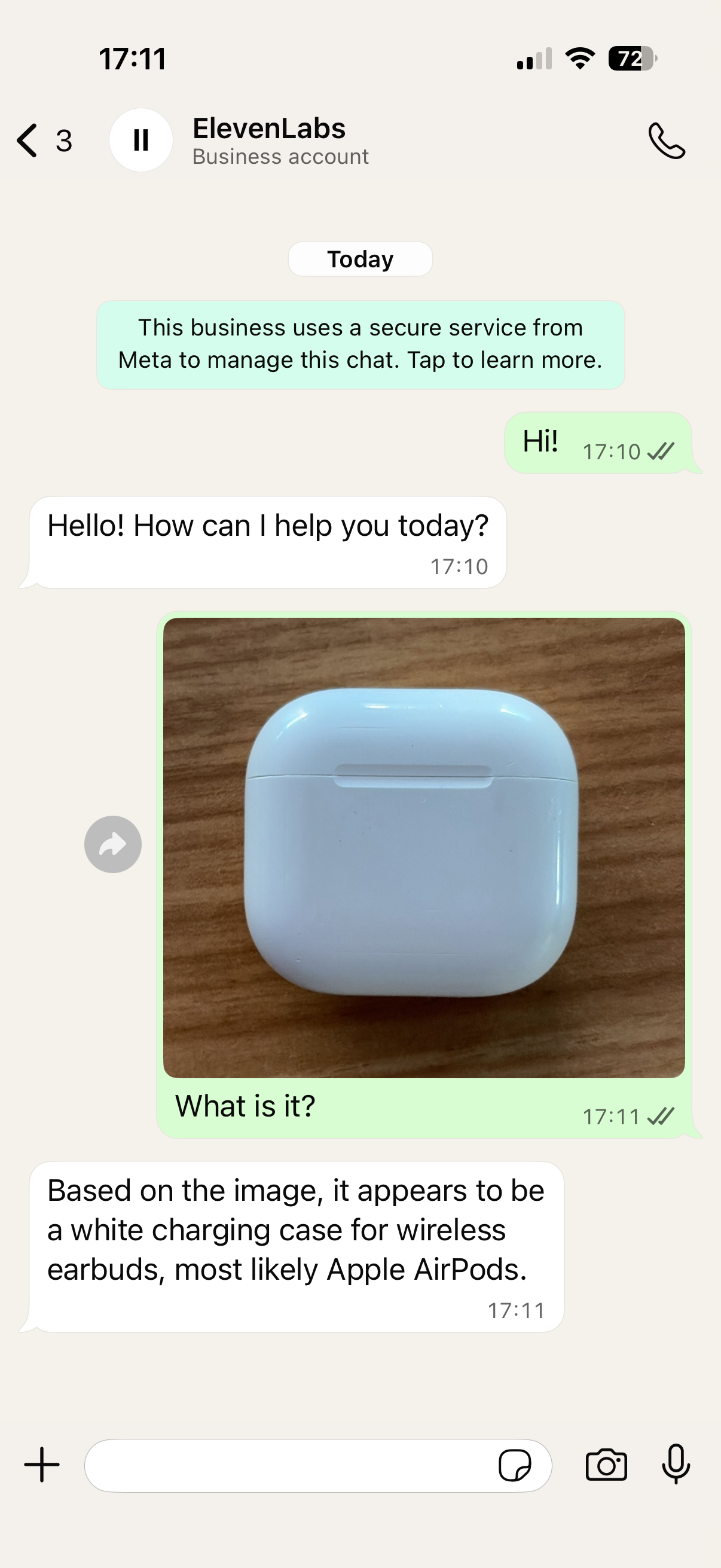
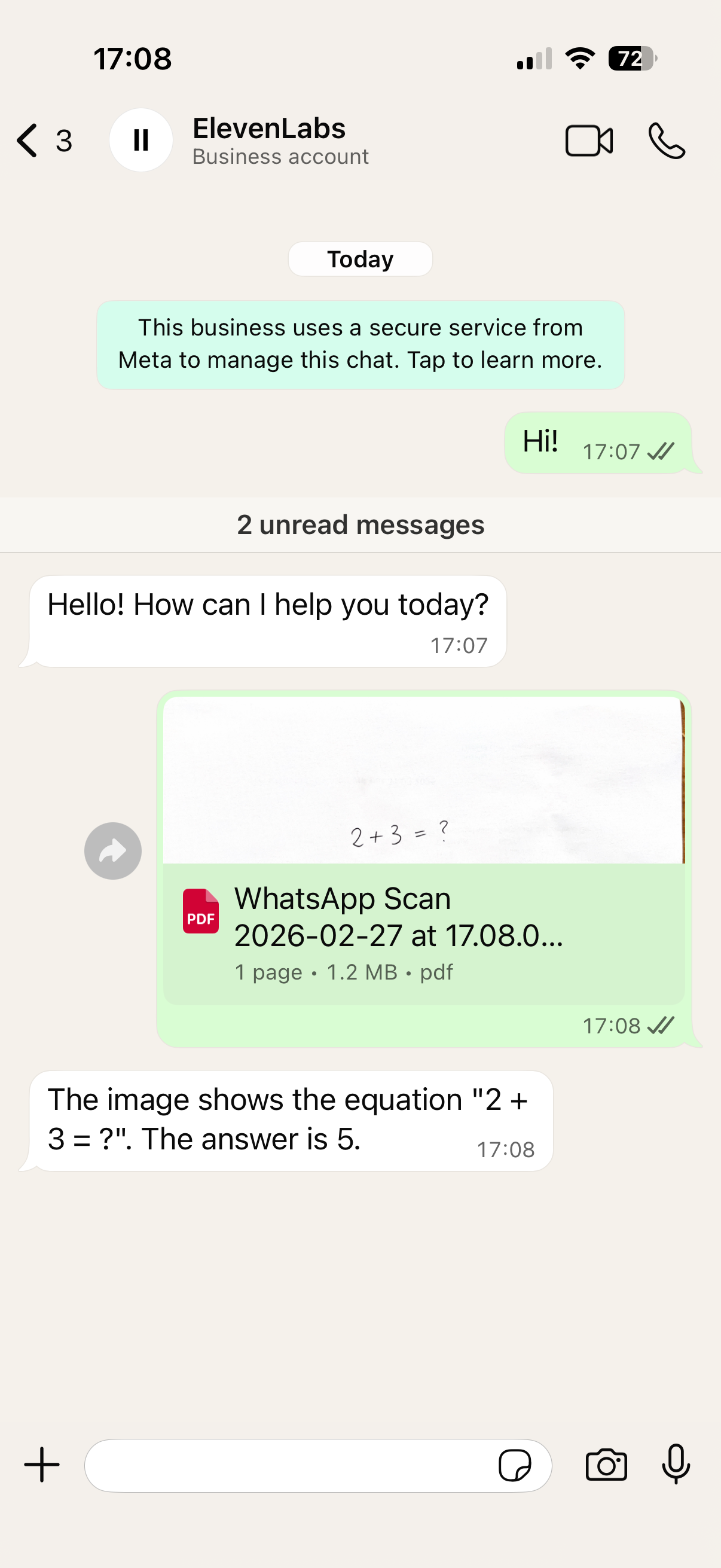
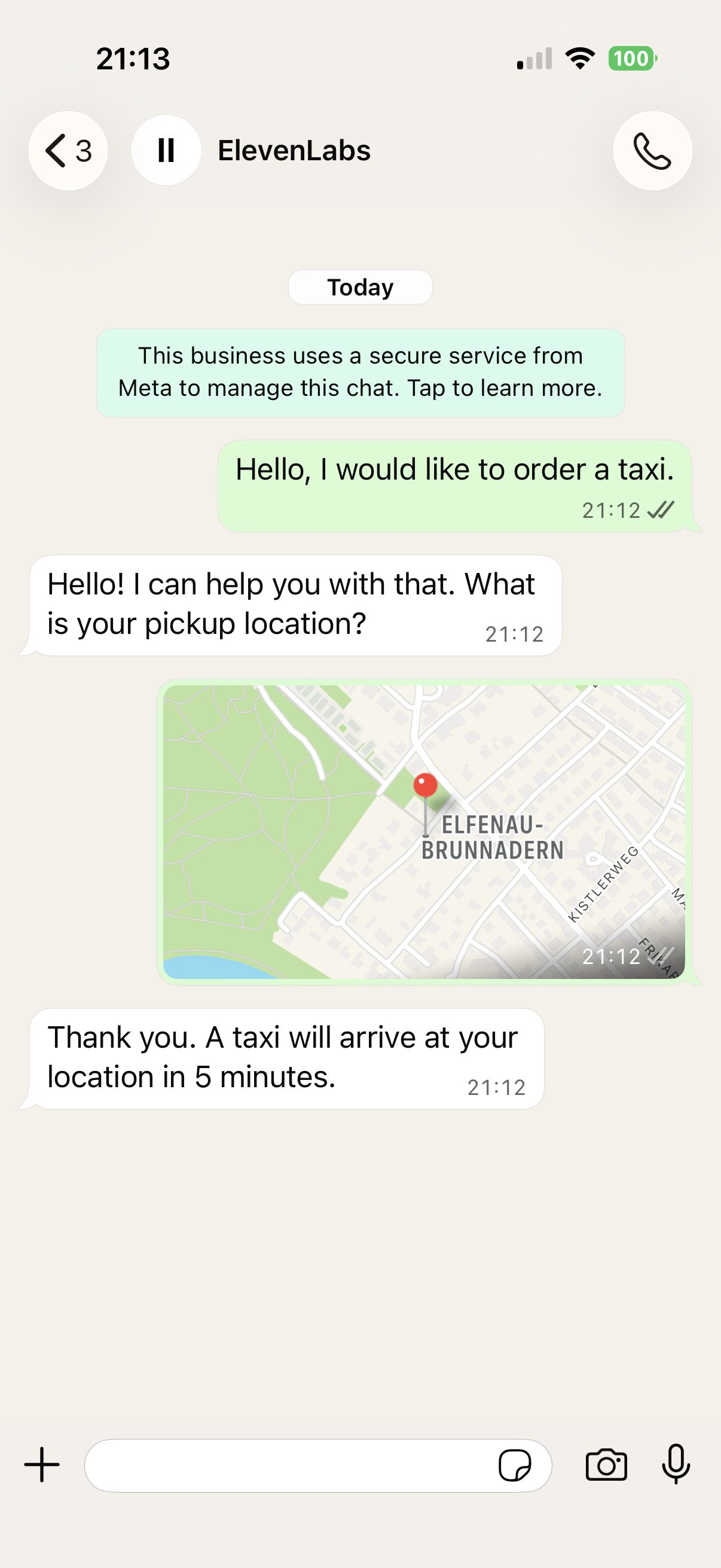
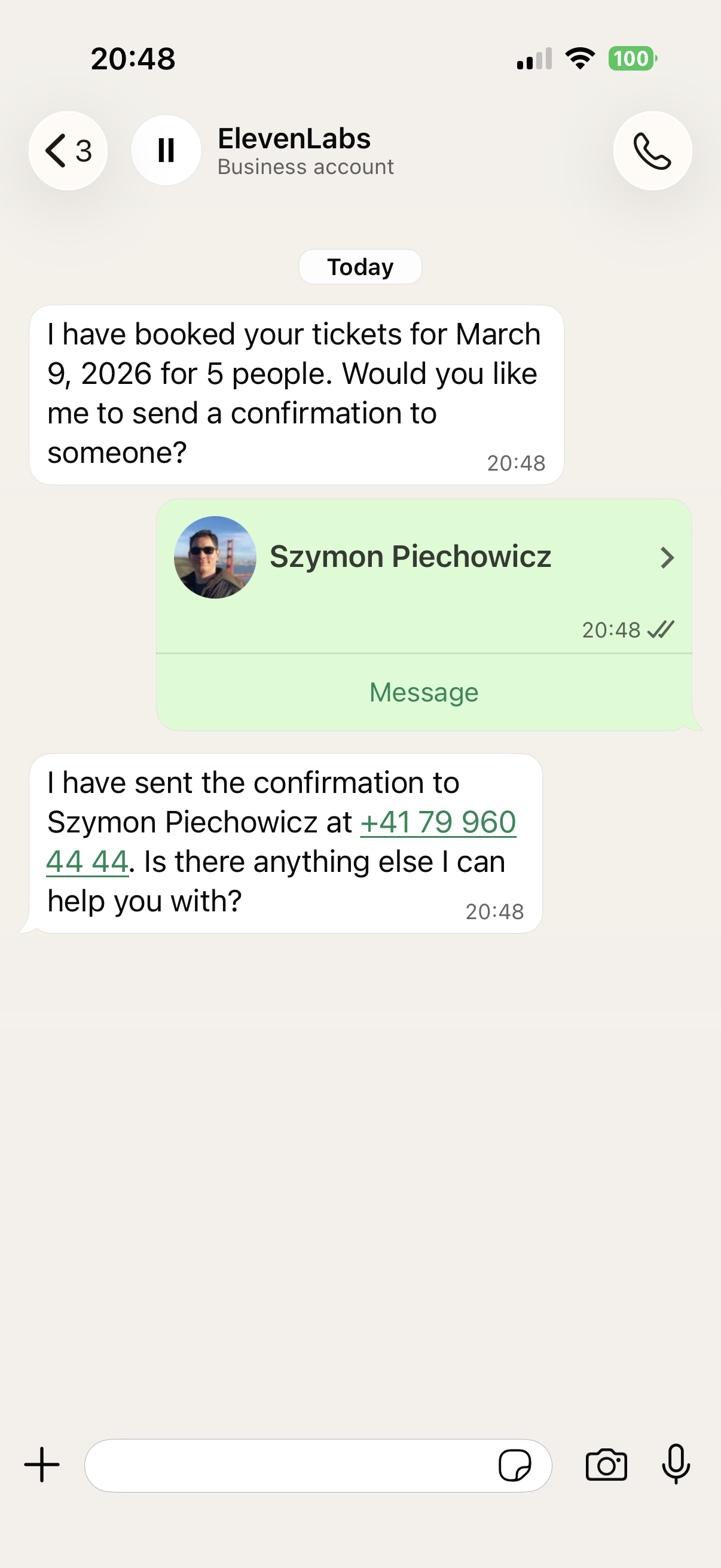
Section titled “Message types”In addition to text, you can also send:
-
audio
- Inbound voice notes are transcribed to text before being passed to the agent.
- By default, the agent responds to voice notes with voice notes, generated in the agent’s configured voice — any voice, any language. Turn off Enable audio message response in the account settings to always respond with text. If audio generation fails, the agent falls back to a text reply.
- Audio messages result in extra charges for speech-to-text and text-to-speech. Pricing is the same as in the STT and TTS APIs.
-
image
-
document
-
sticker
-
location
-
contact
Inbound
Section titled “Inbound”You can call your WhatsApp business account and the agent will respond. During the call, you can also send text messages and they will be incorporated into the conversation.
Outbound
Section titled “Outbound”Outbound calls require the user’s permission, requested through a template. See scheduling an outbound call for the flow, code examples, and batch calling.
Personalization
Section titled “Personalization”We set the {{system__caller_id}} and {{system__called_number}} dynamic variables to the WhatsApp user ID and your WhatsApp phone number ID (or vice versa, depending on who started the conversation). You can use those in a tool or a conversation initiation webhook to fetch information about your user in the conversation.
Initialization context
Section titled “Initialization context”If your agent uses dynamic variables beyond the system variables above, you will need to plan where their values come from. If your agent uses no dynamic variables, none of this applies.
Inbound conversations start with no user-provided dynamic variables. The supported way to provide values is a conversation initiation webhook: when a WhatsApp message starts a conversation, ElevenAgents calls your endpoint with the WhatsApp user ID as caller_id and your WhatsApp phone number ID as called_number, and applies the dynamic variables your response returns. Have the webhook always return every variable the agent requires — a CRM value when you have one, a fallback constant otherwise.
Outbound conversations receive their values from the conversation_initiation_client_data.dynamic_variables field of the outbound message or call request. These values persist for the conversation and are still available when the user replies. Template parameters are a separate field and do not populate dynamic variables.
A required variable that ends up without a value will fail the conversation. See missing dynamic variables in the troubleshooting guide.
Limitations
Section titled “Limitations”The following are not currently supported:
- WhatsApp Flows — interactive forms cannot be sent, and Flow replies are not passed to the agent.
- Video messages — inbound videos are not passed to the agent.
- Message batching — the agent replies to each message individually rather than coalescing rapid consecutive messages.
- Numbers managed by another provider — a number registered with another WhatsApp provider, or active in the WhatsApp Business app, cannot be imported. We are working with Meta to enable Multi-Solution Conversations; voice-only setups may already be possible over SIP (see the FAQ).
- WABAs created under a developer app — these cannot be imported through the standard flow.
- Ad referral metadata — Click-to-WhatsApp ad attribution data is not exposed to the agent (see the FAQ).
- Human handoff — coming soon (see the FAQ).
Common questions — pricing, multi-provider setups, human handoff, Zero-Retention Mode, OTP, compliance — are answered in Troubleshooting & FAQ.