WhatsApp tools
Let your agent send messages on WhatsApp with tools
Overview
Section titled “Overview”You can give your agent a tool to send messages on WhatsApp, even during conversations on another channel (e.g. phone).
The WhatsApp integration provides three tools:
- Send Message — sends a template message to any WhatsApp user. Works from any channel, so a phone agent can, for example, text a confirmation to the caller’s WhatsApp. This page covers this tool.
- Send Interactive Buttons and Send Interactive List — offer tappable choices to the user of a live WhatsApp conversation. These only work within WhatsApp message conversations — see Interactive messages.
Import your account
Follow the instructions here to import your WhatsApp business account.
Add an integration
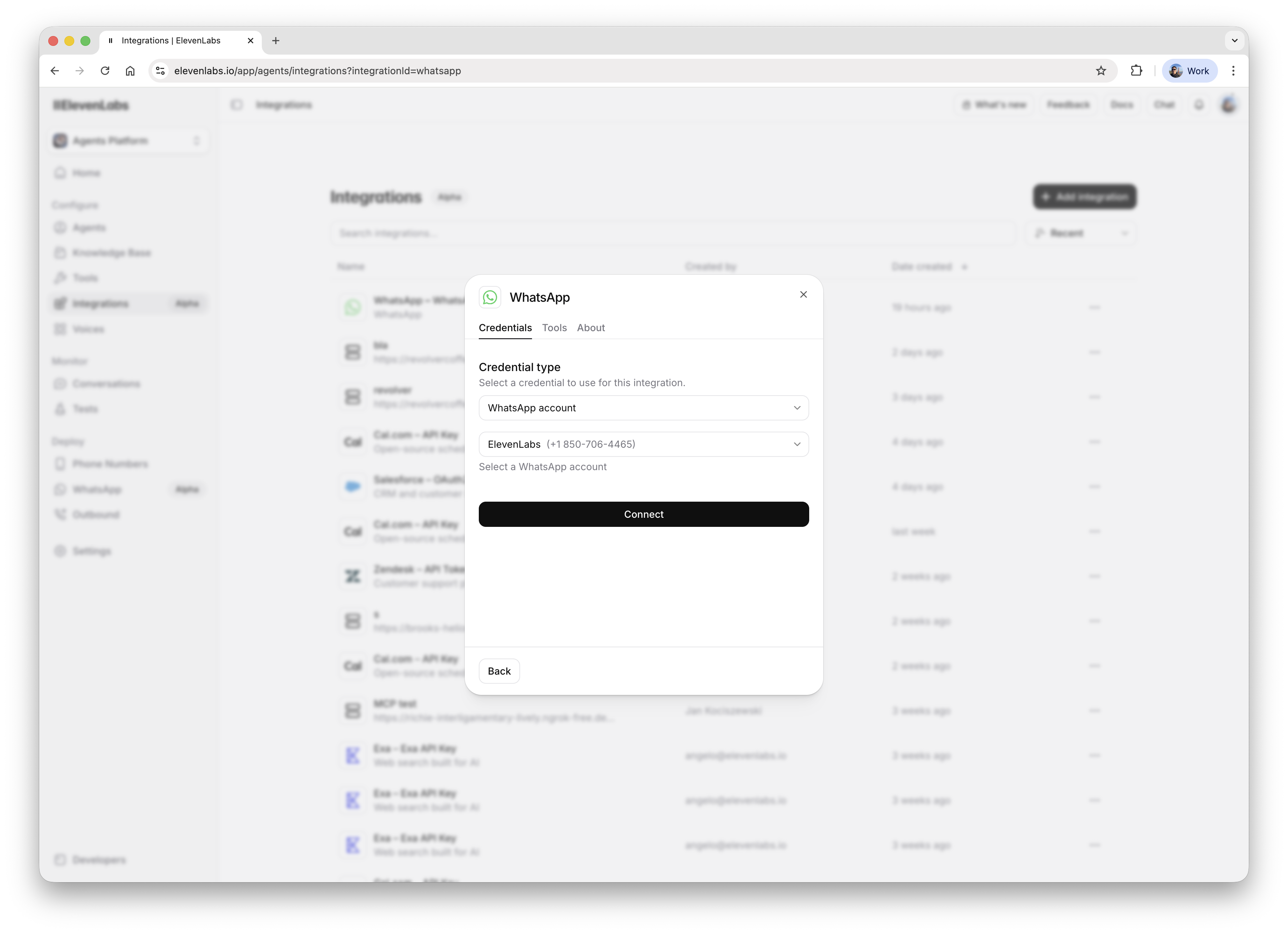
Go to the Integrations page, click the Add integration button, select WhatsApp and connect your account:
Add a tool
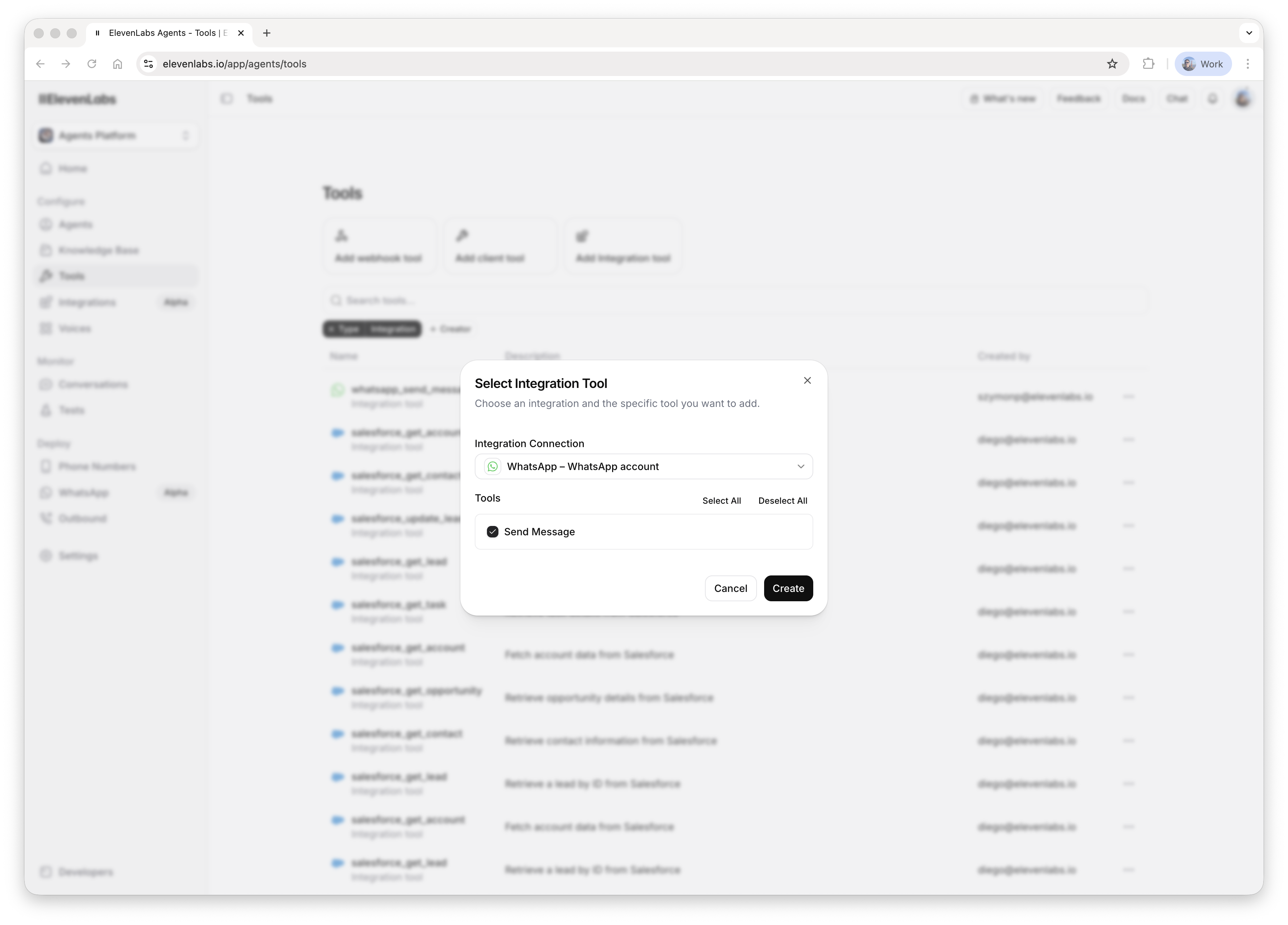
Go to the Tools page, click the Add integration tool button, select the WhatsApp integration and the Send Message tool:
Using the tool
Section titled “Using the tool”Create a message template
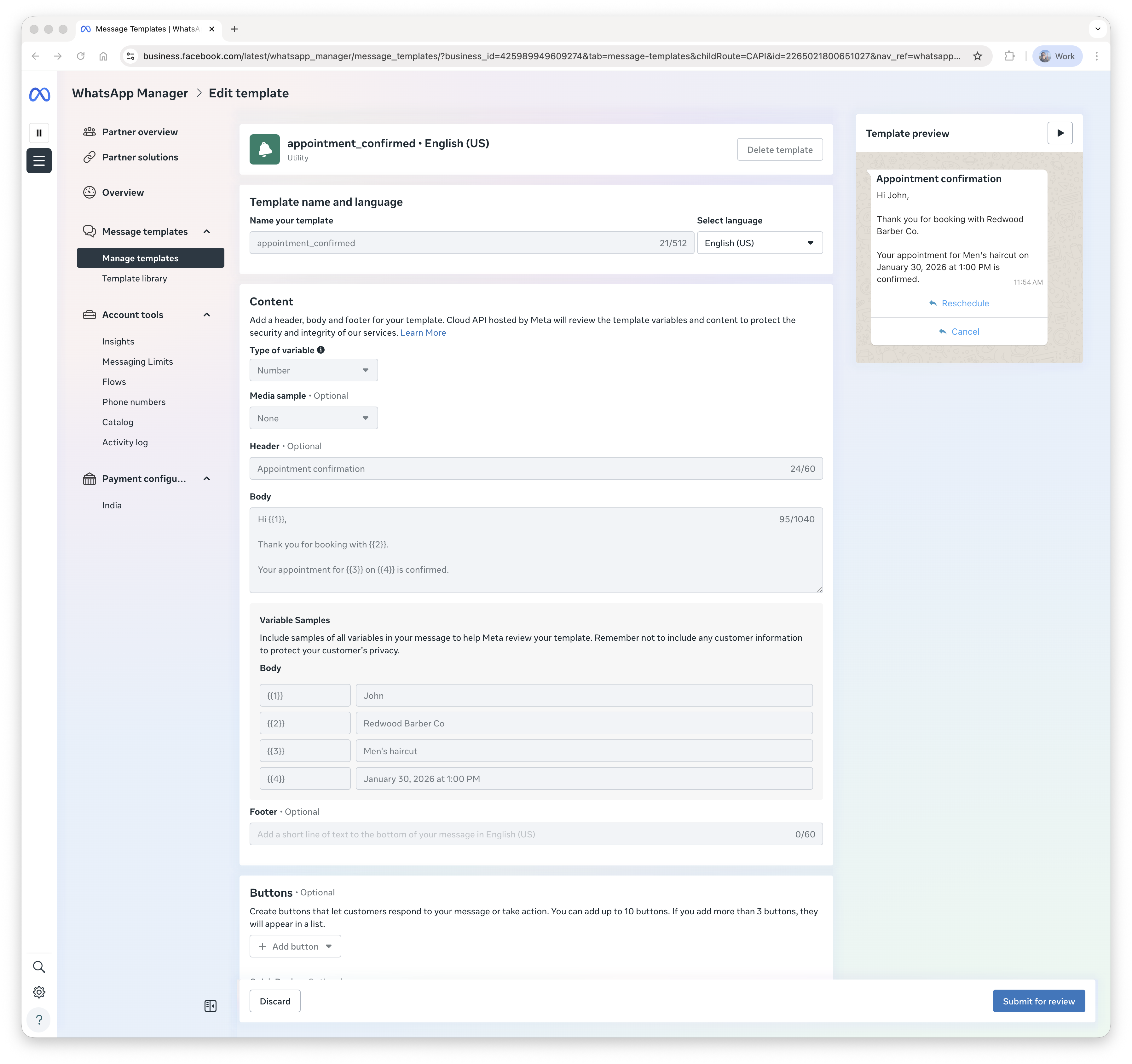
Go to WhatsApp Manager, open the Manage templates page and create a message template:
Configure your agent
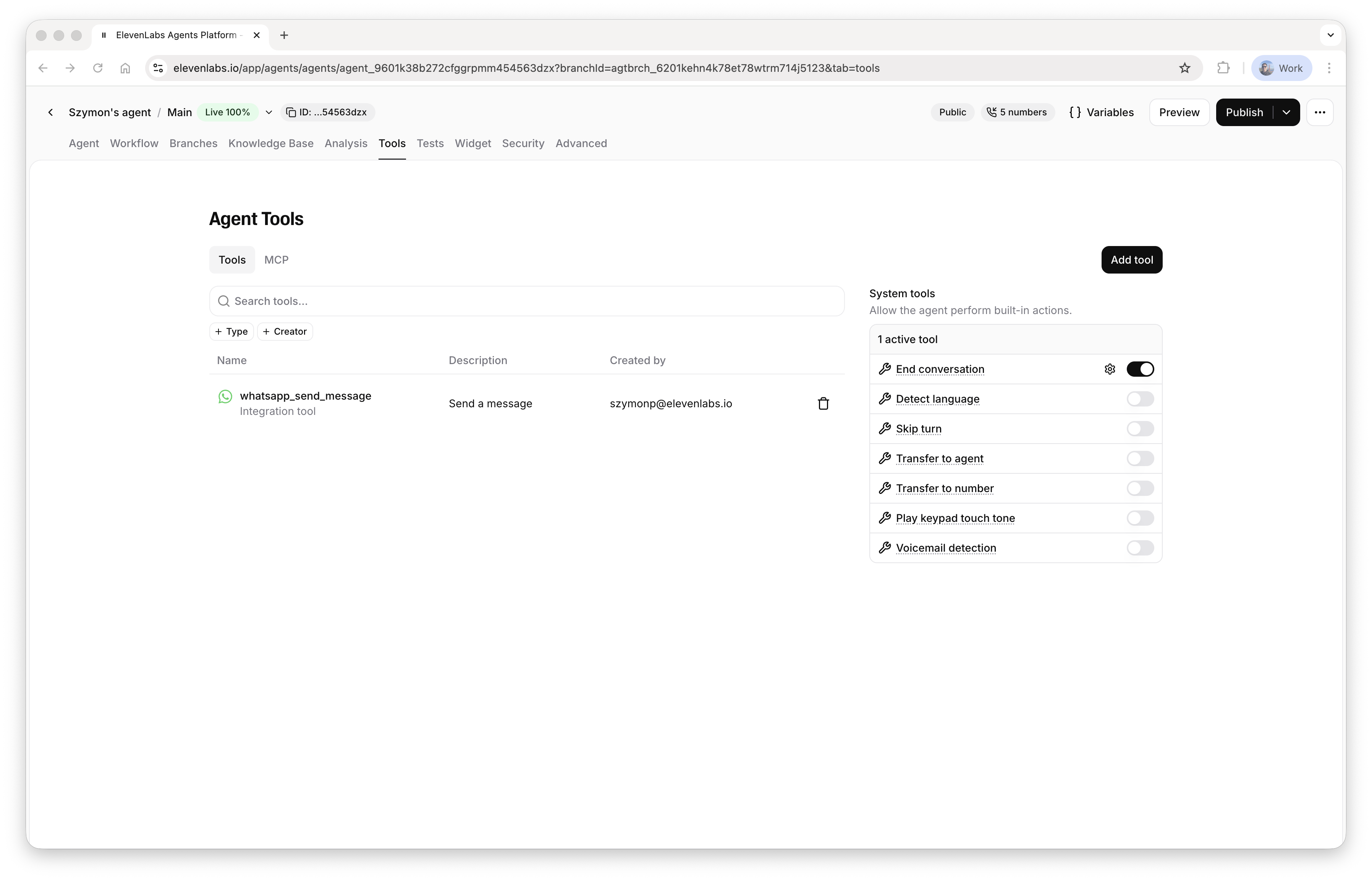
Go to your agent configuration and add the tool:
In the system prompt, tell the agent:
- when to use the tool
- what template name and language code to use
- what parameters to pass
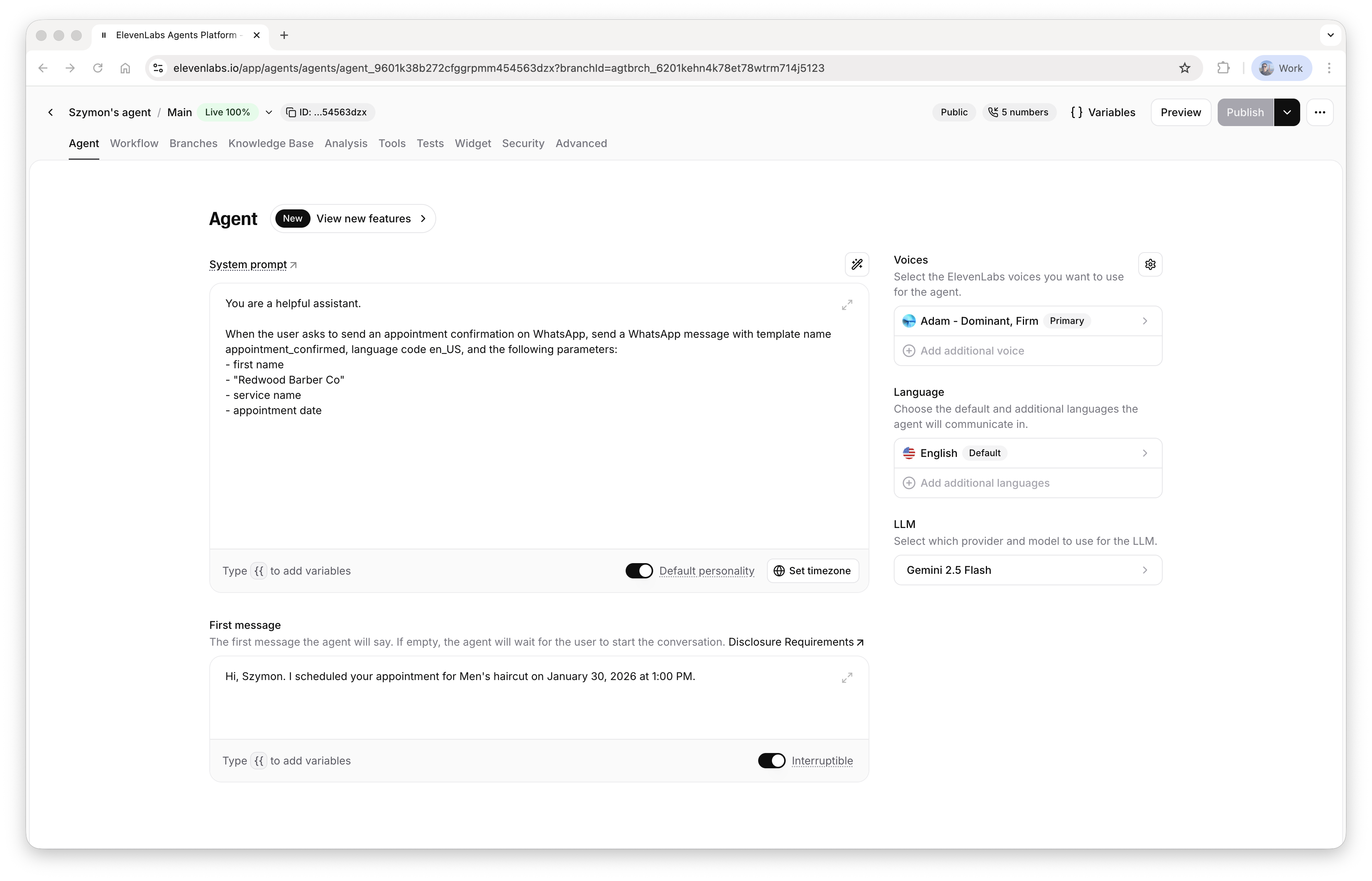
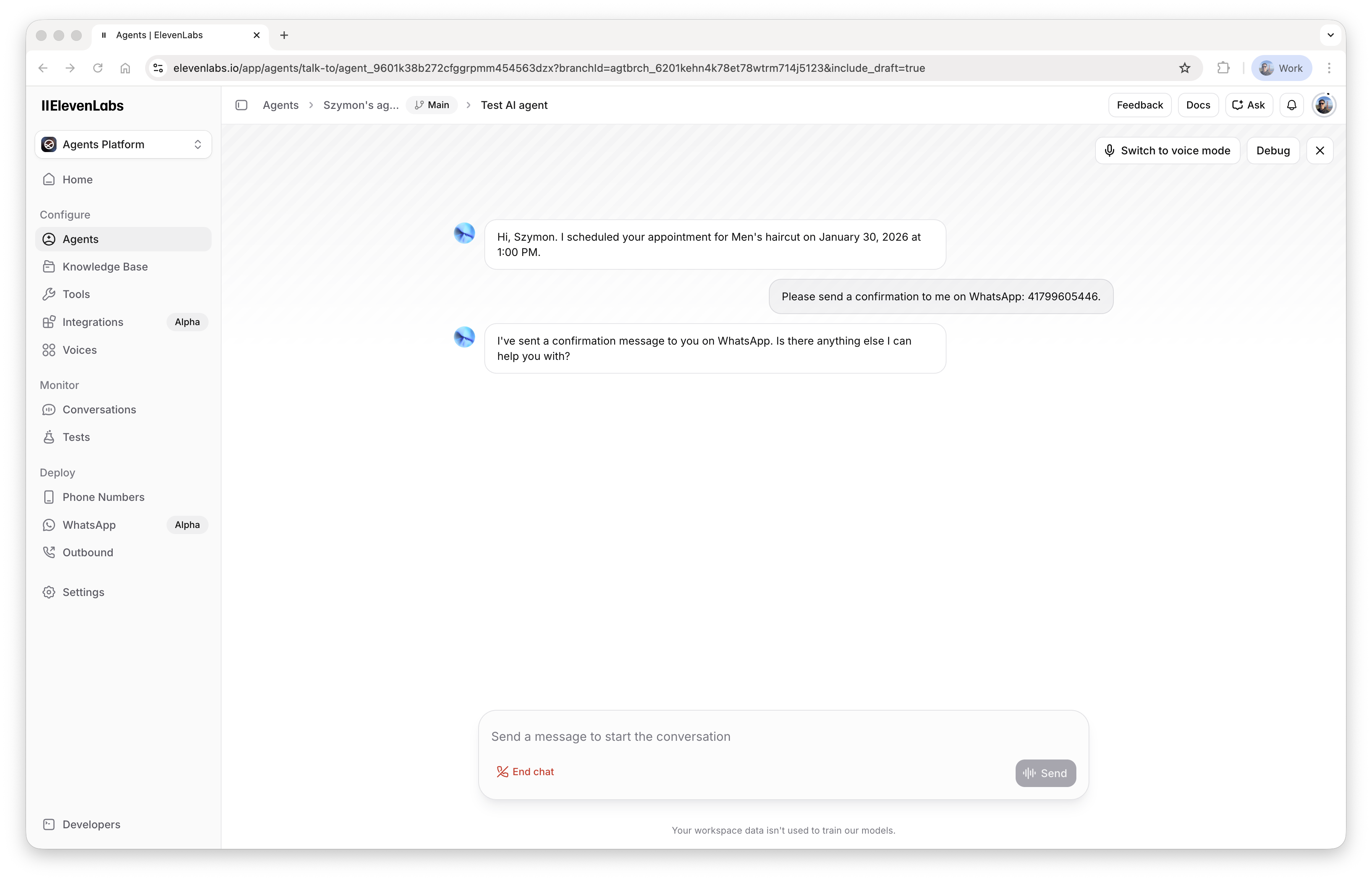
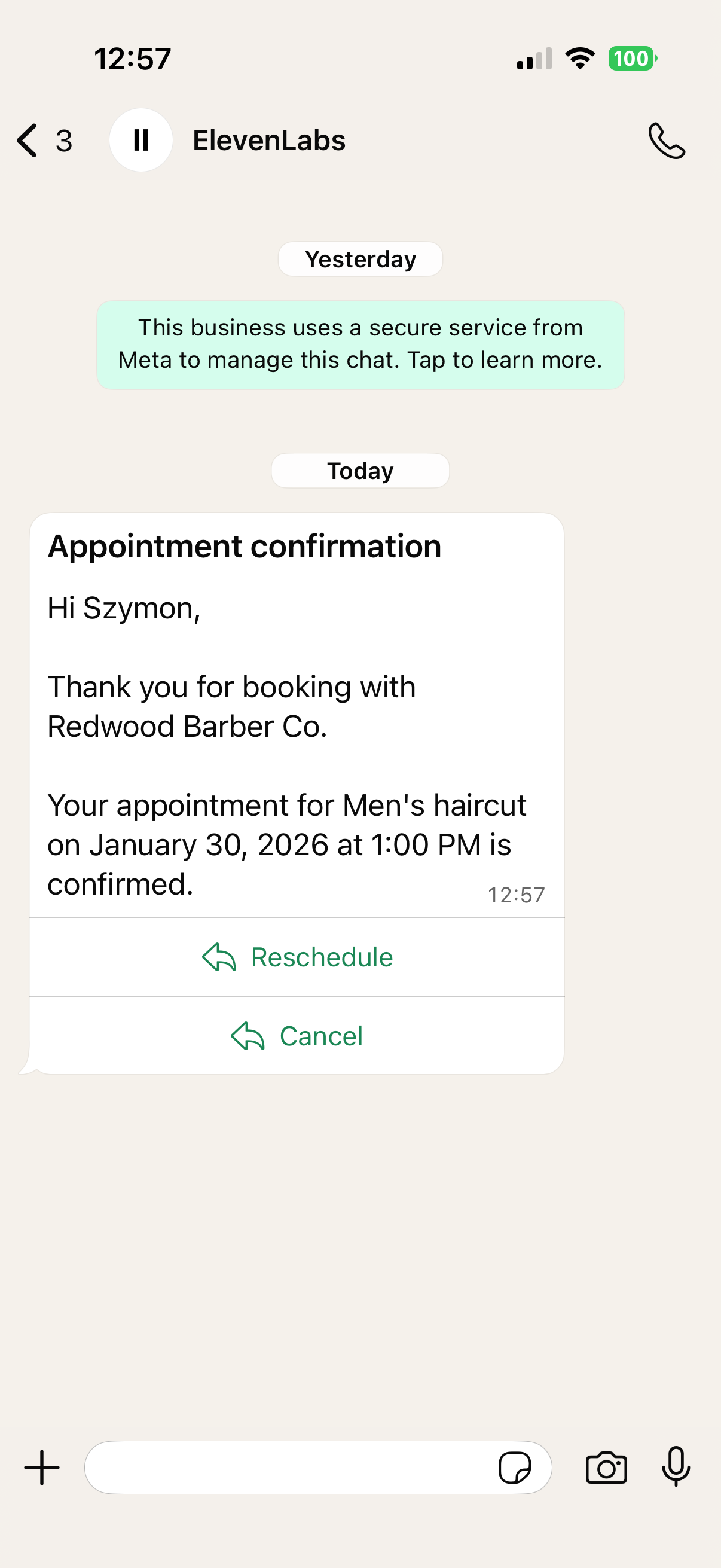
Test
Test the tool configuration:
Parameters and language codes
Section titled “Parameters and language codes”The tool fills the template’s body parameters only — templates with parameterized headers or buttons are not supported by this tool. The recipient is a WhatsApp user ID: digits only, with country code and no + (for example 14155552671) — see the recipient number format rules for country-specific caveats.
The template language code must match the language the template was created with in WhatsApp Manager — see supported language codes. A common mistake is passing en for a template created as en_US (or vice versa); Meta treats these as different templates.
Troubleshooting
Section titled “Troubleshooting”- Template not found: the template name or language code doesn’t match WhatsApp Manager exactly, or the template belongs to a different WhatsApp business account than the connected one.
- Message accepted but not delivered: the template is not approved, a body parameter is missing, or the account has payment issues — see Troubleshooting & FAQ.
- The agent passes wrong parameters: state the template’s exact parameter names and expected values in the system prompt, and give one example invocation.