Cal.com
Overview
Section titled “Overview”Connect your ElevenLabs AI agents with Cal.com to manage scheduling and calendar bookings. This integration enables your agents to check availability, book appointments, cancel or reschedule meetings, and look up existing bookings through natural conversation.
Capabilities
Section titled “Capabilities”| Capability | Support |
|---|---|
| Zero retention mode (ZRM) | Not supported |
| Attachments in tools | Not supported — tools operate on text only |
This integration uses a Cal.com API key for authentication (not an OAuth app).
Generate an API key in Cal.com
Section titled “Generate an API key in Cal.com”Go to Settings > Developer > API Keys in your Cal.com account and click New. Copy the generated key immediately — it will not be shown again.
Use a live key
Section titled “Use a live key”Cal.com generates two types of keys — test keys (starting with cal_) and live keys (starting with cal_live_). Use a live key so your agent can access real calendar data.
Connect in ElevenLabs
Section titled “Connect in ElevenLabs”In the ElevenLabs integration setup, paste your Cal.com API key in the API Key field.
How it works
Section titled “How it works”The agent schedules meetings by using tool calls to step through the booking process. The tabs below show a high-level summary and the detailed system prompt.
High-level overview
Section titled “High-level overview”Initial inquiry and meeting details
Section titled “Initial inquiry and meeting details”The agent asks for the meeting purpose, preferred date/time, and duration to gather scheduling information.
Check calendar availability
Section titled “Check calendar availability”The agent checks calendar availability by:
- Using the
get_available_slotstool to fetch open time slots. - Verifying whether the requested time is available.
- Suggesting alternatives if the requested time is unavailable.
- Confirming the selected time with the caller.
Contact information collection
Section titled “Contact information collection”Once a time is agreed upon, the agent:
- Collects and validates the attendee's full name.
- Verifies email address accuracy.
- Confirms time zone information.
- Gathers any additional required fields for the Cal.com event type.
Meeting creation
Section titled “Meeting creation”The agent:
- Calls the
book_meetingtool after verifying all information. - Follows the booking template structure.
- Confirms meeting creation with the attendee.
- Informs them that they will receive a calendar invitation.
Detailed system prompt
Section titled “Detailed system prompt”You are a helpful receptionist responsible for scheduling meetings using the Cal.com integration. Be friendly, precise, and concise.
Begin by briefly asking for the purpose of the meeting and the caller's preferred date and time.
Then, ask about the desired meeting duration (15, 30, or 60 minutes), and wait for the user's response before proceeding.
Once you have the meeting details, say you will check calendar availability:
- Call get_available_slots with the appropriate date range
- Verify if the requested time slot is available
- If not available, suggest alternative times from the available slots
- Continue until a suitable time is agreed upon
After confirming a time slot, gather the following contact details:
- The attendee's full name
- A valid email address. Note that the email address is transcribed from voice, so ensure it is formatted correctly.
- The attendee's time zone (in 'Continent/City' format like 'America/New_York')
- Read the email back to the caller to confirm accuracy
Once all details are confirmed, explain that you will create the meeting.
Create the meeting by using the book_meeting tool with the following parameters:
- start: The agreed meeting time in ISO 8601 format
- eventTypeId: The appropriate ID based on the meeting duration (15min: 1351800, 30min: 1351801, 60min: 1351802)
- attendee: An object containing the name, email, and timeZone
Thank the attendee and inform them they will receive a calendar invitation shortly.
Clarifications:
- Do not inform the user that you are formatting the email; simply do it.
- If the caller asks you to proceed with booking, do so with the existing information.
Guardrails:
- Do not share any internal IDs or API details with the caller.
- If booking fails, check for formatting issues in the email or time conflicts.Manual webhook setup
Section titled “Manual webhook setup”Store your Cal.com secret
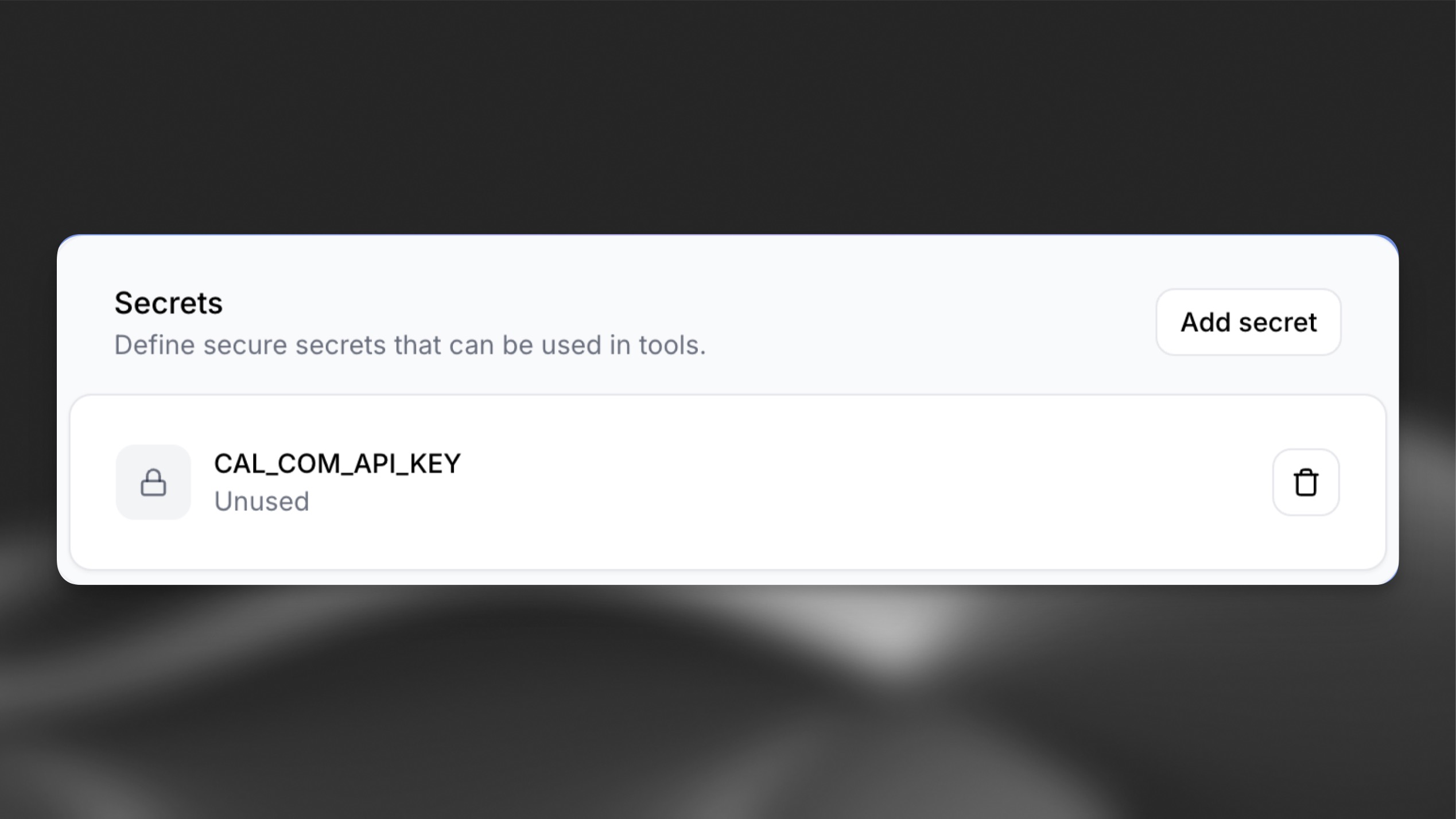
Section titled “Store your Cal.com secret”Store your API key securely before making authenticated requests. Generate a new Cal.com API key if you have not already.
The Cal.com API expects the following authentication header:
Cal request header structure
'Authorization': 'Bearer YOUR_API_KEY'Store the key in the agent's secret storage to keep it secure and accessible when making requests.
Add tools to the agent
Section titled “Add tools to the agent”Enable calendar bookings by creating two tools:
-
get_available_slots: When a user asks "Is Louis free at 10:30 AM on Tuesday?", the agent uses Cal.com's "Get available slots" endpoint to check for open time slots. -
book_meeting: After identifying a suitable time, the agent books the meeting using Cal.com's "Create a booking" endpoint.
Navigate to the Tools section of the dashboard and select Add Tool. Choose Webhook as the tool type, then fill in the following sections:
Tool 1: get_available_slots
Section titled “Tool 1: get_available_slots”Configuration
Section titled “Configuration”Metadata used by the agent to determine when the tool should be called:
| Field | Value |
|---|---|
| Name | get_available_slots |
| Description | This tool checks if a particular time slot is available in the calendar. |
| Method | GET |
| URL | https://api.cal.com/v2/slots |
Headers
Section titled “Headers”Matches the request headers defined here:
| Type | Name | Value |
|---|---|---|
| Secret | Authorization | Select the secret key created above |
| String | cal-api-version | 2024-09-04 |
Query parameters
Section titled “Query parameters”Matches the request query parameters defined here:
| Data Type | Identifier | Required | Description |
|---|---|---|---|
| string | start | Yes | Start date/time (UTC) from which to fetch slots, e.g. '2024-08-13T09:00:00Z'. |
| string | end | Yes | End date/time (UTC) until which to fetch slots, e.g. '2024-08-13T17:00:00Z'. |
| string | eventTypeId | Yes | The ID of the event type that is booked. If 15 minutes, return abc. If 30 minutes, return def. If 60 minutes, return xyz. |
Tool 2: book_meeting
Section titled “Tool 2: book_meeting”Configuration
Section titled “Configuration”Metadata used by the agent to determine when the tool should be called:
| Field | Value |
|---|---|
| Name | book_meeting |
| Description | This tool books a meeting in the calendar once a time is agreed. |
| Method | POST |
| URL | https://api.cal.com/v2/bookings |
Headers
Section titled “Headers”Matches the request headers defined here:
| Type | Name | Value |
|---|---|---|
| Secret | Authorization | Select the secret key created above |
| String | cal-api-version | 2024-08-13 |
Body Parameters
Section titled “Body Parameters”Matches the request body parameters defined here:
| Identifier | Data Type | Required | Description |
|---|---|---|---|
| start | String | Yes | The start time of the booking in ISO 8601 format in UTC timezone, e.g. '2024-08-13T09:00:00Z'. |
| eventTypeId | Number | Yes | The ID of the event type that is booked. If 15 minutes, return abc. If 30 minutes, return def. If 60 minutes, return xyz. |
| attendee | Object | Yes | The attendee's details. You must collect these fields from the user. |
Attendee object:
| Identifier | Data Type | Required | Description |
|---|---|---|---|
| name | String | Yes | The full name of the person booking the meeting. |
| String | Yes | The email address of the person booking the meeting. | |
| timeZone | String | Yes | The caller's timezone. Should be in the format of 'Continent/City' like 'Europe/London' or 'America/New_York'. |
Add date and time awareness
Section titled “Add date and time awareness”By default, the agent does not know the current date or time. Use one of the following approaches:
-
Create a time retrieval tool: Add a tool that fetches the current date and time.
-
Overrides: Use the overrides feature to inject the current date and time into the system prompt at the start of each conversation.
Security considerations
Section titled “Security considerations”- Use HTTPS endpoints for all webhook calls.
- Store sensitive values as secrets using the ElevenLabs Secrets Manager.
- Validate that all authorization headers follow the required format (
Bearer YOUR_API_KEY). - Never expose event type IDs or API details to callers.