ElevenAgents in Framer
Learn how to deploy a ElevenLabs agent to Framer
This tutorial will guide you through adding your ElevenLabs agent to your Framer website.
Prerequisites
Section titled “Prerequisites”- An ElevenLabs Agents agent created following this guide
- A Framer account & website, create one here
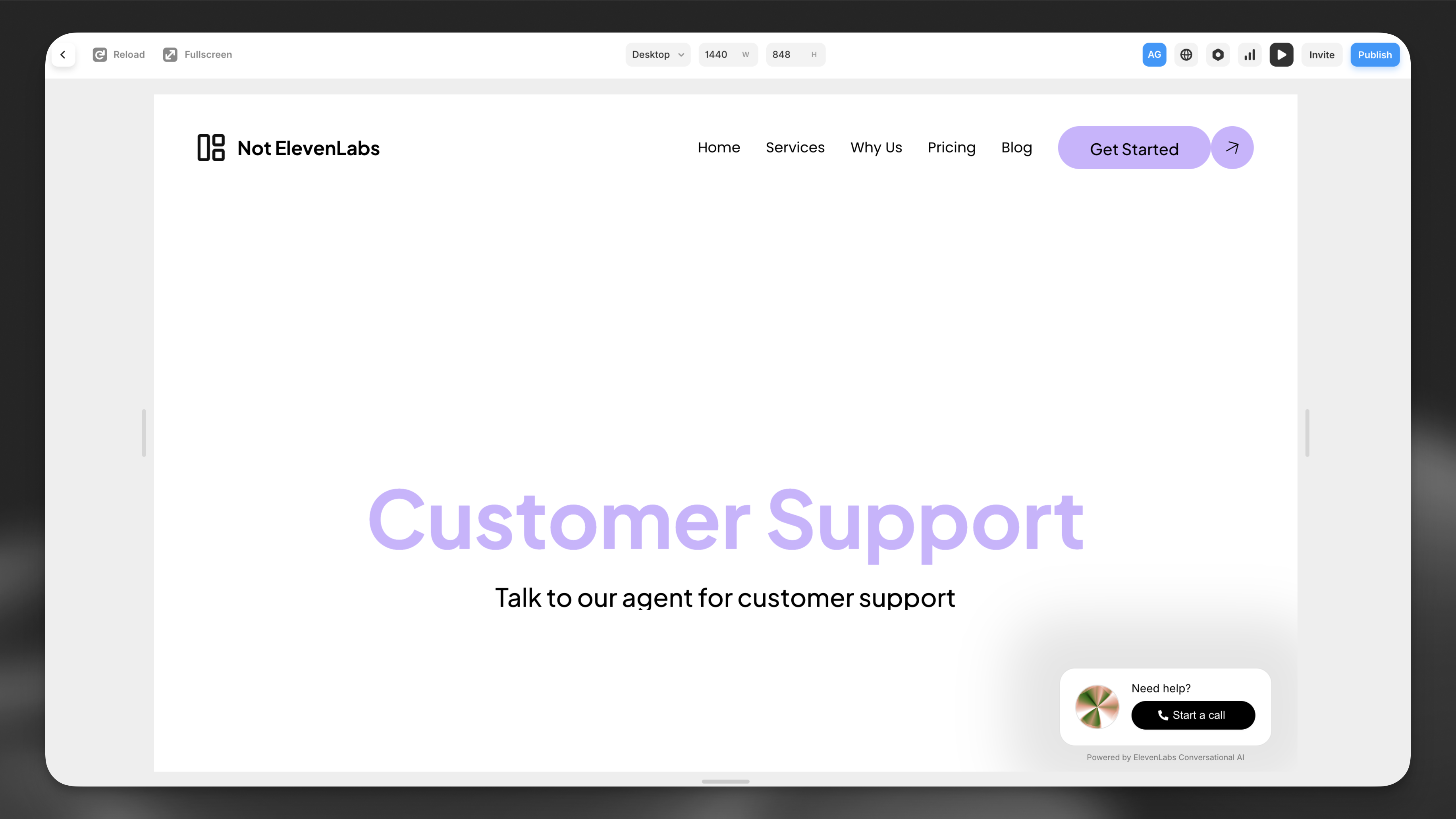
Visit your Framer editor
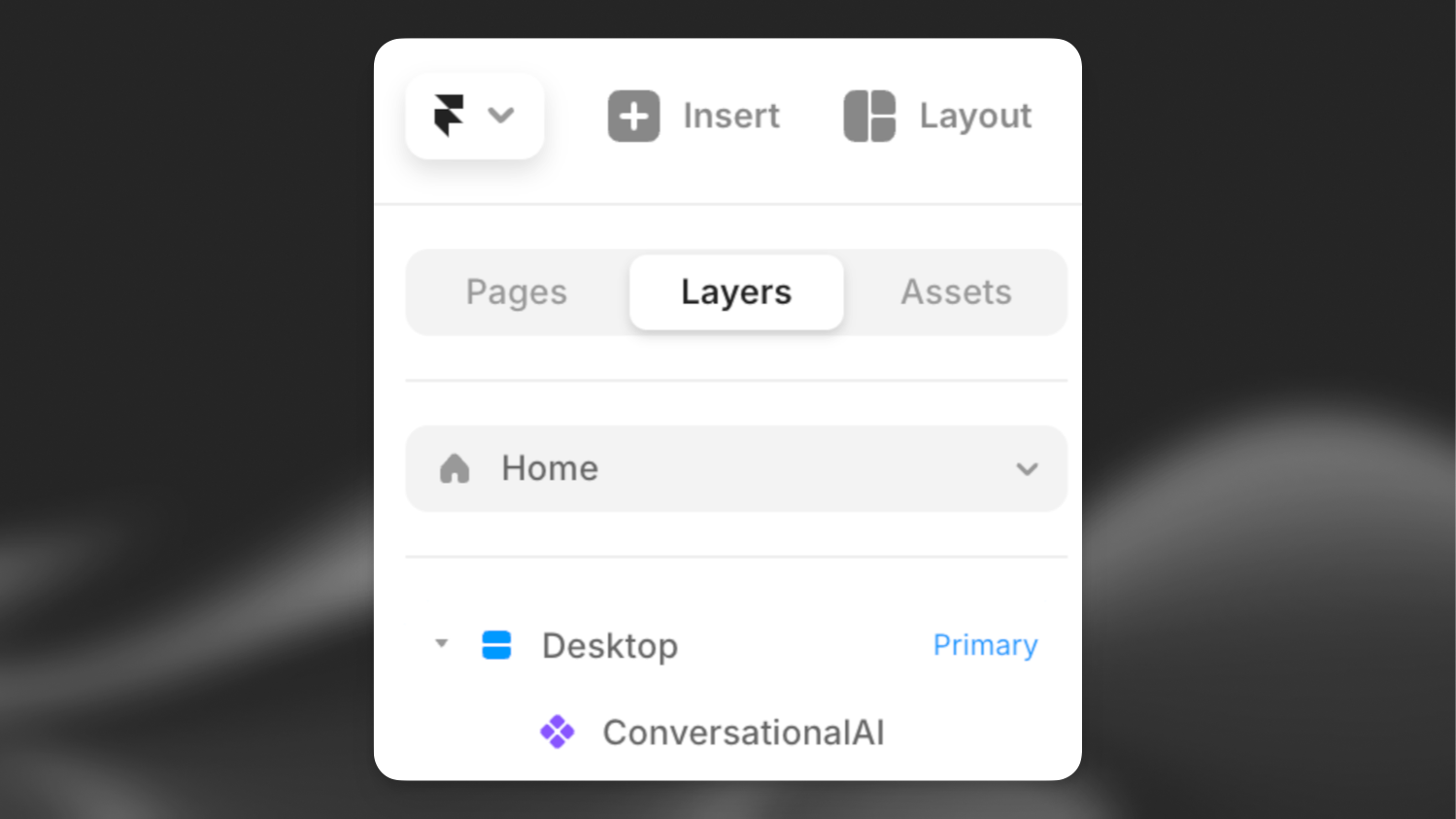
Open your website in the Framer editor and click on the primary desktop on the left.
Add the ElevenAgents component
Copy and paste the following url into the page you would like to add the ElevenLabs agent to:
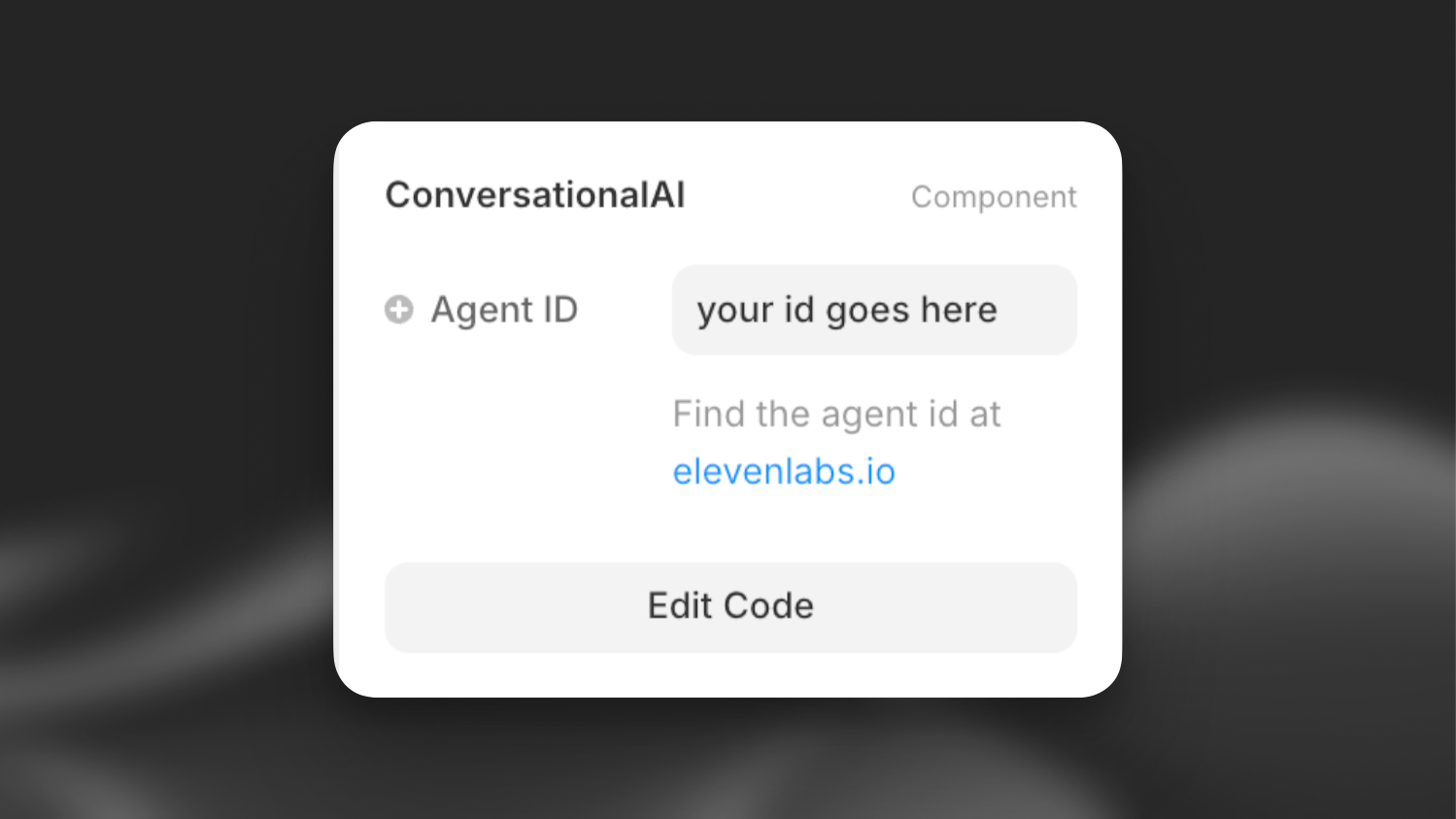
https://framer.com/m/ConversationalAI-iHql.js@y7VwRka75sp0UFqGliIfYou’ll now see a ElevenAgents asset on the ‘Layers’ bar on the left and the ElevenAgents component’s details on the right.
Fill in the agent details
Enable the ElevenLabs agent by filling in the agent ID in the bar on the right. You can find the agent ID in the ElevenLabs dashboard.
Having trouble? Make sure the ElevenAgents component is placed below the desktop component in the layers panel.
Next steps
Section titled “Next steps”Now that you have added your ElevenLabs agent to your Framer website, you can:
- Customize the widget in the ElevenLabs dashboard to match your brand
- Add additional languages
- Add advanced functionality like tools & knowledge base.