Environment variables
Environment variables let you define per-environment values for tool URLs, secrets, headers, and auth connections. A single agent and tool configuration works across all your environments — URLs, API keys, and authentication resolve dynamically based on the environment specified at conversation time.
Overview
Section titled “Overview”Without environment variables, deploying an agent across multiple environments (development, staging, production) requires duplicating agents and tools for each environment, then manually keeping their configurations in sync. This leads to:
- Configuration drift between environments
- Fragmented analytics across duplicated agent IDs
- Promotion friction when moving from staging to production
Environment variables solve this by introducing a reusable, workspace-scoped resource that stores different values per environment. Tools and MCP servers reference these variables using template syntax, and the correct value is resolved at runtime based on the conversation's environment.
Core concepts
Section titled “Core concepts”Environment variables
Section titled “Environment variables”An environment variable is a workspace-scoped resource with a label and a set of per-environment values. There are three types:
| Type | Description | Example use case |
|---|---|---|
| String | Plain text values that vary per environment | Base URLs, hostnames, configuration values |
| Secret | References to workspace secrets, resolved per environment | API keys, bearer tokens, webhook signing secrets |
| Auth connection | References to auth connections, resolved per environment | OAuth2 credentials, JWT configurations |
Each environment variable must have a value for the default production environment. Additional environments (e.g., staging, development) are optional.
Template syntax
Section titled “Template syntax”Reference environment variables in URL fields using the {{system__env_<label>}} syntax:
https://{{system__env_api_host}}.example.com/v1/text-to-speechGiven an environment variable api_host with values api (production) and staging.api (staging), this resolves to:
- In
production:https://api.example.com/v1/text-to-speech - In
staging:https://staging.api.example.com/v1/text-to-speech
This syntax is consistent with dynamic variables and works in URL fields for webhook tools and MCP server connections.
Resolution and fallback
Section titled “Resolution and fallback”When a conversation runs in a specific environment, the system resolves environment variables as follows:
- Look up the value for the requested environment (e.g.,
staging) - If no value exists for that environment, fall back to the
productionvalue - If the variable cannot be resolved, the tool call fails with a configuration error
This fallback behavior means you only need to define values for environments that differ from production.
Creating environment variables
Section titled “Creating environment variables”Create via the dashboard
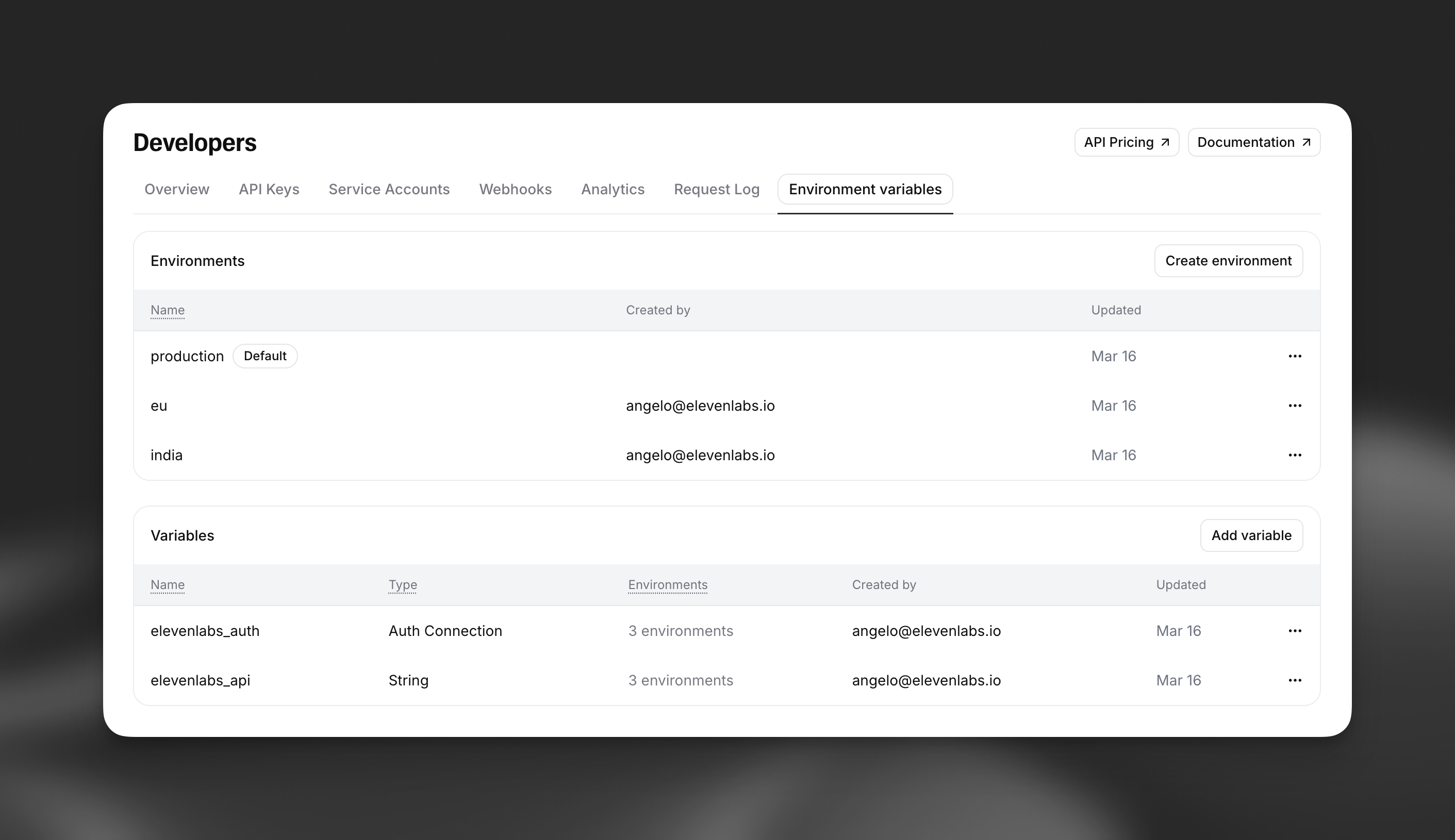
Section titled “Create via the dashboard”Navigate to Developers > Environment Variables in the ElevenLabs dashboard.
Create an environment
Section titled “Create an environment”Define environments that match your deployment stages (e.g., eu, india, staging). The production environment is always available by default.
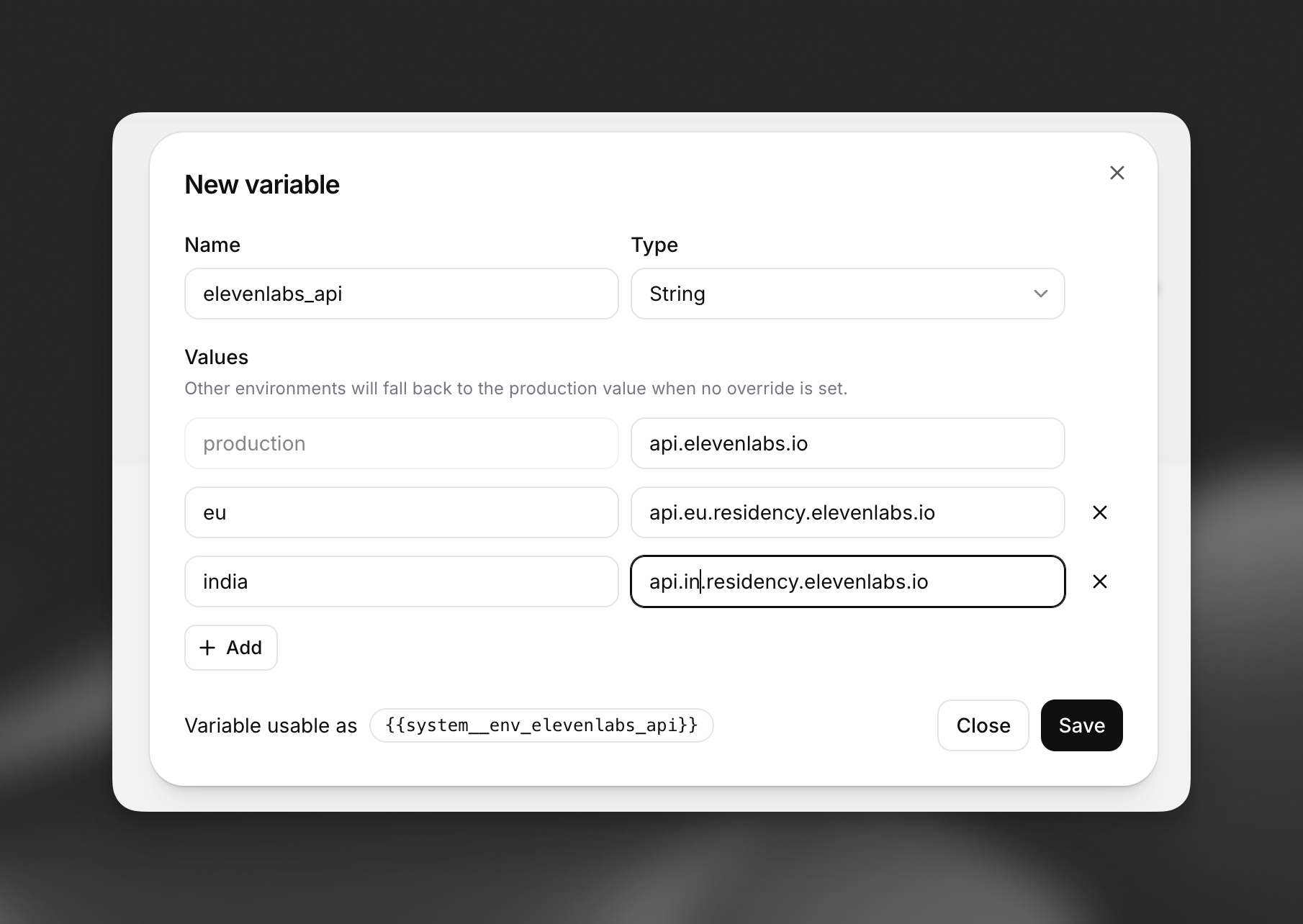
Create a variable
Section titled “Create a variable”Click Add variable and choose the variable type:
- String: Enter a label and set a value for each environment
- Secret: Select an existing workspace secret for each environment
- Auth connection: Select an existing auth connection for each environment
Create via the API
Section titled “Create via the API”String
Section titled “String”from elevenlabs import ElevenLabs
elevenlabs = ElevenLabs()
elevenlabs.conversational_ai.environment_variables.create(
label="api_host",
type="string",
values={
"production": "api",
"staging": "staging.api",
"development": "dev.api",
},
)import { ElevenLabsClient } from "@elevenlabs/elevenlabs-js";
const elevenlabs = new ElevenLabsClient();
await elevenlabs.conversationalAi.environmentVariables.create({
label: "api_host",
type: "string",
values: {
production: "api",
staging: "staging.api",
development: "dev.api",
},
});Secret
Section titled “Secret”from elevenlabs import ElevenLabs
elevenlabs = ElevenLabs()
elevenlabs.conversational_ai.environment_variables.create(
label="my_api_key",
type="secret",
values={
"production": {"secret_id": "your-production-secret-id"},
"staging": {"secret_id": "your-staging-secret-id"},
},
)import { ElevenLabsClient } from "@elevenlabs/elevenlabs-js";
const elevenlabs = new ElevenLabsClient();
await elevenlabs.conversationalAi.environmentVariables.create({
label: "my_api_key",
type: "secret",
values: {
production: { secretId: "your-production-secret-id" },
staging: { secretId: "your-staging-secret-id" },
},
});Auth connection
Section titled “Auth connection”from elevenlabs import ElevenLabs
elevenlabs = ElevenLabs()
elevenlabs.conversational_ai.environment_variables.create(
label="my_oauth_connection",
type="auth_connection",
values={
"production": {"auth_connection_id": "your-production-auth-connection-id"},
"staging": {"auth_connection_id": "your-staging-auth-connection-id"},
},
)import { ElevenLabsClient } from "@elevenlabs/elevenlabs-js";
const elevenlabs = new ElevenLabsClient();
await elevenlabs.conversationalAi.environmentVariables.create({
label: "my_oauth_connection",
type: "auth_connection",
values: {
production: { authConnectionId: "your-production-auth-connection-id" },
staging: { authConnectionId: "your-staging-auth-connection-id" },
},
});Using environment variables
Section titled “Using environment variables”In webhook tool URLs
Section titled “In webhook tool URLs”Use the template syntax in the URL field of a webhook tool to make the base URL resolve per environment.
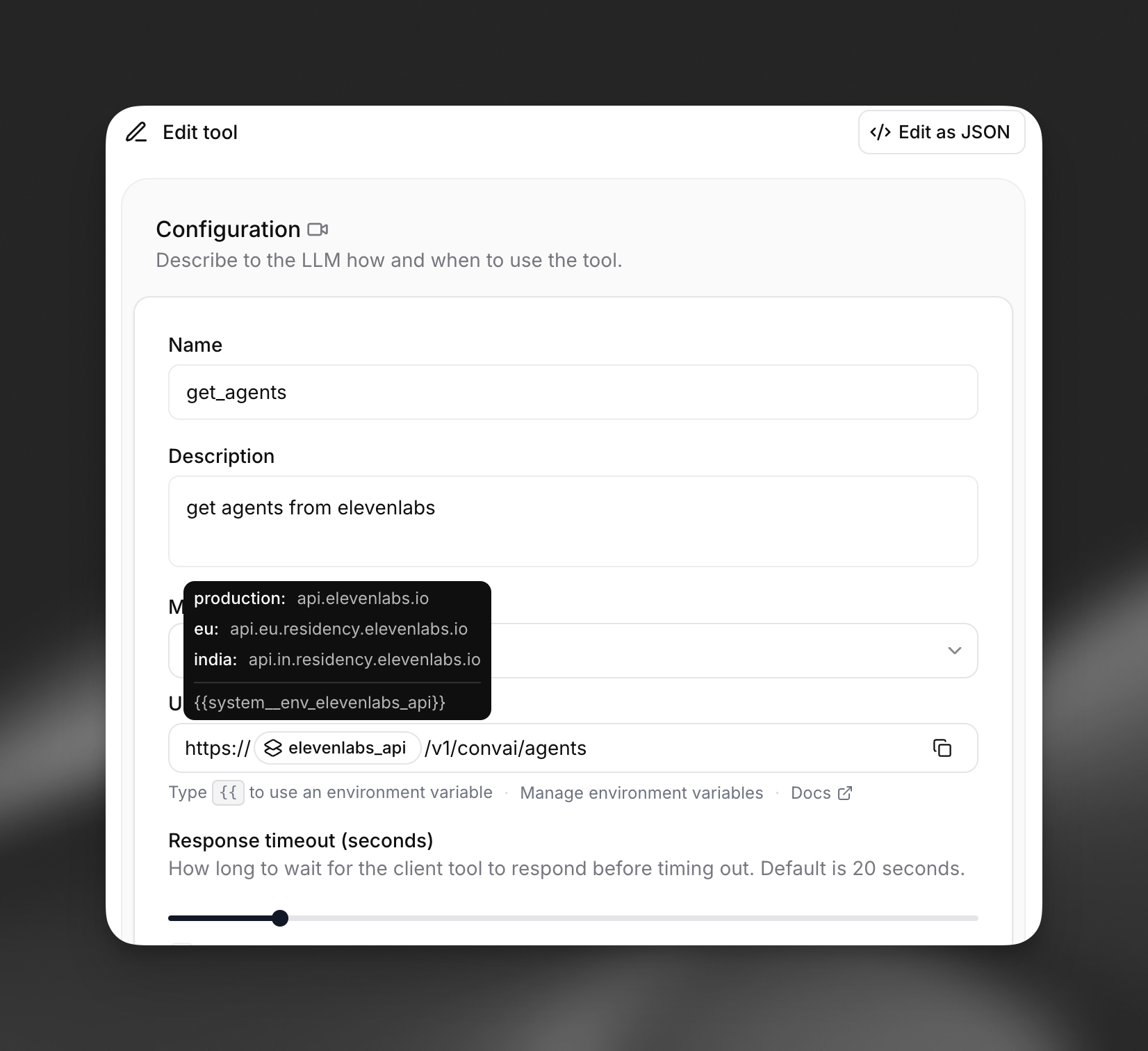
For example, a tool URL configured as:
https://{{system__env_api_host}}.example.com/v1/weather?lat={latitude}&lon={longitude}resolves to https://api.example.com/v1/weather?lat=40.7&lon=-74.0 in production and https://staging.api.example.com/v1/weather?lat=40.7&lon=-74.0 in staging.
You can combine multiple environment variables and literal segments in a single URL:
https://{{system__env_api_host}}.example.com/{{system__env_api_version}}/weatherAPI example
Section titled “API example”Python
from elevenlabs.client import ElevenLabs

client = ElevenLabs(api_key="your-api-key")

agent = client.conversational_ai.agents.create(
    conversation_config={
        "agent": {
            "first_message": "Hello! How can I help?",
            "prompt": {"prompt": "You are a helpful assistant."},
        },
        "tools": [
            {
                "type": "webhook",
                "name": "get_data",
                "description": "Fetches data from the API",
                "api_schema": {
                    "url": "https://{{system__env_api_host}}.example.com/v1/data",
                    "method": "GET",
                },
            }
        ],
    },
)
JavaScript
import { ElevenLabsClient } from "@elevenlabs/elevenlabs-js";

const client = new ElevenLabsClient({ apiKey: "your-api-key" });

const agent = await client.conversationalAi.agents.create({
  conversationConfig: {
    agent: {
      firstMessage: "Hello! How can I help?",
      prompt: { prompt: "You are a helpful assistant." },
    },
    tools: [
      {
        type: "webhook",
        name: "get_data",
        description: "Fetches data from the API",
        apiSchema: {
          url: "https://{{system__env_api_host}}.example.com/v1/data",
          method: "GET",
        },
      },
    ],
  },
});
In webhook tool headers
Section titled “In webhook tool headers”Secret environment variables can be used in request headers. Instead of hardcoding a secret ID, reference an environment variable so different secrets are used per environment. When configuring a tool header in the dashboard, select an environment variable instead of a static secret. At runtime, the header value resolves to the secret stored for the current environment.
API example
Section titled “API example”Pass an environment variable reference in the request_headers field:
{
  "api_schema": {
    "url": "https://{{system__env_api_host}}.example.com/v1/data",
    "method": "GET",
    "request_headers": {
      "X-Api-Key": { "env_var_label": "my_api_key" }
    }
  }
}
In webhook tool auth connections
Section titled “In webhook tool auth connections”Auth connections (OAuth2, JWT, Basic Auth) can also be resolved per environment. This is useful when your staging and production environments use different OAuth clients or token endpoints.
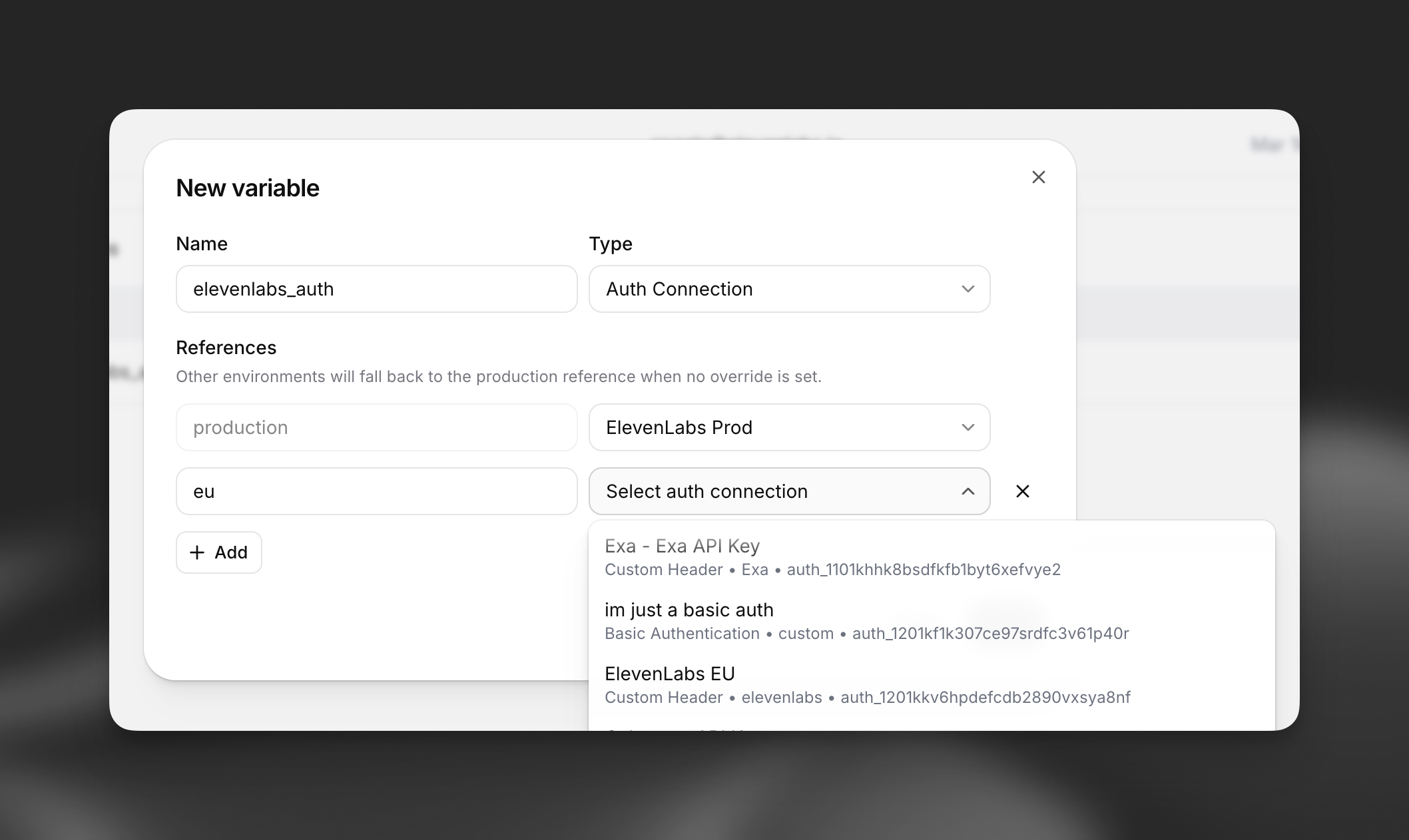
In the tool configuration, select an environment variable of type auth_connection instead of directly selecting an auth connection. The correct auth connection for the current environment is resolved at runtime.
API example
Section titled “API example”Reference an environment variable in the auth_connection field:
{
  "api_schema": {
    "url": "https://{{system__env_api_host}}.example.com/v1/data",
    "method": "GET",
    "auth_connection": { "env_var_label": "my_oauth_connection" }
  }
}
In MCP server connections
Section titled “In MCP server connections”Environment variables work with MCP server connections in the same way they work with webhook tools. You can use them in:
- Server URL: Template the MCP server URL to point to different servers per environment
- Request headers: Use secret environment variables for authentication headers
- Auth connections: Use auth connection environment variables for OAuth-based MCP servers
For example, an MCP server URL configured as:
https://{{system__env_mcp_host}}.example.com/mcpresolves to different MCP server endpoints depending on the environment.
In custom LLM configurations
Section titled “In custom LLM configurations”When using a custom LLM, environment variables can template the API key and request headers. This lets you use different model endpoints and credentials across environments.
The custom LLM URL field supports the same {{system__env_<label>}} template syntax. The api_key field accepts an environment variable reference so different API keys are used per environment.
API example
Section titled “API example”{
"conversation_config": {
"agent": {
"prompt": { "prompt": "You are a helpful assistant." },
"llm": {
"custom_llm": {
"url": "https://{{system__env_llm_host}}.example.com/v1/chat/completions",
"model_id": "my-model",
"api_key": { "env_var_label": "llm_api_key" }
}
}
}
}
}Specifying the environment
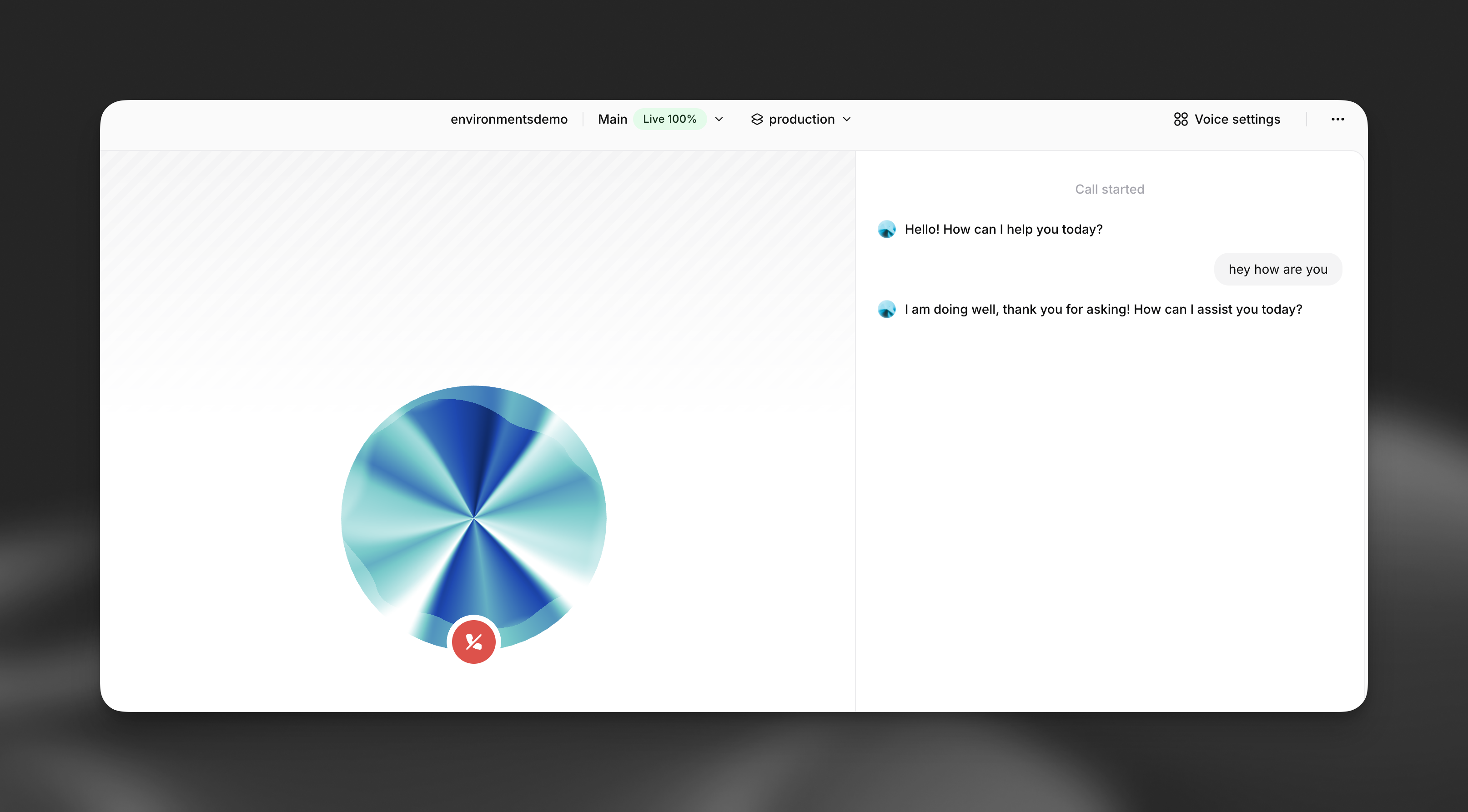
Section titled “Specifying the environment”The environment is set at conversation start time and persists for the entire conversation. If no environment is specified, it defaults to production.
When testing in the dashboard, select the environment from the dropdown in the agent preview:
WebSocket
Section titled “WebSocket”Pass the environment query parameter when connecting to the conversation WebSocket:
wss://api.elevenlabs.io/v1/convai/conversation?agent_id=<agent_id>&environment=stagingWebRTC (Signed URL / Token)
Section titled “WebRTC (Signed URL / Token)”When using WebRTC, pass the environment parameter when requesting a conversation token:
Python
from elevenlabs.client import ElevenLabs

client = ElevenLabs(api_key="your-api-key")

token = client.conversational_ai.conversation.get_token(
agent_id="your-agent-id",
environment="staging",
)
JavaScript
import { ElevenLabsClient } from "@elevenlabs/elevenlabs-js";

const client = new ElevenLabsClient({ apiKey: "your-api-key" });

const token = await client.conversationalAi.conversation.getToken({
    agentId: "your-agent-id",
    environment: "staging",
});
cURL
curl "https://api.elevenlabs.io/v1/convai/conversation/token?agent_id=<agent_id>&environment=staging" \
  -H "xi-api-key: $ELEVENLABS_API_KEY"
Telephony (Twilio and SIP trunk)
Section titled “Telephony (Twilio and SIP trunk)”Phone numbers can be pinned to a specific environment and to a specific agent branch, making it easy to route a test phone number to a dev branch of an agent whose tools execute against a dev API.
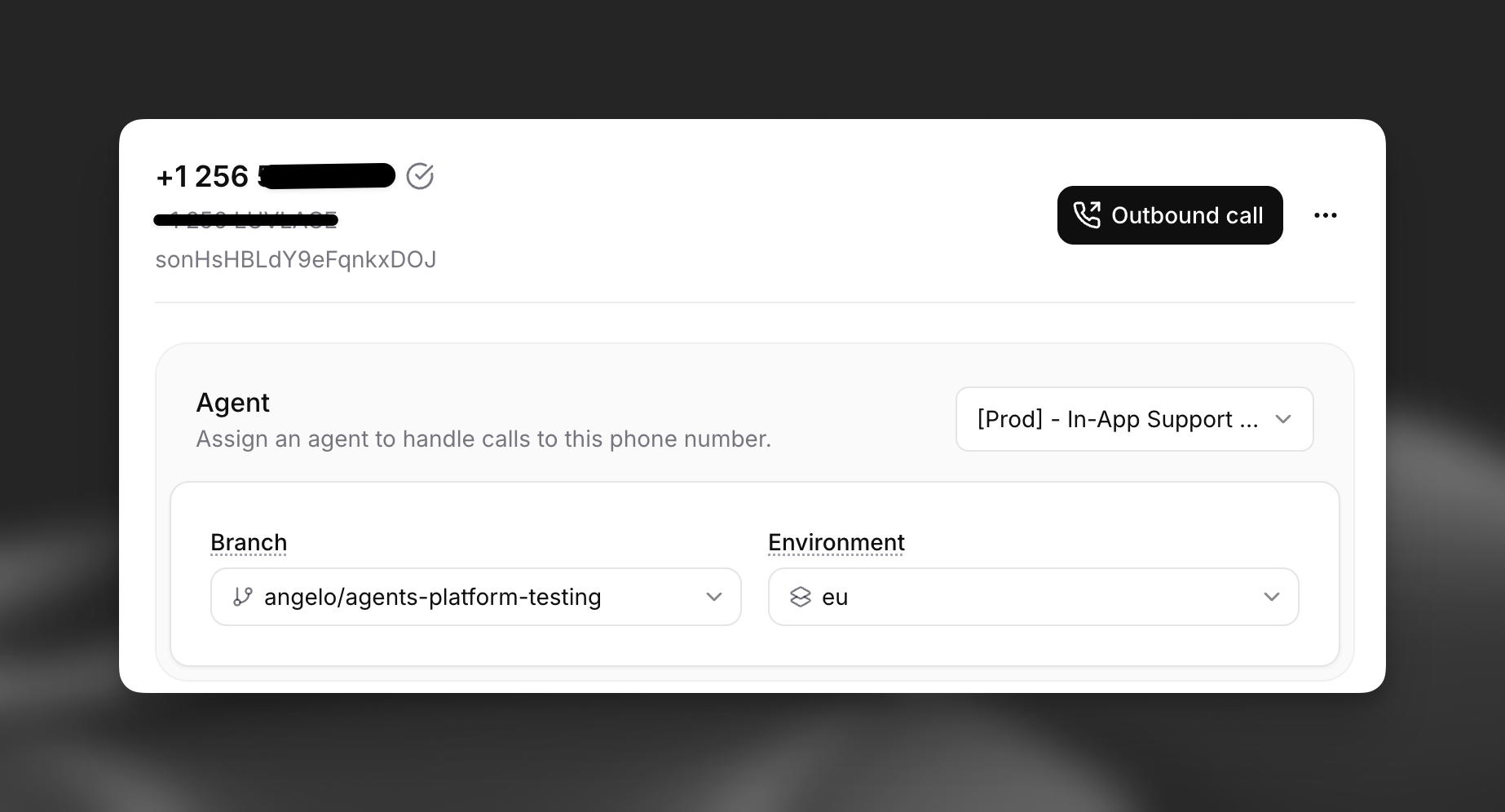
For inbound calls, the environment is resolved in this order:
- The
environmentvalue returned by your conversation initiation webhook, if your server provides one dynamically per call - The environment stored on the phone number itself
productionas the default
The same precedence applies to branch_id. Pre-call webhook URLs and headers, and post-call webhook URLs, then resolve {{system__env_*}} templates using the chosen environment.
Pin a phone number to an environment and branch (requires elevenlabs Python SDK ≥ 2.47.0 or @elevenlabs/elevenlabs-js ≥ 2.47.0):
Python
import os
from dotenv import load_dotenv
from elevenlabs import ElevenLabs

load_dotenv()

elevenlabs = ElevenLabs(api_key=os.getenv("ELEVENLABS_API_KEY"))

elevenlabs.conversational_ai.phone_numbers.update(
    phone_number_id="phnum_8901k4t9z5defmb8vh3e9361y7nj",
    environment="staging",
    branch_id="agtbrch_8901k4t9z5defmb8vh3e9361y7nj",
)
JavaScript
import { ElevenLabsClient } from "@elevenlabs/elevenlabs-js";

const elevenlabs = new ElevenLabsClient();

await elevenlabs.conversationalAi.phoneNumbers.update("phnum_8901k4t9z5defmb8vh3e9361y7nj", {
  environment: "staging",
  branchId: "agtbrch_8901k4t9z5defmb8vh3e9361y7nj",
});
cURL
curl -X PATCH "https://api.elevenlabs.io/v1/convai/phone-numbers/phnum_8901k4t9z5defmb8vh3e9361y7nj" \
  -H "xi-api-key: $ELEVENLABS_API_KEY" \
  -H "Content-Type: application/json" \
  -d '{
    "environment": "staging",
    "branch_id": "agtbrch_8901k4t9z5defmb8vh3e9361y7nj"
  }'
For outbound calls, pass the environment field when initiating the call via the Twilio or SIP trunk outbound endpoints.
React SDK
Section titled “React SDK”Pass the environment option in the useConversation hook or when starting a session:
import { useConversation } from "@11labs/react";

function Agent() {
  const conversation = useConversation();

  const connect = async () => {
    await conversation.startSession({
      agentId: "your-agent-id",
      environment: "staging",
    });
  };

  return <button onClick={connect}>Start conversation</button>;
}
Example: multi-environment agent
Section titled “Example: multi-environment agent”This example demonstrates a complete setup with a single agent that uses different API backends and credentials across development, staging, and production.
Create environment variables
Section titled “Create environment variables”Create three environment variables in the dashboard or via API:
| Label | Type | Development | Staging | Production |
|---|---|---|---|---|
api_host |
String | dev.api |
staging.api |
api |
api_key |
Secret | dev-secret-id |
staging-secret-id |
prod-secret-id |
oauth_creds |
Auth connection | dev-oauth-id |
staging-oauth-id |
prod-oauth-id |
Configure tools with environment variable references
Section titled “Configure tools with environment variable references”Set up your webhook tools using template syntax:
- URL:
https://{{system__env_api_host}}.example.com/v1/orders - Headers: Reference
api_keyenvironment variable for theX-Api-Keyheader - Auth: Reference
oauth_credsenvironment variable for OAuth authentication
Specify environment at conversation time
Section titled “Specify environment at conversation time”When starting a conversation, pass the target environment:
Development
conversation = client.conversational_ai.conversation.get_signed_url(
    agent_id="your-agent-id",
    environment="development",
)
Staging
conversation = client.conversational_ai.conversation.get_signed_url(
    agent_id="your-agent-id",
    environment="staging",
)
Production (default)
# No environment parameter needed — defaults to production
conversation = client.conversational_ai.conversation.get_signed_url(
    agent_id="your-agent-id",
)
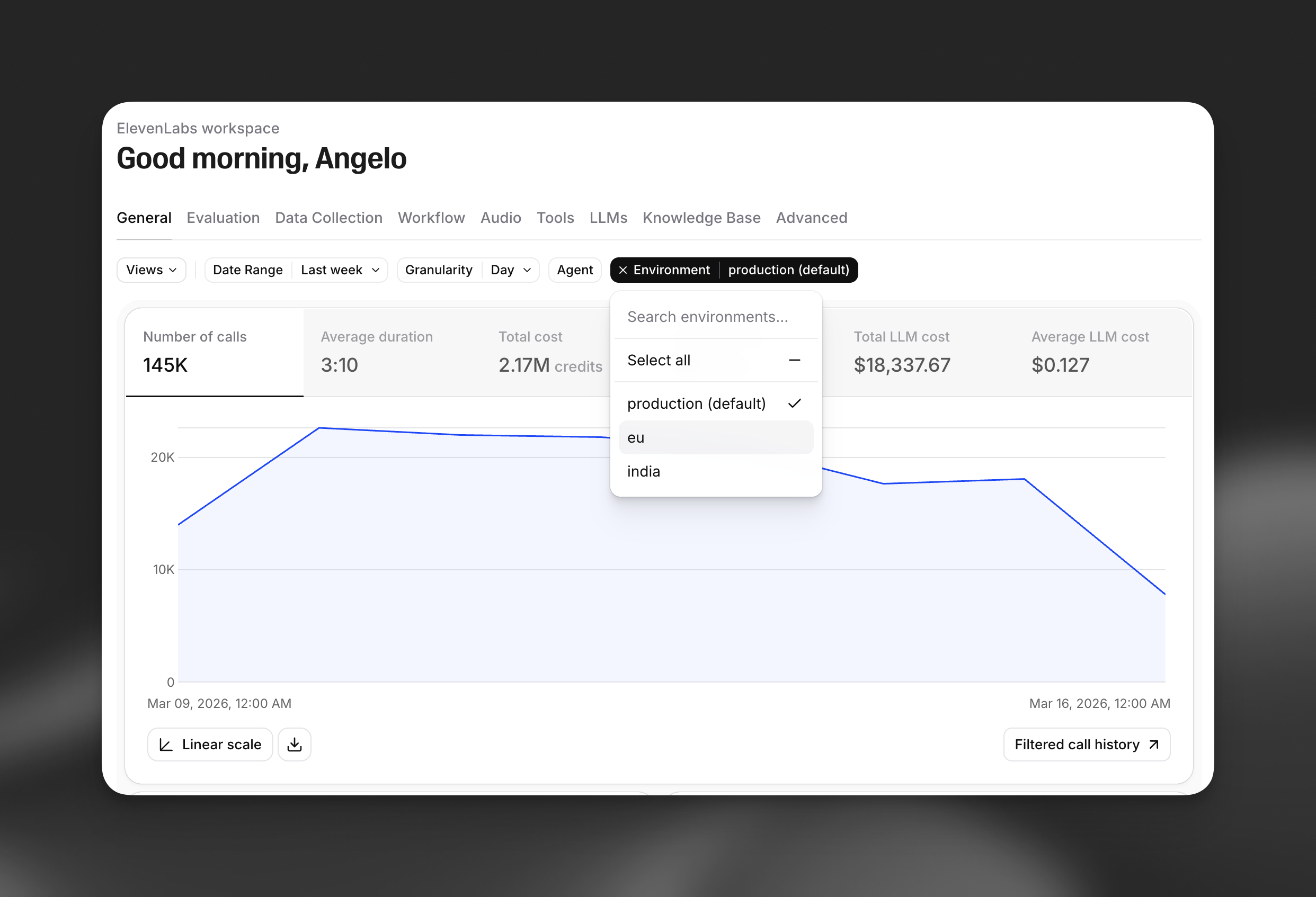
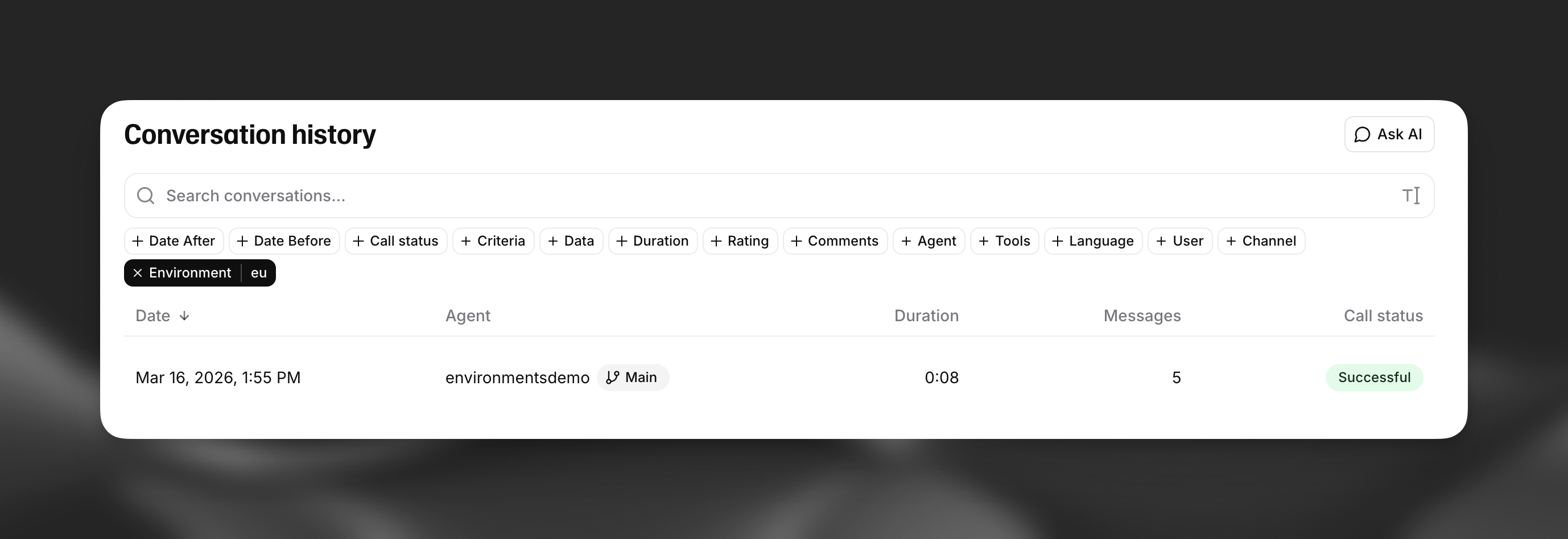
Filter by environment
Section titled “Filter by environment”The environment is tracked for every conversation. Filter your analytics dashboards and conversation history by environment to isolate metrics per deployment stage.
Naming constraints
Section titled “Naming constraints”- Labels: Alphanumeric characters and underscores only (e.g.,
base_url,api_key_v2) - Environment names: Must start with a lowercase letter and may contain only lowercase letters, digits, underscores, and hyphens, up to 64 characters (e.g.,
production,staging,dev-us-east) - Every environment variable must have a
productionvalue
Next steps
Section titled “Next steps”Configure webhook tools with environment-aware URLs and authentication
Connect MCP servers with per-environment configuration
Use different model endpoints across environments
Combine environment variables with branches and traffic splitting