Tool Call Sounds
Overview
Section titled “Overview”Tool call sounds provide ambient audio feedback during tool execution, creating a more natural and engaging conversation experience. When your agent executes a tool - such as fetching data from an API or processing a request - these sounds help fill moments of silence and indicate to users that the agent is actively working.
ElevenLabs Agents supports multiple built-in ambient sounds that you can configure at both the tool level and integration level, giving you fine-grained control over when and how sounds are played during your conversations.
Use Cases
Section titled “Use Cases”Tool call sounds are particularly effective in scenarios where:
- API calls take time to complete: Play ambient music or typing sounds while fetching data from external services
- Long-running operations: Provide audio feedback during database queries, complex calculations, or third-party integrations
- Natural conversation flow: Fill gaps in the conversation to prevent awkward silences
- User expectations: Signal to users that the agent is processing their request rather than experiencing technical issues
Available Sounds
Section titled “Available Sounds”ElevenLabs provides the following ambient audio options:
| Sound Type | Description | Best For |
|---|---|---|
| None | No sound during tool execution | Quick operations, silent workflows |
| Typing | Keyboard typing sound effect | Search queries, text processing |
| Elevator Music 1-4 | Light background music (upbeat) | Longer wait times, general use |
Configuration
Section titled “Configuration”Tool call sounds can be configured in two places, with tool-level configuration taking precedence:
Tool-Level Configuration
Section titled “Tool-Level Configuration”Configure sounds for individual tools in your agent's tool settings.
Update via the dashboard
Section titled “Update via the dashboard”Navigate to tool configuration
Section titled “Navigate to tool configuration”In the Agent section of your agent settings, select the tool you want to configure or create a new tool.
Configure tool call sound
Section titled “Configure tool call sound”Scroll to the Tool Call Sound section at the bottom of the tool configuration.
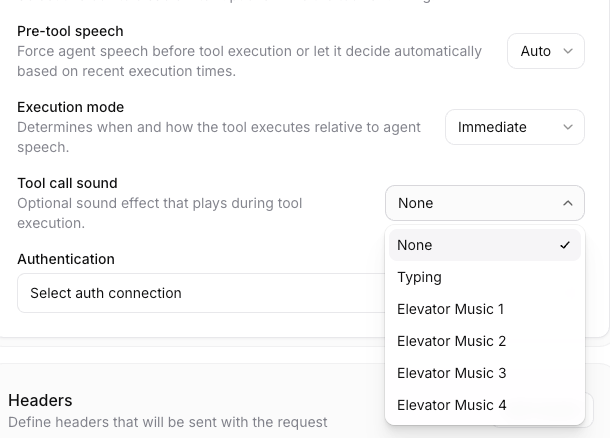
Select a sound from the dropdown menu:
- None: No sound will play
- Typing: Keyboard typing effect
- Elevator Music 1-4: Various ambient background music options
Configure sound behavior
Section titled “Configure sound behavior”If you've selected a sound (not "None"), you'll see an additional Sound Behavior option:
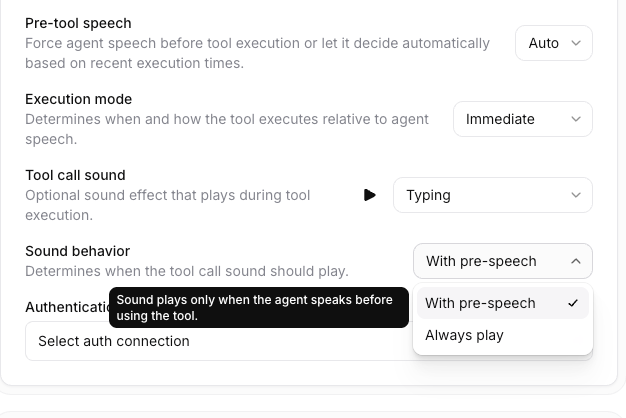
Choose when the sound should play:
- With pre-speech: Sound plays only when the agent speaks before executing the tool
- Always play: Sound plays during every tool execution, regardless of whether the agent speaks first
Save your configuration
Section titled “Save your configuration”Click Save to apply your tool call sound settings.
Update via the CLI
Section titled “Update via the CLI”Pull the tool configuration
Section titled “Pull the tool configuration”elevenlabs tools pullEdit `tool_configs/<tool-name>.json`
Section titled “Edit `tool_configs/<tool-name>.json`”Set tool_call_sound and tool_call_sound_behavior:
{
  "type": "webhook",
  "name": "get_weather",
  "tool_call_sound": "typing",
  "tool_call_sound_behavior": "auto"
}
Use "auto" for With pre-speech or "always" for Always play.
Push your changes
Section titled “Push your changes”elevenlabs tools pushUpdate via the API
Section titled “Update via the API”from elevenlabs import ElevenLabs, ToolRequestModel
elevenlabs = ElevenLabs()
elevenlabs.conversational_ai.tools.update(
tool_id="tool_7101k5zvyjhmfg983brhmhkd98n6",
request=ToolRequestModel(
tool_config={
"type": "webhook",
"name": "get_weather",
"description": "Gets current weather data",
"tool_call_sound": "typing",
"tool_call_sound_behavior": "auto",
"api_schema": {
"url": "https://api.weather.com/data",
"method": "GET",
},
},
)
)import { ElevenLabsClient } from "@elevenlabs/elevenlabs-js";
const elevenlabs = new ElevenLabsClient();
await elevenlabs.conversationalAi.tools.update("tool_7101k5zvyjhmfg983brhmhkd98n6", {
toolConfig: {
type: "webhook",
name: "get_weather",
description: "Gets current weather data",
toolCallSound: "typing",
toolCallSoundBehavior: "auto",
apiSchema: {
url: "https://api.weather.com/data",
method: "GET",
},
},
});Integration-Level Configuration
Section titled “Integration-Level Configuration”For tools created through integrations (MCP servers, API integrations, etc.), you can set default tool call sounds at the integration level:
Navigate to integration settings
Section titled “Navigate to integration settings”Go to Agent Settings > Integrations and select your integration.
Configure default sound
Section titled “Configure default sound”In the integration overview, locate the Tool Call Sound settings.
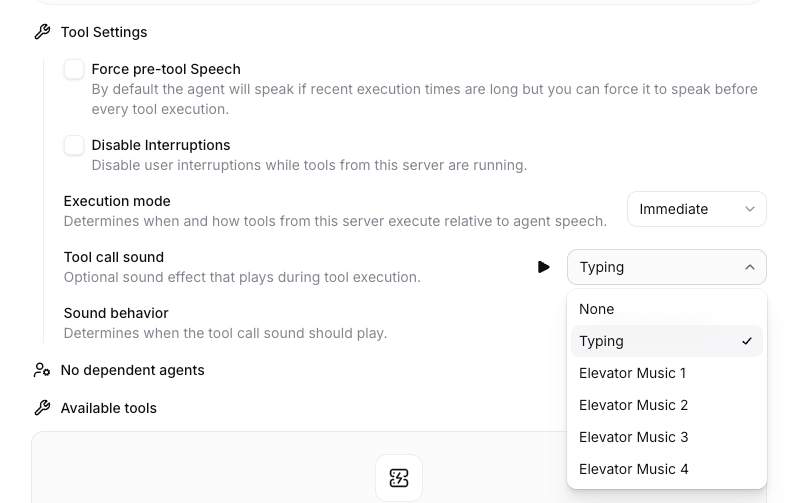
Select a default sound that will apply to all tools from this integration unless overridden at the tool level.
Override at tool level (optional)
Section titled “Override at tool level (optional)”You can override the integration-level default for specific tools by configuring tool call sounds in the individual tool settings.
Sound Behavior Options
Section titled “Sound Behavior Options”The sound behavior setting determines when tool call sounds play during a conversation:
With Pre-Speech (Auto)
Section titled “With Pre-Speech (Auto)”Default behavior. The sound plays only when the agent speaks before using the tool.
Example scenario:
User: "What's the weather in Tokyo?"
Agent: "Let me check that for you..." [typing sound plays while fetching weather data]
Agent: "It's currently 72 degrees and sunny in Tokyo."
When to use:
- When you want sounds to play only after the agent has acknowledged the request
- For a more natural conversational flow where silence after user speech would be awkward
- When tool execution immediately follows agent speech
Always Play
Section titled “Always Play”The sound plays during every tool execution, regardless of whether the agent speaks beforehand.
Example scenario:
User: "Check my order status"
[typing sound plays immediately while fetching order data]
Agent: "Your order #12345 shipped yesterday and will arrive tomorrow."
When to use:
- For operations that always take noticeable time
- When you want consistent audio feedback for every tool call
- For background operations that may not require agent acknowledgment
Best Practices
Section titled “Best Practices”Match sounds to tool execution time
Section titled “Match sounds to tool execution time”For quick operations (< 1 second), consider using "None" or the typing sound. For longer operations (> 3 seconds), elevator music options provide better user experience.
Use "With pre-speech" for acknowledged actions
Section titled “Use "With pre-speech" for acknowledged actions”When your agent explicitly acknowledges a request before executing it, use the "With pre-speech" behavior to create a natural conversation flow:
System prompt
When users request information, first acknowledge their request before using tools.
For example: "Let me check that for you..." then call the appropriate tool.
Configure at integration level for consistency
Section titled “Configure at integration level for consistency”If you have multiple tools from the same integration, configure tool call sounds at the integration level to ensure consistent audio feedback across all related tools.
Test with realistic latencies
Section titled “Test with realistic latencies”Test your tool call sounds with realistic API latencies to ensure the audio feedback matches user expectations. Consider:
- Network latency to your APIs
- API processing time
- Geographic distribution of your users
Balance with interruption handling
Section titled “Balance with interruption handling”If your agent supports user interruptions, tool call sounds will be automatically stopped when the user interrupts. Ensure your conversation flow handles this gracefully.
Example Configurations
Section titled “Example Configurations”Search Agent
Section titled “Search Agent”Use case: Agent that searches a knowledge base or database
Configuration:
- Tool call sound: Typing
- Sound behavior: With pre-speech
- System prompt includes: "When users ask questions, say 'Let me search for that' before calling the search tool."
Customer Service Agent
Section titled “Customer Service Agent”Use case: Agent that checks order status, inventory, or customer records
Configuration:
- Tool call sound: Elevator Music 3
- Sound behavior: Always play
- Rationale: Operations may take 2-5 seconds, and background music provides better experience than silence
Multi-Step Workflow
Section titled “Multi-Step Workflow”Use case: Agent that performs multiple sequential tool calls
Configuration:
- First tool: Typing with With pre-speech
- Subsequent tools: Elevator Music 1 with Always play
- System prompt orchestrates: "First acknowledge the request, then execute tools sequentially."
Troubleshooting
Section titled “Troubleshooting”Sound not playing
Section titled “Sound not playing”Possible causes:
- No pre-speech: If using "With pre-speech" behavior, the agent must speak before the tool executes. Update your system prompt to include acknowledgment.
- Quick execution: If the tool completes in less than ~500ms, the sound may not have time to play noticeably.
Related Resources
Section titled “Related Resources”- Webhook tools - Learn how to configure webhook tools
- Client Tools - Understand client-side tool execution
- System Tools - Explore built-in platform tools
- Best Practices - General best practices for building conversational agents