Genesys
Connect your ElevenLabs agents with Genesys Cloud
Overview
Section titled “Overview”Integrate ElevenLabs conversational AI with Genesys Cloud to power your contact center with natural-sounding voice and text agents. This integration supports both voice-based interactions through the Audio Connector and text-based conversations through the Bot Connector, enabling seamless customer experiences across multiple channels.
With this integration, you can deploy AI agents that handle inbound calls, chat conversations, and messaging interactions in your Genesys Cloud environment.
Capabilities
Section titled “Capabilities”| Capability | Support |
|---|---|
| Zero retention mode (ZRM) | Not supported |
| Attachments in conversations | Not supported — conversations carry audio and text only |
| Attachments in tools | Not supported — tools operate on text only |
This integration uses OAuth 2.0 Client Credentials for authentication.
Create OAuth client in Genesys Cloud
In Genesys Cloud Admin Center, navigate to Admin > Integrations > OAuth and click Add Client.
Configure the OAuth client
- Set Grant Type to Client Credentials
- Assign the admin role for your Division(s)
- Save the client configuration
Copy client credentials
After creating the OAuth client, copy the Client ID and Client Secret immediately — the secret will not be shown again.
Select region
Identify your Genesys Cloud region (e.g.,
mypurecloud.comfor US,mypurecloud.defor Europe, etc.).Connect to ElevenLabs
In the ElevenLabs dashboard, go to Agents > Integrations, click Add Integration and select Genesys. Under the Configure tab, enter your region, Client ID, and Client Secret.
Triggers
Section titled “Triggers”Audio Connector
Section titled “Audio Connector”For voice-based agents, configure the Genesys Audio Connector to connect phone numbers to your ElevenLabs conversational AI agents.
For step-by-step setup instructions including authentication, phone number configuration, and call routing, see the Genesys Audio Connector documentation.
Bot Connector
Section titled “Bot Connector”For text-based agents, use the Genesys Bot Connector trigger to enable chat and messaging interactions. The Bot Connector automatically creates and configures the integration in your Genesys Cloud environment.
Configure trigger
Section titled “Configure trigger”Add a Bot Connector trigger
On the Integrations page in the ElevenAgents dashboard, open the Genesys integration, and navigate to the Triggers tab. Select Genesys Bot Connector.
Configure the trigger fields
Fill in the required fields:
- Agent: the ElevenLabs agent that will handle incoming conversations.
- Integration Name: name for the Bot Connector integration to be created in Genesys Cloud (e.g., “ElevenLabs Support Bot”). This name is used to derive the bot integration and bot name referenced in Architect flows.
Activate the trigger
Save and activate the trigger. ElevenLabs automatically creates a Bot Connector integration in your Genesys Cloud environment with the intents
successandescalate. Deactivating the trigger removes the integration from Genesys Cloud.
Configure inbound message flow
Section titled “Configure inbound message flow”In Architect, open the Inbound Message Flow you want to use.
-
Add a Call Bot Connector node and point it at your bot integration and bot name (both derived from the Integration Name you set in the trigger configuration).
-
Handle the returned intents:
- success → send the agent’s response back to the user
- escalate → transfer to a support queue
- failure → transfer to a fallback queue
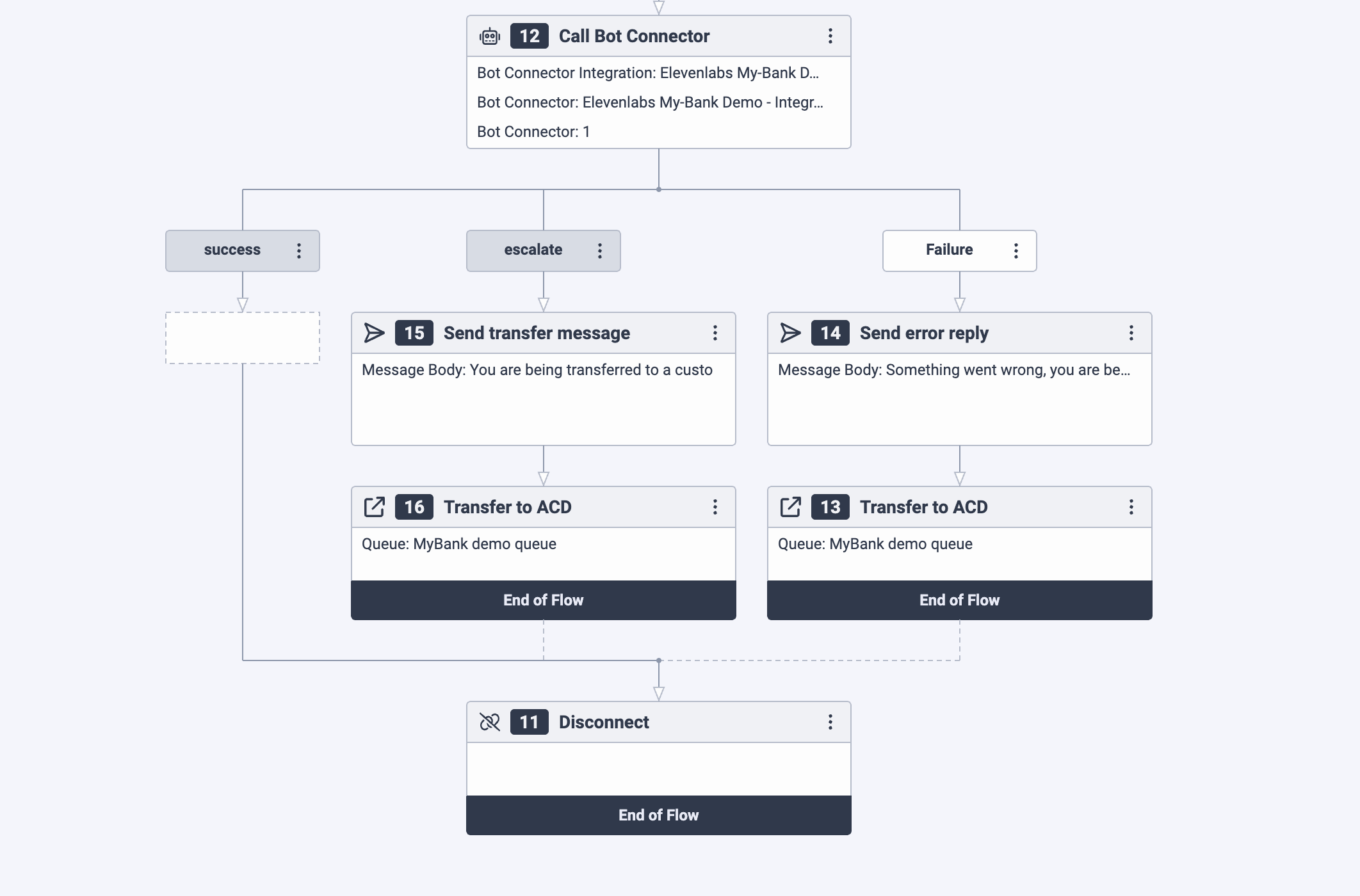
Example Genesys Bot Connector flow in Architect
Configure escalation
Section titled “Configure escalation”To enable your agent to escalate conversations to human support, configure the following in ElevenLabs:
Add the Update state tool
In your agent configuration, add the Update state system tool. Configure it to set the
genesys_should_escalatedynamic variable totrue.Configure the system prompt
Add escalation instructions to your agent’s system prompt:
### Escalation

When escalating, ALWAYS ask first if the user would like to talk to another client services team member. If they say yes, use the update_state tool to set the genesys_should_escalate dynamic variable to true.
Add business rules
Include escalation scenarios in your agent’s business rules. For example:
- If a question is partially covered, answer what you can and then escalate
- If a question is not covered in the knowledge base, respond: "I'm not able to help with that here". Then escalate to a client services team member.
When the agent sets genesys_should_escalate to true, the Bot Connector will return the escalate intent, triggering the escalation flow you configured in Architect.
Why did my Bot Connector trigger setup fail?
Section titled “Why did my Bot Connector trigger setup fail?”Setting up a Bot Connector involves multiple steps that need to propagate through Genesys internal systems. If propagation is slow, the setup can fail. Retrying after a couple of minutes usually succeeds. If the problem persists, reach out to ElevenLabs support.
Will agents see conversation history after escalation?
Section titled “Will agents see conversation history after escalation?”Yes, past messages will appear as bot messages in the Genesys interface, so the agent can see the full conversation history.
My Bot Connector is failing, how do I debug it?
Section titled “My Bot Connector is failing, how do I debug it?”In ElevenLabs, check for past conversations on your agent that originate from Genesys. These will have conversation IDs with a suffix gn_xxxxxx where the last six characters are the first characters of the connected Genesys conversation. If there are errors in the transcript, for example failed tool calls, address these.
Also check if the agent takes longer than 10 seconds to reply, as Genesys only gives it a 10 second timeout.
If there are no past conversations, the error might be on the Genesys side. In the Genesys Architect, check the execution history of your flow. Find it in the drop-down menu of the save button.