Model Context Protocol
User Responsibility
You are responsible for the security, compliance, and behavior of any third-party MCP server you integrate with your ElevenLabs conversational agents. ElevenLabs provides the platform for integration but does not manage, endorse, or secure external MCP servers.
Overview
Section titled “Overview”The Model Context Protocol (MCP) is an open standard that defines how applications provide context to Large Language Models (LLMs). Think of MCP as a universal connector that enables AI models to seamlessly interact with diverse data sources and tools. By integrating servers that implement MCP, you can significantly extend the capabilities of your ElevenLabs conversational agents.
ElevenLabs allows you to connect your conversational agents to external MCP servers. This enables your agents to:
- Access and process information from various data sources via the MCP server
- Utilize specialized tools and functionalities exposed by the MCP server
- Create more dynamic, knowledgeable, and interactive conversational experiences
Enable MCP for your workspace
Section titled “Enable MCP for your workspace”MCP is disabled by default for every workspace. Before anyone can add or use MCP servers, one member of the workspace must opt in on the workspace's behalf.
Dashboard
Section titled “Dashboard”The opt-in happens automatically the first time someone tries to add an MCP server from the MCP server integrations dashboard. A dialog asks them to review and accept the Model Context Protocol Server Terms — accepting enables MCP for the entire workspace, so every member with access to ElevenAgents can then add MCP servers and attach them to agents.
You can enable or disable MCP for the workspace directly by updating the can_use_mcp_servers workspace setting:
from elevenlabs import ElevenLabs

elevenlabs = ElevenLabs()

elevenlabs.conversational_ai.settings.update(can_use_mcp_servers=True)import { ElevenLabsClient } from "@elevenlabs/elevenlabs-js";
const elevenlabs = new ElevenLabsClient();
await elevenlabs.conversationalAi.settings.update({ canUseMcpServers: true });Setting can_use_mcp_servers back to false disables MCP for the workspace. Existing MCP server integrations are kept, but agents can no longer use them until the setting is enabled again.
Once MCP is enabled for the workspace, each MCP server you add is its own resource: the member who creates it can share it with other workspace members individually, similar to sharing an agent or a knowledge base document.
Getting started
Section titled “Getting started”In this example, we'll use Zapier MCP, which lets you connect ElevenAgents to hundreds of tools and services.
Add via the dashboard
Section titled “Add via the dashboard”Open MCP integrations
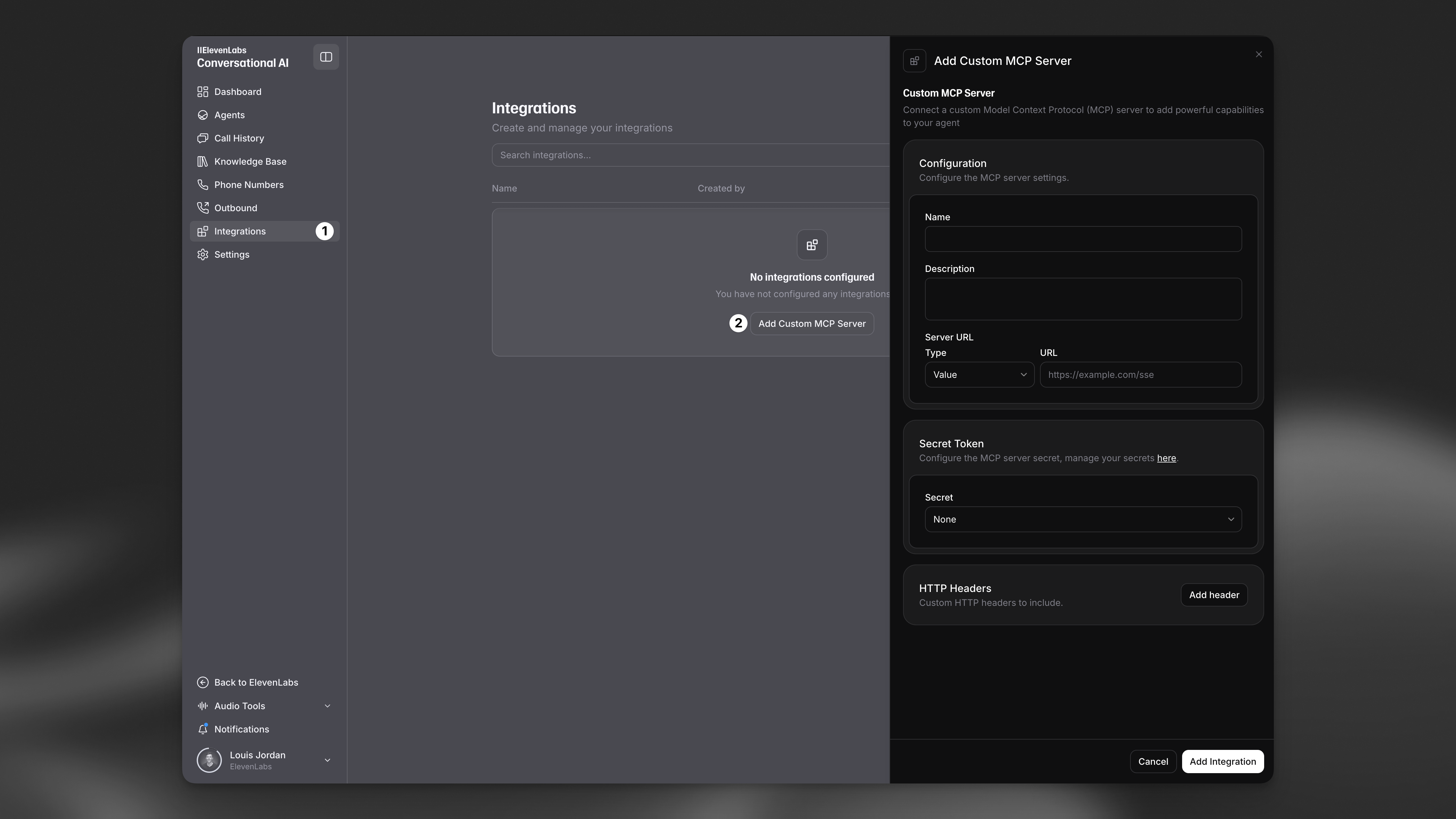
Section titled “Open MCP integrations”Navigate to the MCP server integrations dashboard and click Add Custom MCP Server.
Configure the MCP server
Section titled “Configure the MCP server”Enter the following details:
- Name: The name of the MCP server (e.g., "Zapier MCP Server")
- Description: A description of what the MCP server can do
- Server URL: The URL of the MCP server. If this contains a secret key, treat it like a password and store it as a workspace secret.
- Secret Token (optional): Authorization header value
- HTTP Headers (optional): Any additional headers the server requires
Save and test the connection
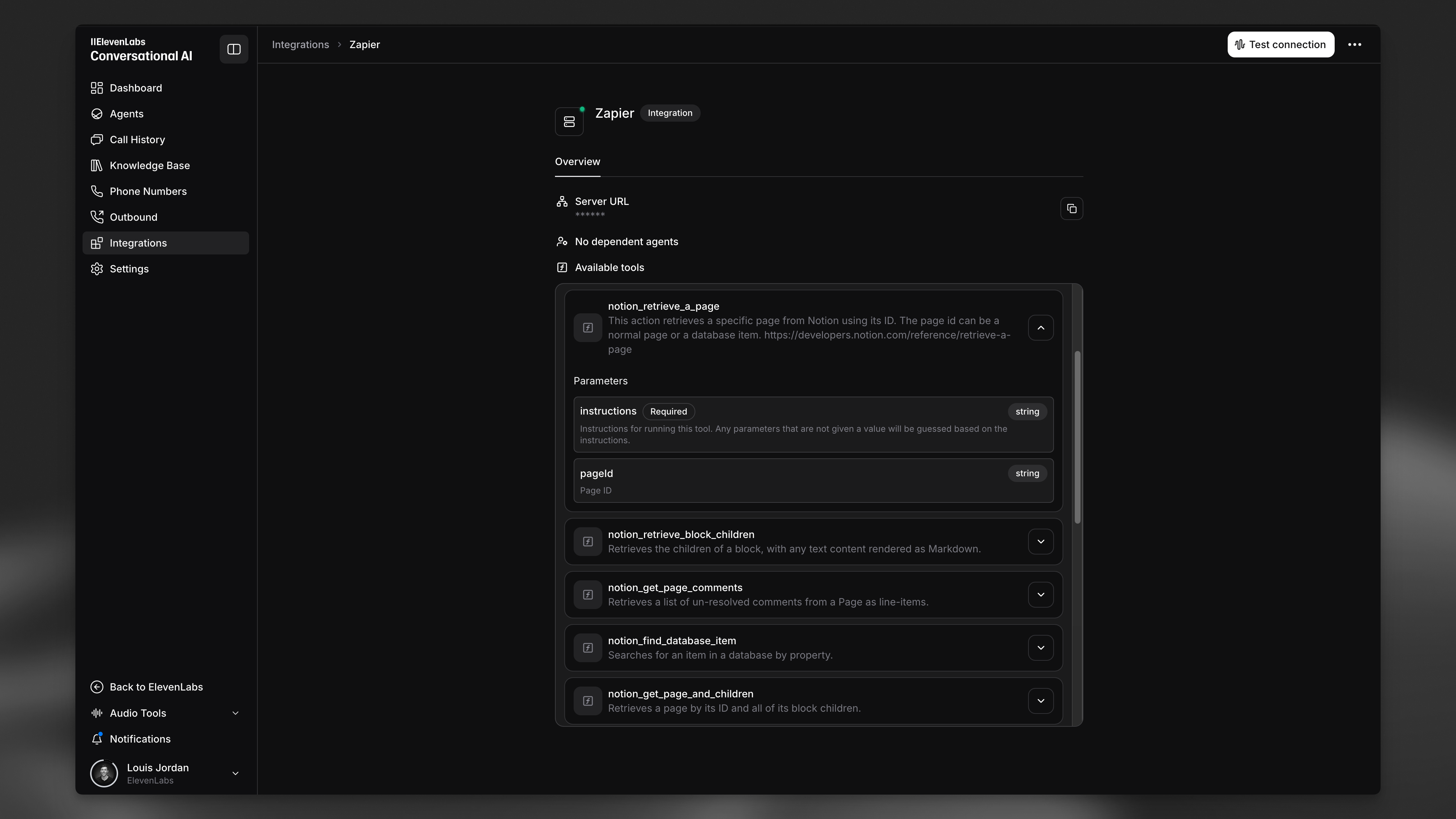
Section titled “Save and test the connection”Click Add Integration to save the integration and test the connection to list available tools.
Attach the server to an agent
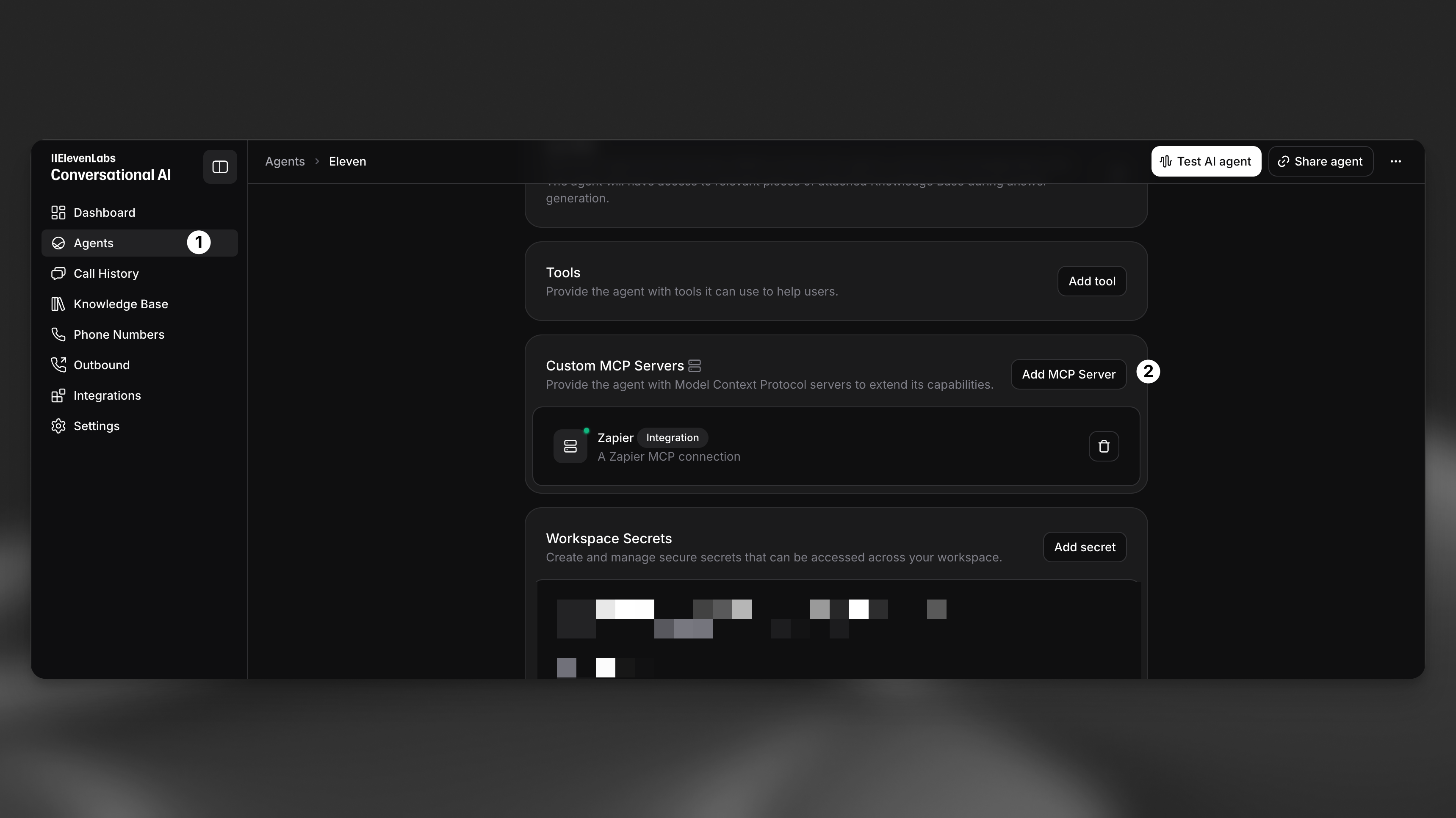
Section titled “Attach the server to an agent”The MCP server is now available to add to your agents. MCP support is available for both public and private agents.
Add via the API
Section titled “Add via the API”from elevenlabs import ElevenLabs
elevenlabs = ElevenLabs()
server = elevenlabs.conversational_ai.mcp_servers.create(
config={
"url": "https://mcp.zapier.com/api/mcp/...",
"name": "Zapier MCP Server",
"description": "An MCP server with access to Zapier's tools and services",
"approval_policy": "always_ask",
"transport": "SSE",
},
)
elevenlabs.conversational_ai.agents.update(
agent_id="agent_7101k5zvyjhmfg983brhmhkd98n6",
conversation_config={
"agent": {"prompt": {"mcp_server_ids": [server.id]}},
},
)import { ElevenLabsClient } from "@elevenlabs/elevenlabs-js";
const elevenlabs = new ElevenLabsClient();
const server = await elevenlabs.conversationalAi.mcpServers.create({
config: {
url: "https://mcp.zapier.com/api/mcp/...",
name: "Zapier MCP Server",
description: "An MCP server with access to Zapier's tools and services",
approvalPolicy: "always_ask",
transport: "SSE",
},
});
await elevenlabs.conversationalAi.agents.update("agent_7101k5zvyjhmfg983brhmhkd98n6", {
conversationConfig: {
agent: { prompt: { mcpServerIds: [server.id] } },
},
});Tool approval modes
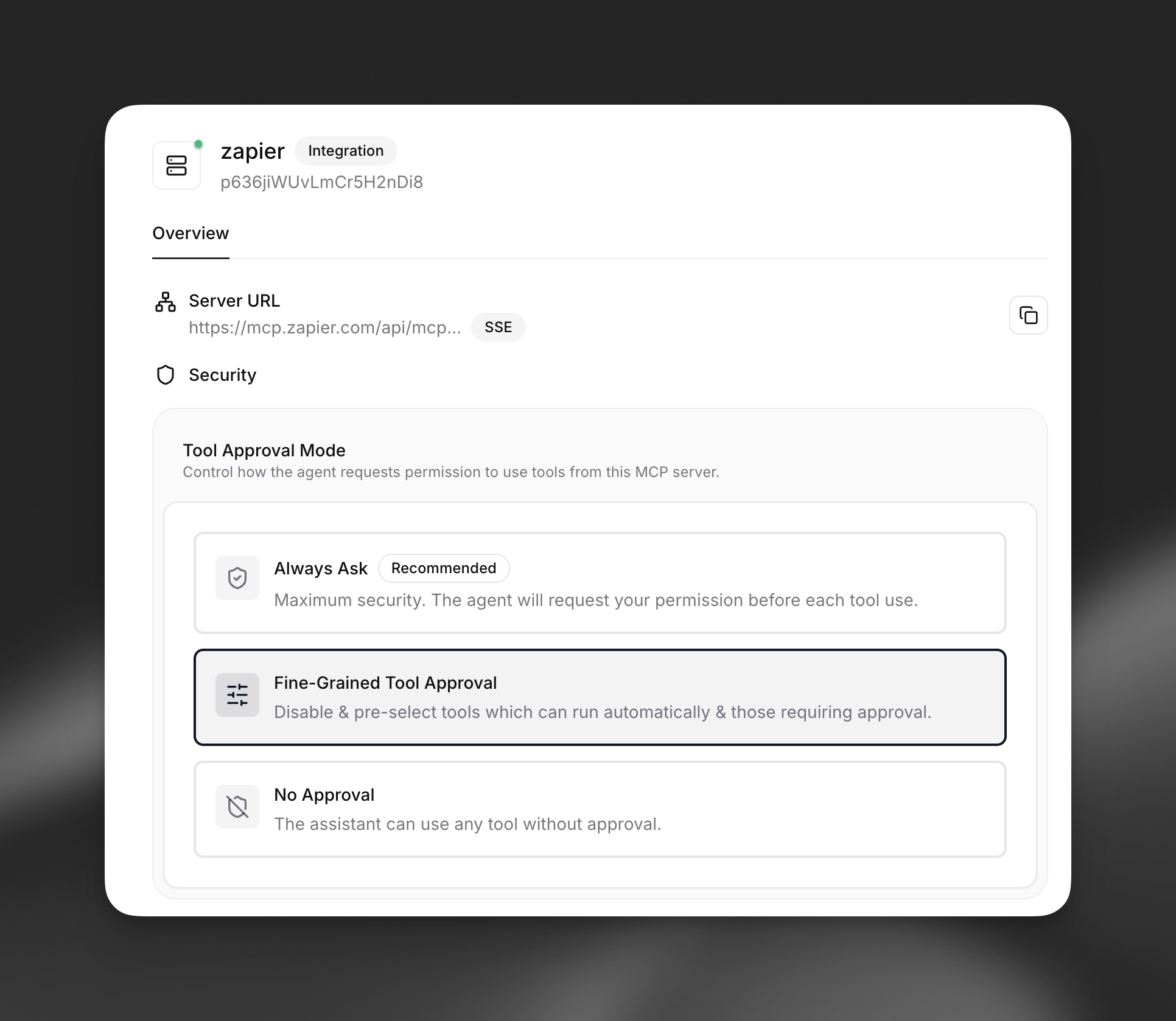
Section titled “Tool approval modes”ElevenLabs provides flexible approval controls to manage how agents request permission to use tools from MCP servers. You can configure approval settings at both the MCP server level and individual tool level for maximum security control.
Available approval modes
Section titled “Available approval modes”- Always Ask (Recommended): Maximum security. The agent will request your permission before each tool use.
- Fine-Grained Tool Approval: Disable and pre-select tools which can run automatically and those requiring approval.
- No Approval: The assistant can use any tool without approval.
Fine-grained tool control
Section titled “Fine-grained tool control”The Fine-Grained Tool Approval mode allows you to configure individual tools with different approval requirements, giving you precise control over which tools can run automatically and which require explicit permission.
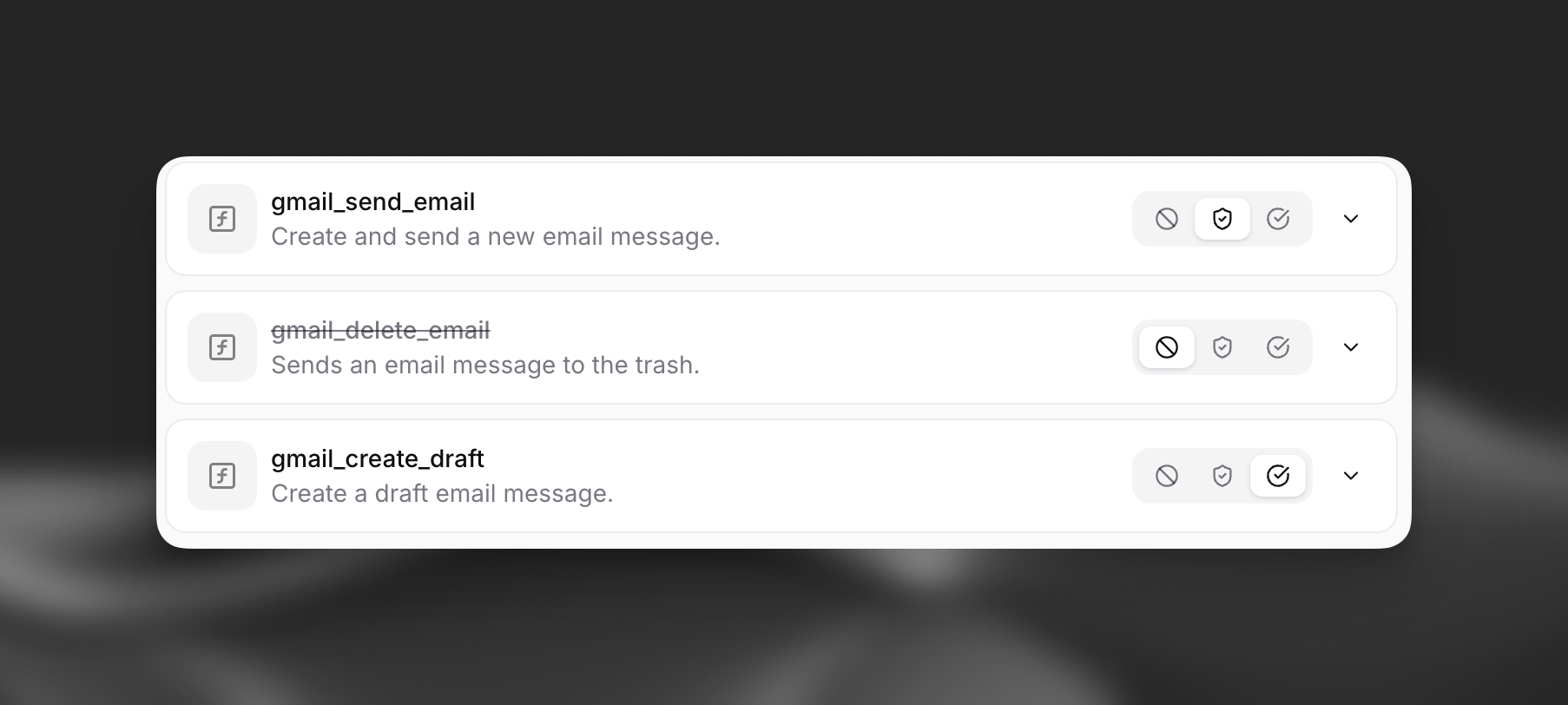
For each tool, you can set:
- Auto-approved: Tool runs automatically without requiring permission
- Requires approval: Tool requires explicit permission before execution
- Disabled: Tool is completely disabled and cannot be used
Key considerations for ElevenLabs integration
Section titled “Key considerations for ElevenLabs integration”- External servers: You are responsible for selecting the external MCP servers you wish to integrate. ElevenLabs provides the means to connect to them.
- Supported features: ElevenLabs supports MCP servers that communicate over SSE (Server-Sent Events) and HTTP streamable transports for real-time interactions.
- Dynamic tools: The tools and capabilities available from an integrated MCP server are defined by that external server and can change if the server's configuration is updated.
Security and disclaimer
Section titled “Security and disclaimer”Integrating external MCP servers can expose your agents and data to third-party services. It is crucial to understand the security implications.
Important Disclaimer
By enabling MCP server integrations, you acknowledge that this may involve data sharing with third-party services not controlled by ElevenLabs. This could incur additional security risks. Please ensure you fully understand the implications, vet the security of any MCP server you integrate, and review our MCP Integration Security Guidelines before proceeding.
Refer to our MCP Integration Security Guidelines for detailed best practices.
Finding or building MCP servers
Section titled “Finding or building MCP servers”- Utilize publicly available MCP servers from trusted providers
- Develop your own MCP server to expose your proprietary data or tools
- Explore the Model Context Protocol community and resources for examples and server implementations
Resources
Section titled “Resources”- Anthropic's MCP server examples - A list of example servers by Anthropic
- Awesome Remote MCP Servers - A curated, open-source list of remote MCP servers
- Remote MCP Server Directory - A searchable list of Remote MCP servers